
Settings
Settings is one dialog with Common, Presets, Hotkeys (desktop), Chart, Integrations (desktop), Theme, Account, Export, and Import. Common now begins with sticky Application, Interface, Data and sorting, and Scoring navigation, followed by metric blocks. Signed-in settings are stored in the account; anonymous demo settings stay in the browser.
What this section covers
- What the "Common tab contains: time zone and schedule deviation; list behavior over graphs; display of notification dialog in network and single coin modes; display of the single coin browser window size; leafing buttons in "All charts mode; sound selection, option "Voice", voice speed and volume regulator; OS notification switch; notification switch in the application; selection of available timelines (what buttons are shown on the chart); sorting types and order; scoring profiles; timelines and calculation depth for NATR, PΔ, Pavg, volume, [M7], and volume levels; and trend setting, timelines, and timelines; determining the size, size, and depth of the timelines; determining the timelines, parameters, and settings of the timelines; determining the size, size, and depth of the timelines; determining the timelines, parameters, parameters, and settings of the timelines, and the timelines of the timelines (M6], [M6], [M7], [M1]); determining the size, size, and size of the timelines, and the size of the timelines of the timelines; determining the timelines, the size of the timelines, and the size of the timelines of the timelines, and the timelines of the timelines of the timelines; and the timelines of the timelines.
- How the Common tab navigation works: after analyzed intervals, a sticky row of buttons jumps directly to the settings block for each list parameter, such as round numbers, levels, trends, large orders, OI, Funding, NATR, VR, PΔ/Pavg, rBTC, and TA/TR.
- How Types and order of sortings works: the enabled row defines the order of sort modes when you repeatedly click a sortable list column. Single click moves a mode to the right in that order; double click moves a mode between enabled and disabled.
- What the Scoring block contains: a switch, built-in scenario profiles, custom profiles, profile descriptions, recommended parameters, component weights, a link to the matching guide page for built-in profiles, and an Apply profile button that overwrites current settings with profile recommendations.
- What the Presets tab contains: ready-made settings packs for scenarios from the guide, such as momentum scalping, level breakout, reaction from a level or density, OI/Funding overheat, and chart pattern search. Applying a preset overwrites the parameters included in that preset and turns off unrelated options so the resulting setup matches the scenario.
- What the "Chart tab contains: information switches on the chart timeframe, countdown to new candle, date and time of candle, OHLC prices, opening/closing difference, funding value, countdown funding, P24 and V24; the signature mode of the "No" / "When assigned" figures on the desktop or "When selected" figures on the mobile / "Always; background, size and signature position; on the desktop radius of the point of the assigned figure. Value volume V refers to the OHLC block and is hidden along with the OHLC.
- What the Chart patterns block contains: enable/disable pattern detection, choose the timeframes to scan, set minimum score, maximum pattern age, maximum distance from the current price, and whether only confirmed patterns should be shown.
- Trading style recommendations for chart patterns: use the ranges as a starting point, then tighten or loosen them based on your acceptable noise level.
- Scalping / fast intraday — short trades within the day: quick moves, positions held from a few minutes to an hour, and patterns are relevant only for a short window. Timeframes: 5m and 15m, check context on 1h. Minimum score 80-90, maximum age 3-6 candles, maximum distance 1-3%, confirmed only — on.
- Intraday — trades within a single trading day: setups that may play out over several hours, with possible confirmation needed near a level or after a breakout. Timeframes: 15m and 1h, use 4h as higher-timeframe context. Minimum score 75-85, maximum age 6-12 candles, maximum distance 3-5%, confirmed only — on.
- Swing — trades lasting several days or longer: larger structure, higher-timeframe levels, and confirmed patterns matter more, while lower-timeframe noise matters less. Timeframes: 4h and 1d. Minimum score 70-85, maximum age 12-30 candles, maximum distance 5-10%, confirmed only — on.
- Finding forming ideas — a watch mode for potential patterns: the pattern may not be confirmed yet, may fail, or may turn into a different scenario. Timeframes: 1h, 4h, 1d. Minimum score 60-75, maximum age 20-60 candles, maximum distance 10-20%, confirmed only — off.
- Strict mode / minimum noise — screener filter: shows only the cleanest, freshest patterns closest to price; there will be fewer signals, but higher selection quality. Timeframes: 1h, 4h, 1d. Minimum score 85-95, maximum age 5-12 candles, maximum distance 2-6%, confirmed only — on.
- Learning and historical review — example study mode: useful for comparing strong and weak patterns, reviewing older setups, and understanding which settings produce more or fewer signals. Timeframes: any you need. Minimum score 50-70, maximum age 60-120 candles, maximum distance 20-50%, confirmed only — can be turned off.
- What the Theme tab contains: color pickers for every visual token in the application — chart background, text, borders, active and inactive elements, button states, chart grid, candlestick colors (up, down, flat), level colors, trend colors, alert markers, inactive shape color, and the List color block. The List block also has a Gradient switch that controls whether list cells use intensity-based backgrounds.
- What the Integrations tab contains on desktop: opening a selected symbol in an external terminal. Tiger.Trade uses a local signal server and a linking group; MetaScalp uses a local API and an optional binding number; Vataga opens the exchange symbol through its terminal integration when the terminal is running and app integration is enabled.
- What the "Account tab contains: email address management (save, confirm), password change (requires current password), choice of notification delivery channel (Telegram or Email), subscription period tied to UID Tiger/Vataga and their accumulated, spent and available balance.
- What the Export tab contains: checkboxes for settings groups and individual fields, so you can download only the parts you need — general settings, chart settings, or theme.
- What the "Import tab contains: downloading the Watchlist.top export file, strict format, version, field, type, list and range checks, preview available groups and checkboxes of choice. The incorrect file is rejected before recording; only selected top-level groups are used, the remaining current settings are saved.
- How settings are saved: all settings are stored in your account on Watchlist.top servers. Opening the product in a different browser or on another device loads the same settings automatically.
- How the orderbook big volume type works in settings: "Auto" derives the threshold from the orderbook data; "Value" lets you set a fixed threshold that applies globally (individual coin overrides from the orderbook panel take precedence).
- How confirmed levels parameters affect what levels appear in the list and on charts: the count and allowed difference control how strictly a price area must be revisited before being counted as a level.
Key screens and controls
- Settings dialog with Common, Presets, Hotkeys, Chart, Integrations, Theme, Account, Export, and Import.
- Common tab with the orderbook section expanded showing volume type selector and related parameters.
- Common tab with Types and order of sortings and the sticky parameter navigation row.
- Common tab with Scoring enabled, built-in profile buttons, custom profile controls, recommended parameters, guide link, and Apply profile button.
- The "Common" tab with the single-coin window size and the leafing buttons set to "All charts".
- Presets tab with scenario cards, applied setting values, and guide links.
- Common tab with Open Interest settings: enable switch, comparison period, Value/Change display mode, and the base-coin toggle that changes depending on the selected display mode.
- Common tab with Funding column settings.
- Common tab with the levels section showing count, allowed difference, and breakout toggle.
- The "Chart" tab with information about candles, the signature mode of the figures, the background, the size and position of the text, the radius of the control points and the settings of the graphic patterns.
- Integrations tab on desktop with Tiger.Trade link group selection, MetaScalp binding setting, and Vataga terminal instructions with screenshot previews.
- Theme tab with ready-made presets, manual color swatches, and the List Gradient switch.
- The "Account" tab has email status, password change form, delivery channel, subscription period and balance UID Tiger/Vataga.
Step-by-step flow
- Open Settings from the main navigation. The dialog opens on the last active tab.
- On the Common tab, adjust chart padding if chart elements are clipped or too close to the edge.
- On the "Common] tab, set whether the list can be displayed above the charts, whether the notification dialog in grid and single coin modes is open, the size of the single coin window, and the display of floating leafing buttons in "All charts mode.
- On the Common tab, use Types and order of sortings to decide which sort modes are available and in what order repeated clicks on a column header cycle through them.
- On the Common tab, configure NATR timeframe and candle count if the default 14-candle setting does not match your trading style.
- On the Common tab, enable Scoring if you want a Score column. Choose a built-in profile or create a custom one. For a built-in profile, open its guide page if needed, apply the profile if you want recommended settings, then save settings.
- On the Common tab, configure the trades window if you use TA or TR in the list. Trades support 1m, 5m, 15m, and 1h windows and are independent from the chart timeframe buttons.
- On the Common tab, configure Open Interest if you use the OI column. Enable the column, choose whether the cell shows current value or percentage change, choose the comparison period, and choose whether Value or Change uses base coin or quote coin.
- On the Common tab, enable the Funding column if you want the list to show the current futures funding rate in column F.
- On the Common tab, configure orderbook big volume type. Set it to "Auto" for a dynamic threshold or "Value" to enter a fixed volume number.
- On the Common tab, use the sticky parameter buttons after analyzed intervals to jump to the block you need without scrolling through every metric setting manually.
- On the Presets tab, choose a trading scenario, review the list of settings that will be applied, open the linked guide page if needed, and apply the preset. After applying, review the forms and save the settings to the account.
- On the Chart tab, include the display parameters you need: timeframe, candle countdown, candle date and time, OHLC price, opening/closing difference, value and funding countdown, P24 and V24. For the figures, select the signature mode "No", "When set"/"When selected", or "Always", then set the background, size and position of the text; and on the desktop, increase the radius of the checkpoints if necessary.
- On the Chart tab, configure patterns if you want automatic pattern overlays. Enable detection, choose the timeframes, then adjust minimum score, maximum age, maximum distance, and confirmed-only mode.
- On desktop, use the Integrations tab if you want list and chart buttons to open the selected exchange ticker in Tiger.Trade, MetaScalp, or Vataga. For Tiger.Trade, choose the linking group; for MetaScalp, optionally enter a binding number; for Vataga, enable app integration in the terminal.
- On the Theme tab, apply a ready-made theme preset or click any color swatch to edit a token. Changes apply immediately so you can preview the result before closing.
- On the Theme tab, use the List → Gradient switch to enable or disable intensity-based coloring for list cells that use above/below price or positive/negative difference colors.
- On the "Account" tab, type or change your email, change your password, select delivery to Telegram or email, check the subscription period and balance of the UID Tiger/Vataga attached.
- On the Export tab, select the groups or individual fields you want to save and download the settings file.
- Select the settings export file created by the app on the "Import" tab. If you have passed the check, select only the required groups and import them. If the format is wrong, nothing is saved; the settings not selected and not in these groups remain the same.
- Close Settings. Changes to metric timeframes and thresholds will be reflected in the list columns on the next data update cycle.
Screenshots
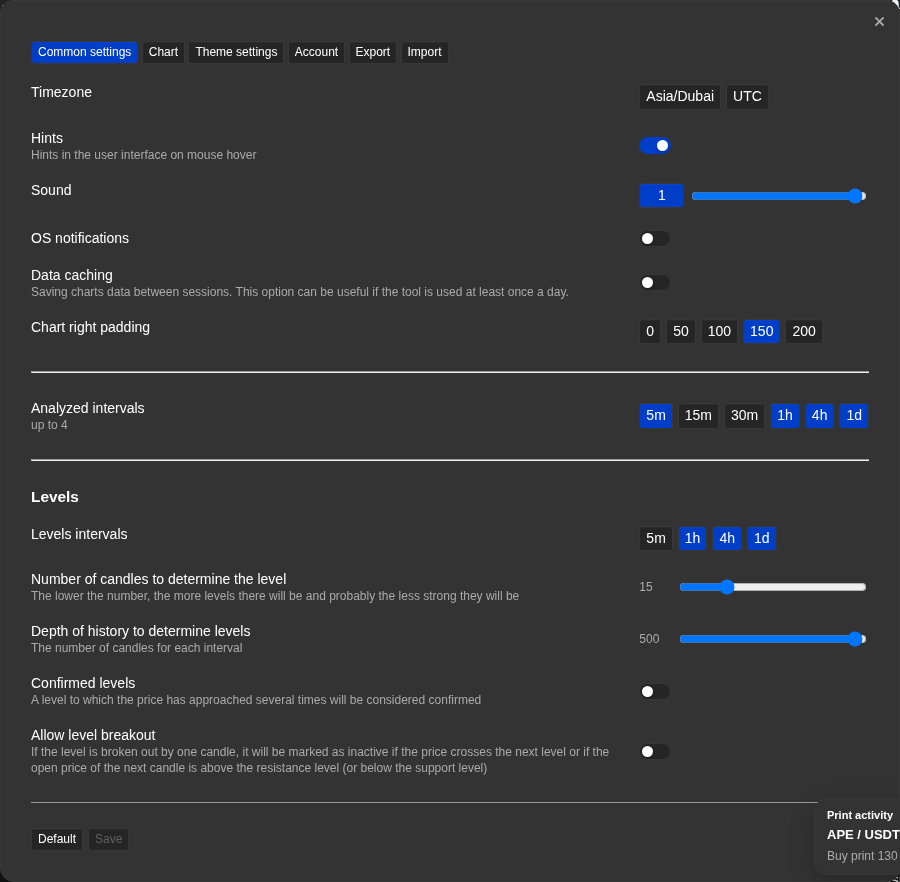
Settings dialog showing the main tabs
The tab bar gives access to Common, Presets, Hotkeys, Chart, Integrations, Theme, Account, Export, and Import.
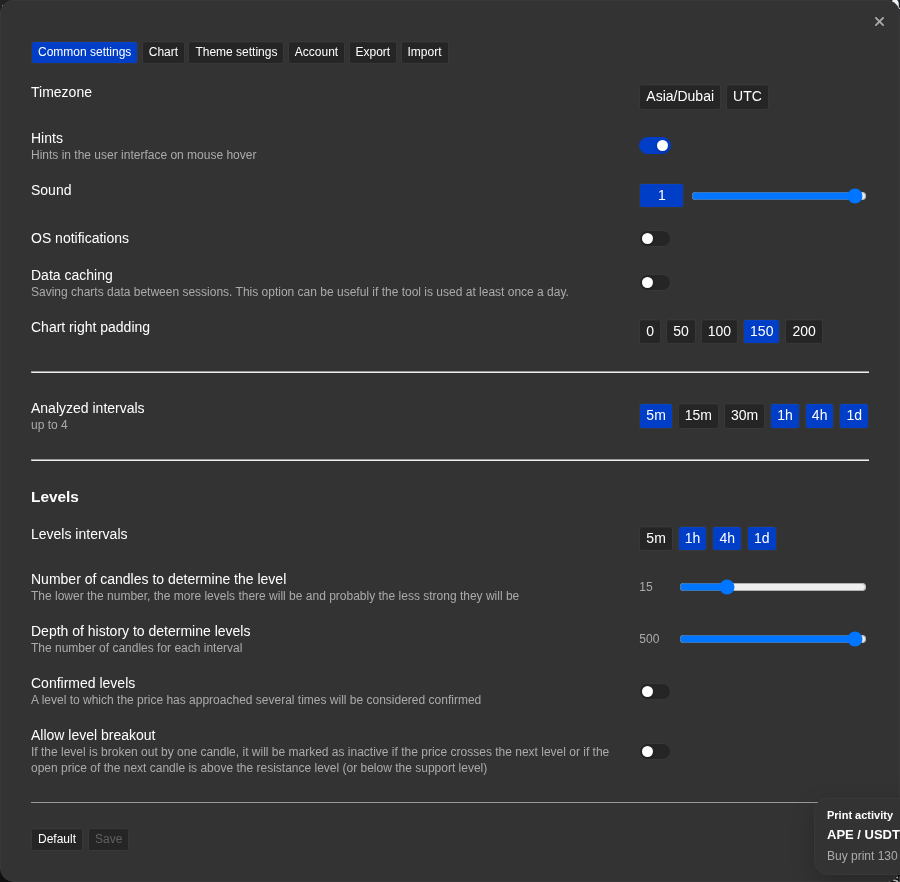
Common tab — orderbook and NATR parameters
Frequently adjusted parameters include big volume type and NATR candle count.
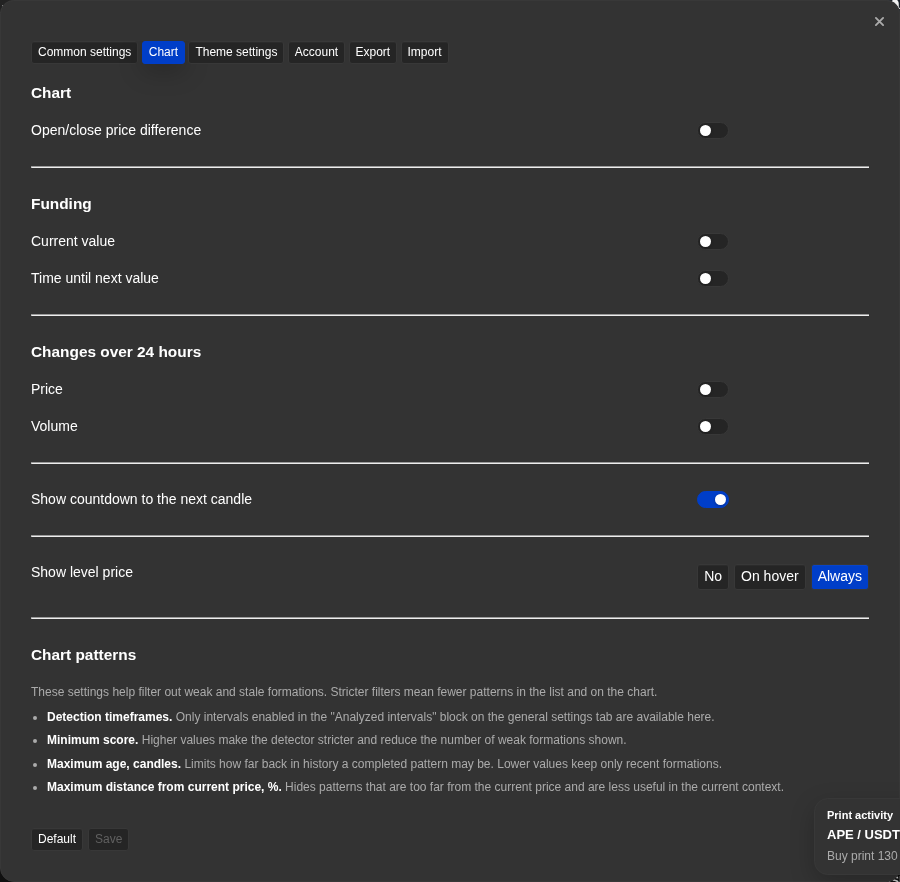
Chart tab — display toggles and patterns
Chart info toggles, level price mode, and chart pattern settings are grouped here.
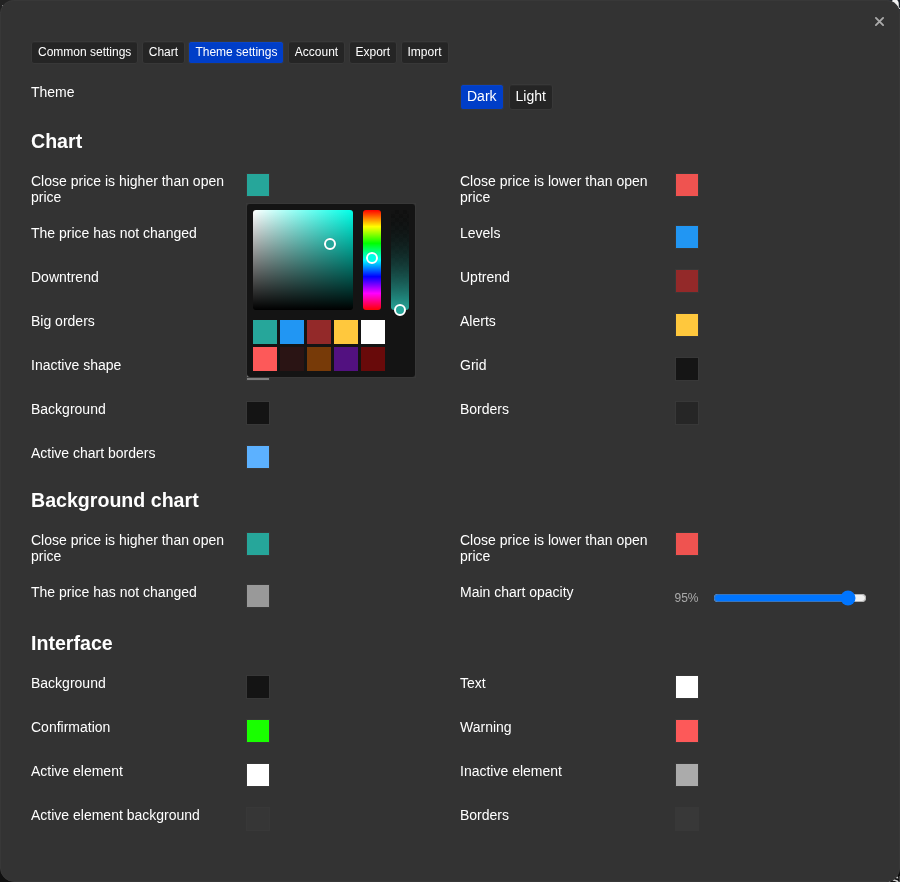
Theme tab — list colors and gradient switch
The List color block contains the Gradient switch and the color picker for each visual token.
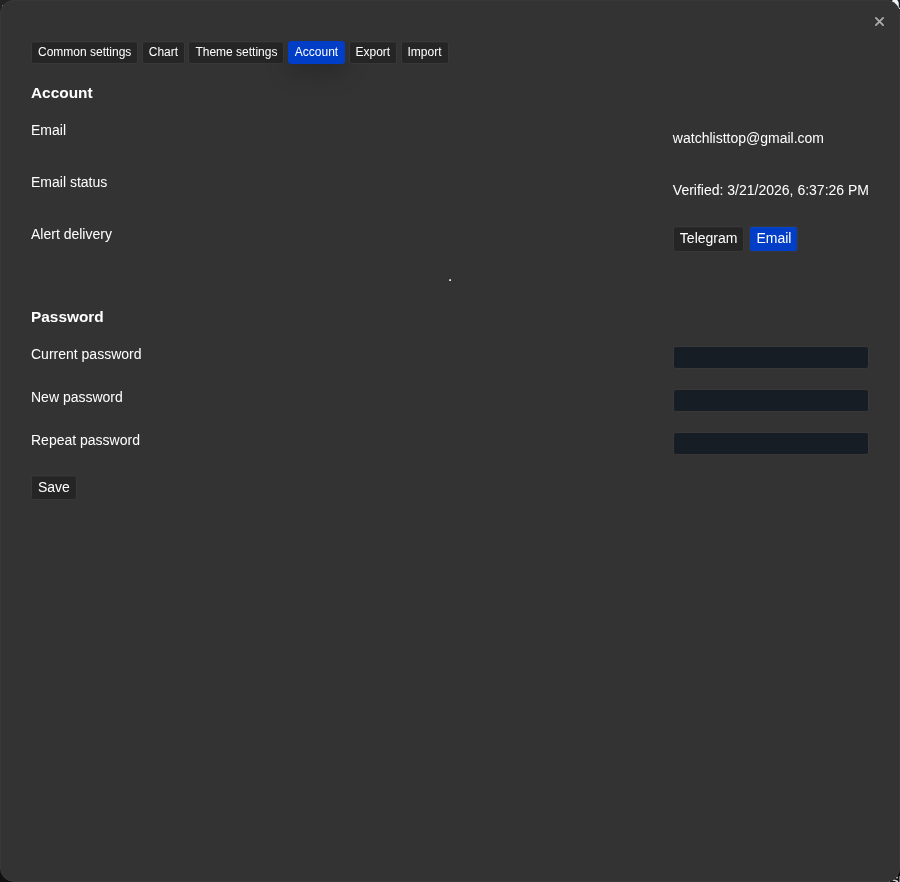
Subscription and brokerage loans
The screen shows the delivery channel, subscription period and the balance of the attached UID Tiger/Vataga.
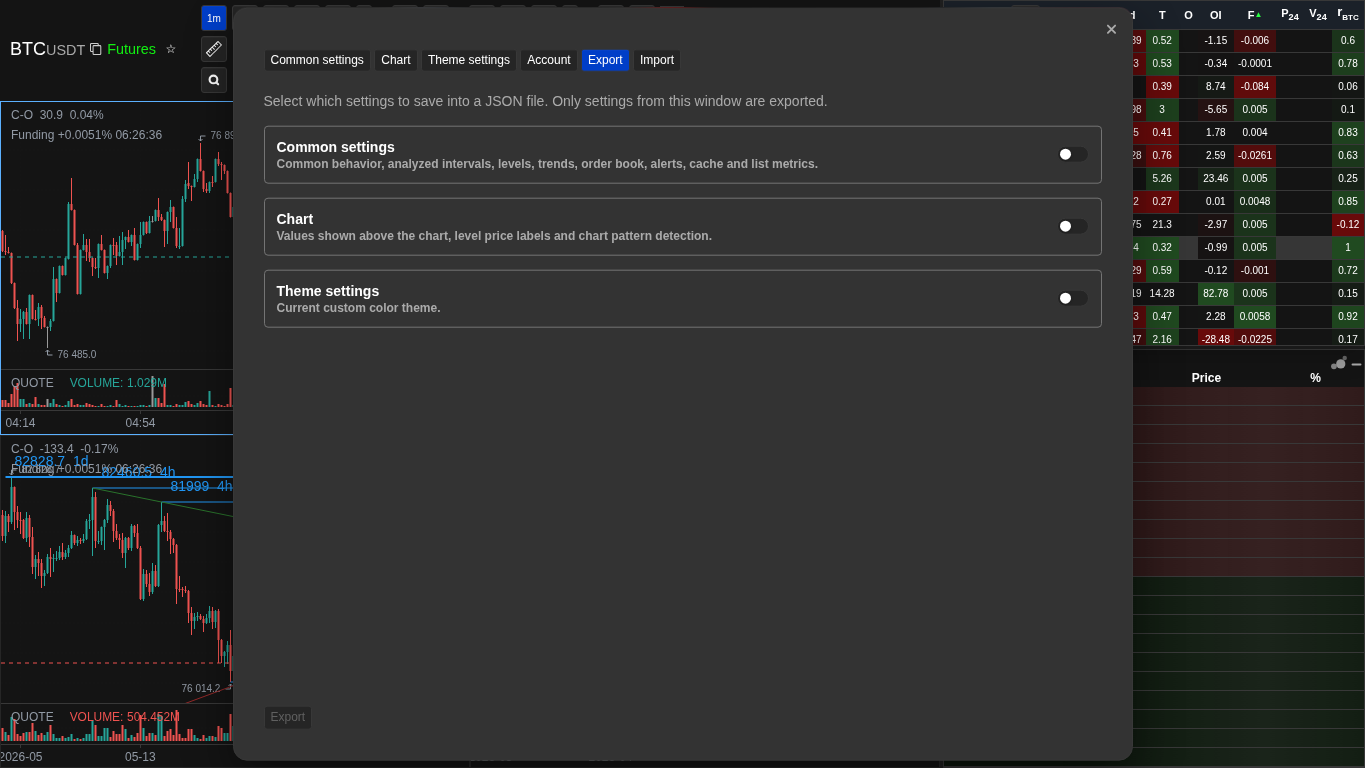
Export and Import tabs
Export and import use selectable groups and fields so only the chosen settings are transferred.
Screenshots
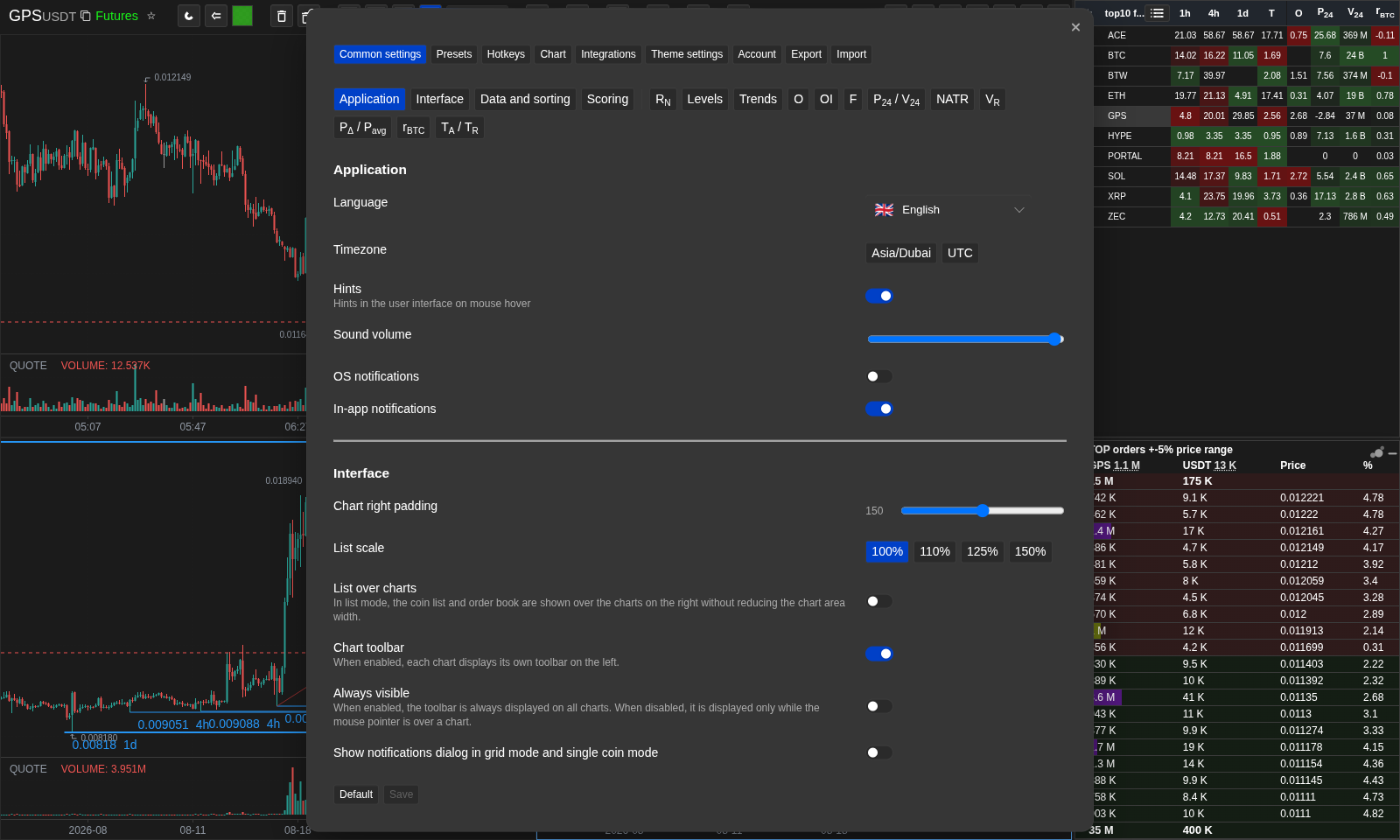
Current Common settings navigation
Sticky section buttons provide direct access to Application, Interface, Data and sorting, Scoring, and metric blocks.
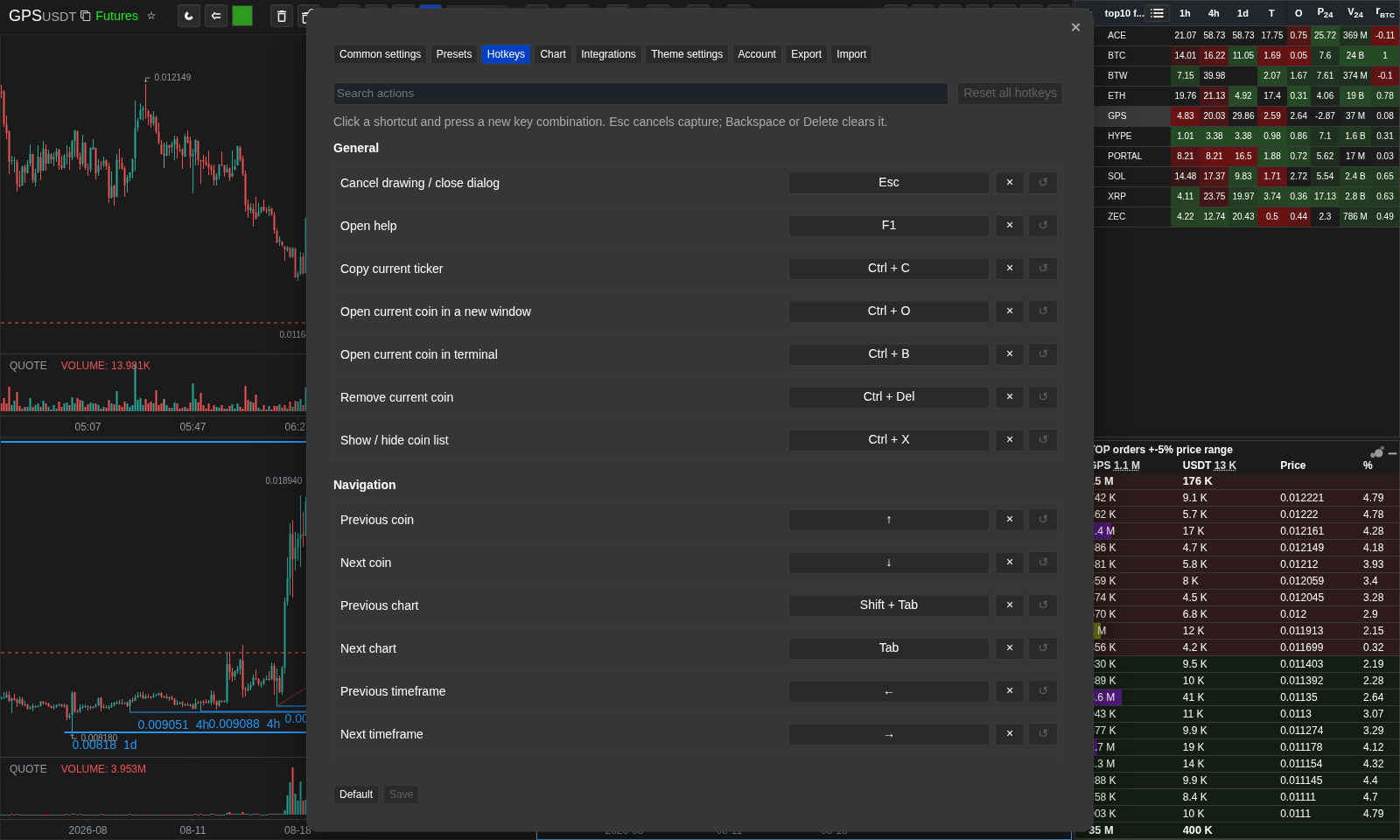
Configurable hotkeys
Search actions, capture a shortcut, review conflicts, clear a binding, or reset it to the default.
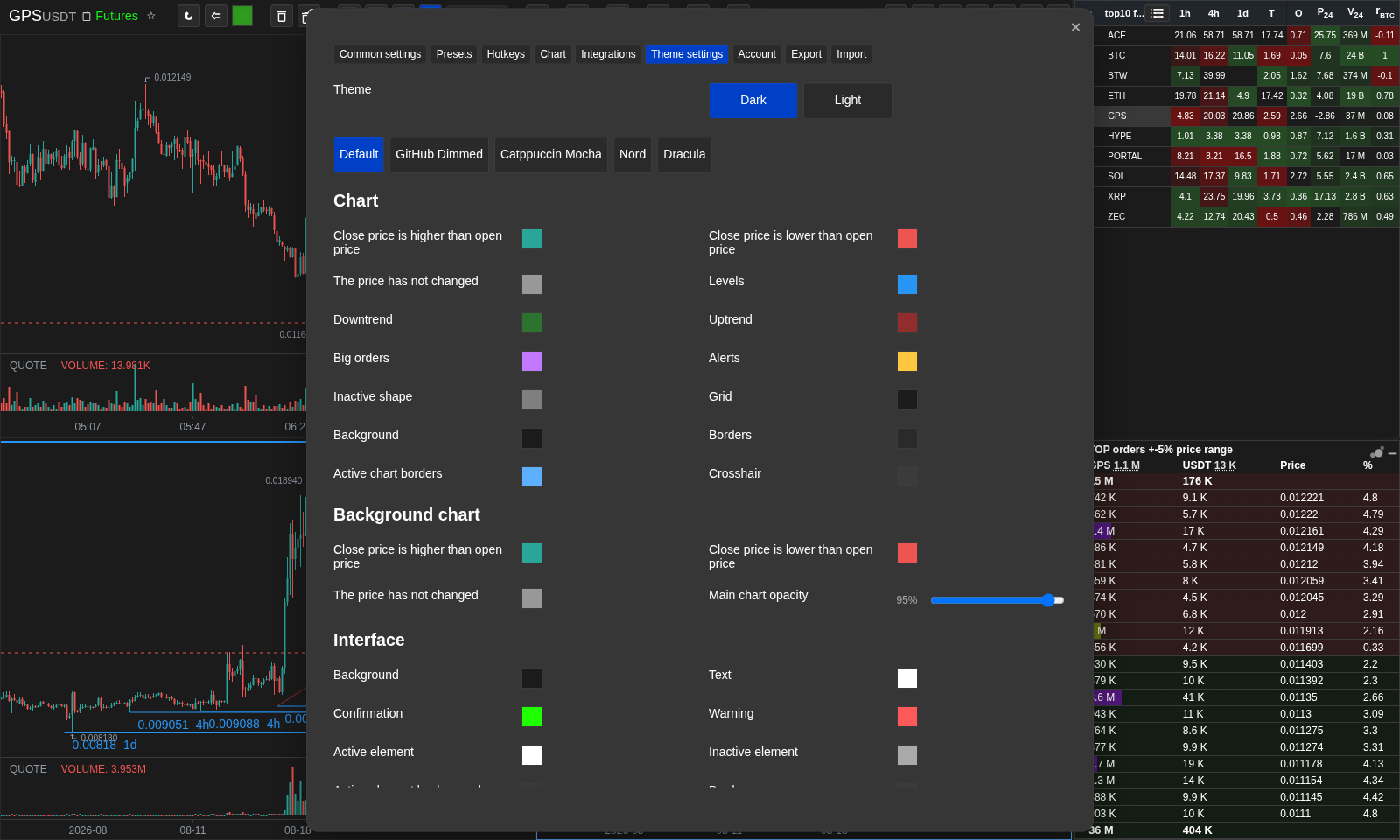
Ready-made theme presets
Apply a complete palette first, then fine-tune individual colors if needed.
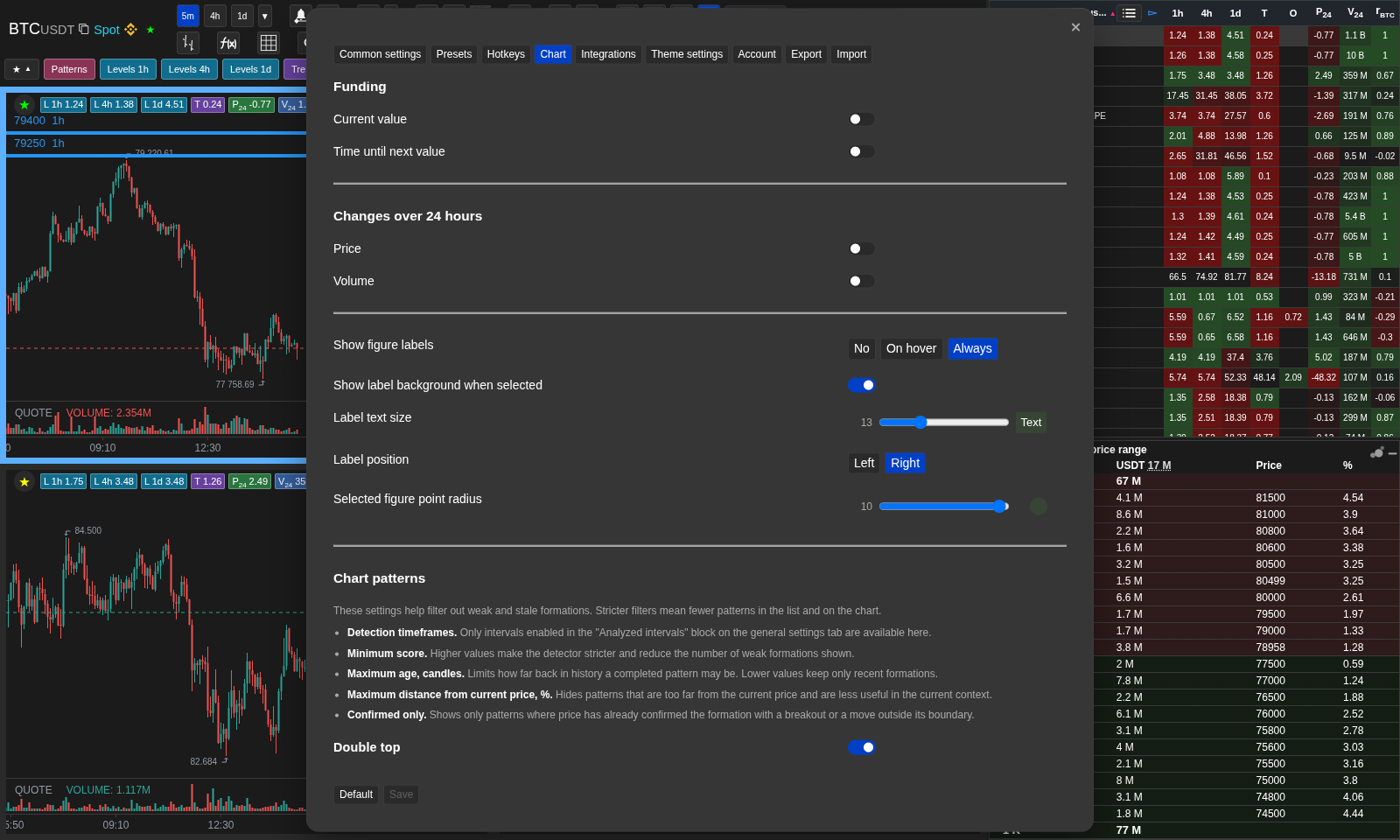
Shape labels and control points
Chart settings control label mode, background, size, position, and desktop point radius.
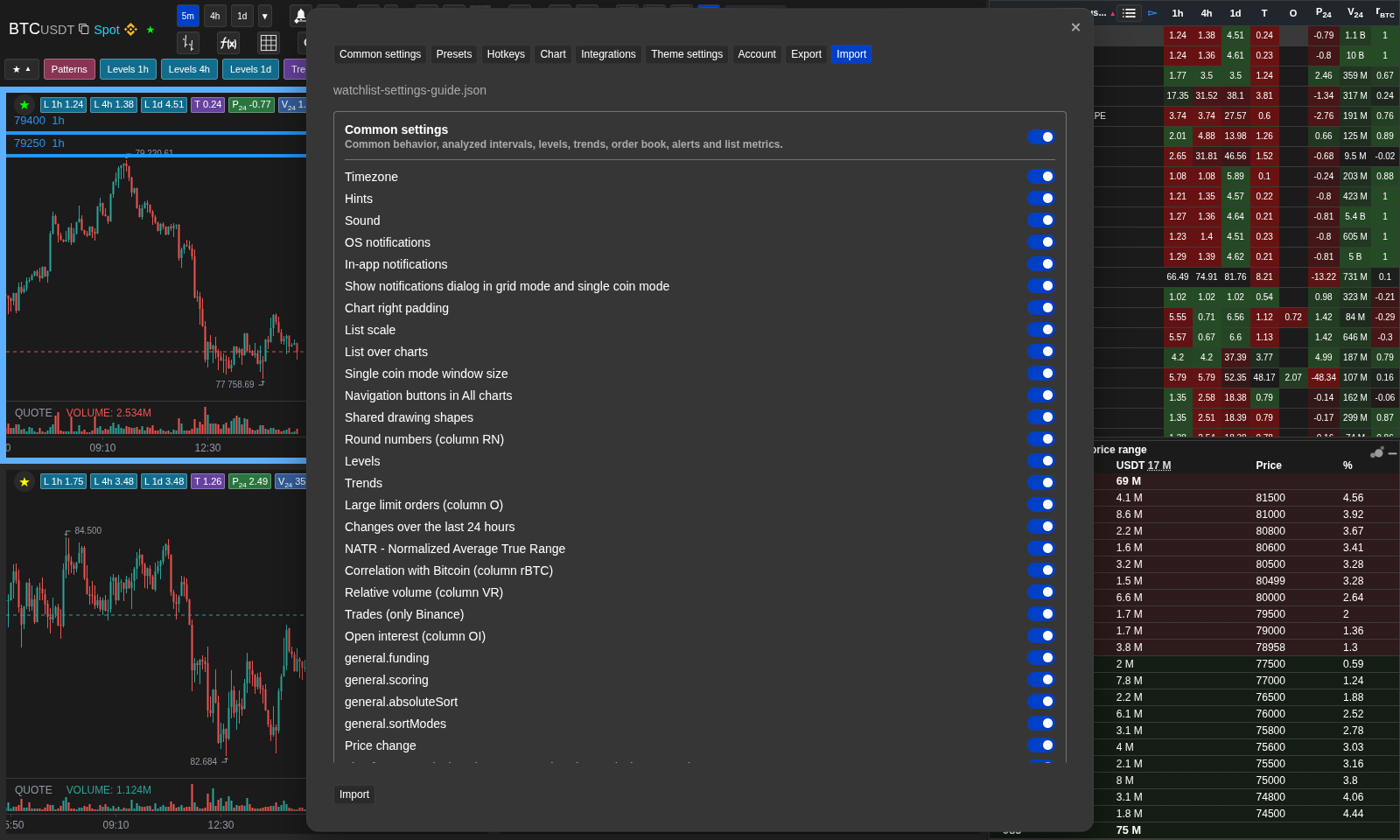
Safe selective import
The file is validated first; only selected groups are applied.
Operational notes
- For signed-in users, settings are stored in your account on Watchlist.top servers and are available on any device or browser you sign in from. In anonymous demo, settings are local to the current browser.
- Theme changes apply immediately and do not require saving. If you close the dialog without saving, any theme edits made during the session are still applied because the change happened live.
- The OS notifications toggle controls native browser or Android notifications. The in-app notifications toggle controls toast cards inside the app window; it is enabled by default and is separate from Telegram/email delivery.
- Presets are scenario shortcuts, not a separate strategy engine. Applying a preset changes the listed settings and turns off unrelated options so the screen reflects that scenario. In demo states the app shows the standard access warning instead of applying the preset.
- Metric timeframes and windows (NATR, PΔ, Pavg, relative volume, rBTC, trades, levels, trends) are configured on the Common tab, not the Chart tab.
- Scoring is configured on the Common tab. It is separate from the Presets tab: presets configure scenario settings, while scoring profiles rank coins by weighted metrics.
- Applying a built-in scoring profile overwrites the current metric settings listed in that profile. It does not automatically save to the account until you click Save.
- The trades setting is a rolling window for TA and TR, not one of the chart timeframe buttons. Its available values are 1m, 5m, 15m, and 1h.
- Open Interest settings affect only the OI column. The comparison period controls cell coloring and Change display; it does not change chart timeframes or other list metrics.
- In Open Interest Value mode, the base-coin toggle changes only the displayed unit of the current position size. In Change mode, the base-coin toggle changes the calculation basis for the percentage: base OI or quote-value OI.
- When OI is set to Change and no past comparison point exists yet, the OI cell can be empty even though the current value is available in the tooltip once data loads.
- The Funding column switch affects only column F in the list. Chart funding value and countdown are separate toggles on the Chart tab.
- The List Gradient switch affects columns that use configured list colors. For levels, trends, and order distance, the closest value to the current price receives the strongest color. For OI Value in quote coin, the largest visible value receives the strongest green intensity; OI Value in base coin is not gradient-colored.
- Chart info and chart patterns are configured on the Chart tab. Metric calculation windows for the list still remain on the Common tab.
- The Integrations tab is desktop-oriented. The terminal must be running locally, and the local server or API must be enabled where the selected terminal requires it. The app sends the exchange ticker as it is represented on the exchange, for example OKX futures symbols use the exchange format.
- The Chart tab controls only what is drawn in the chart info block. If OHLC prices are hidden, the V volume value is hidden with them because it belongs to the same candle data line.
- The signature of the figures on the "Chart" tab has three modes. On the desktop, the middle mode means display when inserted, on the mobile when choosing the figure. The background, size and position of the text are kept separately; the radius of the control points is available on the desktop.
- The "Type and order of sorting" block changes only the order of the list lines.
- The single coin window size setting controls the browser window that opens with the single coin action.
- The configuration export files use the configuration format Watchlist.top and contain only selected groups and fields. They do not contain account data, password, subscription data, or server price notifications.
- Import only accepts the correct export of the Watchlist.top settings: structure, version, permissible keys, types, listings, and ranges are checked.
- When selectively imported, the application sends and applies only the marked top-level groups. Settings are not replaced by missing values from the file and keep current status.
- Import/export settings are not available in demo mode and during the trial.
- The global volume of the glass is used for all coins unless a single change is made from the glass panel.
- The parameters of the confirmed levels advanced settings. The default values are suitable for most scenarios; change them only if you understand how they affect the definition of the levels.
- The "Account" tab in Settings is identical to account management from the main page cap. The changes made in any of the locations are the same.
- The sound selection controls the local playback of alerts within the application. If "Voice is selected, the speech engine of the browser or device reads the alert text instead of the short sound. Voice, speed and volume are only for local playback and do not change delivery to Telegram/email.
- Using a profile is a one-time display of settings, not a frozen copy of all metric values. If you change the setting of the participating metric after the application, the profile will read the new value in the following calculations Score.
- The user profile of the scoring keeps a list of components, weight, selected timeframes of components and distance settings that are only relevant to the scoring. General metric settings, such as VR, NATR, levels, trends and behavior of the glass, are still taken from the current settings.
- Common starts with sticky Application, Interface, Data and sorting, and Scoring navigation. Interface includes per-chart vertical toolbar and Always visible modes.
- On desktop, Hotkeys supports search, shortcut capture, clearing, conflict detection, individual reset, and Reset all; tooltips use the current binding.
- Theme presets: Default dark/light, GitHub Dimmed, Catppuccin Mocha, Nord, Dracula, and Solarized Light. In orderbook settings, the fixed threshold mode is named Value, not Custom.
- Import settings are strict and atomic: an invalid file does not change an account, and a valid file only transfers selected groups.
When to use it
- Change metric calculation here: timeframes, candle count, thresholds for NATR, PΔ, Pavg, relative volume, rBTC, trends, and levels.
- Use this section to set up the scan profiles and the support buttons of the "All charts mode.
- Apply presets here when you want the settings to match one of the guide trading scenarios without filling every field manually.
- Configure desktop terminal integrations here when you want list or chart actions to open the selected symbol in Tiger.Trade, MetaScalp, or Vataga.
- Adjust the visual theme and UI colors here.
- Configure sound alerts, OS notifications, in-app notifications, chart padding, and timezone here.
When not to rely on it
- If you want to manage lists or coins — that is in the Lists section, not here.
- If you have a problem with alert delivery or account access — see the Notifications or Account sections.
Typical interpretation mistakes
- Treating OS notification permission as a normal account setting — browser notification permission is managed by the browser and is not part of account settings.
- Changing the default drawing color and expecting already saved figures to update — existing figures keep their own color, only new ones use the new default.
Algorithms and formulas to understand
- How settings sync between devices: settings are stored in your account and load automatically on any device after sign-in
- How the confirmed levels parameters (count, allowed difference) affect the strictness of level detection
- How the global big volume threshold and per-coin override interact when both are set
- How chart info toggles decide which values are drawn above the candles
- How presets overwrite only the scenario parameters and disable unrelated options to keep the applied setup readable
- How Types and order of sortings expands and orders the click cycle for columns that can contain negative values
- How scoring profiles apply recommended metric settings and calculate a weighted Score column
- How Open Interest display settings decide whether the OI cell shows current position size or selected-window percentage change
- How the Open Interest base-coin toggle changes meaning between Value mode and Change mode
- How list Funding and chart Funding are controlled by separate settings
- How the List Gradient switch changes cell background intensity for price-distance columns, difference columns, and quote-coin OI Value
- How chart pattern filters use score, age, distance, timeframe, and confirmation state
- How terminal integrations choose the local protocol: Tiger.Trade through the signal server and link group, MetaScalp through its local API and optional binding, Vataga through its application integration
- As the leafing buttons of the "All charts" mode are displayed and positioned separately from the "Selected charts" mode
- How settings transfer files include only selected groups and fields
- How to check the file to the recording and how to import the selected file to save the unmarked settings