
Orderbook
The orderbook panel sits below the coin list and shows the top bid and ask orders for the currently selected coin. Its main purpose is to make large orders visible at a glance. Three levels of highlighting separate ordinary orders from notable ones and from truly large ones, while the threshold that defines "large" can be set automatically or overridden for each coin individually. The same large-order data is also used by the large-order map, where big orders from the visible list are shown as bubbles by size and distance from price.
What this section covers
- What the orderbook panel displays: the top bid (buy) and ask (sell) orders for the currently selected coin, including their volume in base and quote currency and their percentage distance from the current price.
- How the displayed range is limited: only orders within roughly ±5% of the current price are shown, so deep orders far from the market price are not visible.
- What the three highlighting levels mean: the first level is the normal/background level, the second level marks orders above half the current threshold, and the third level marks orders above the full threshold.
- How the threshold volume is determined: in auto mode it comes from the orderbook data; in global custom mode Settings → Common defines a fixed quote-volume threshold; and a per-coin override from the orderbook header has priority over both.
- How to override the threshold for one coin: click the base-volume or quote-volume threshold value in the orderbook header, enter a custom number, then press Enter or the check button to save. Escape or × cancels editing. The reset × appears next to the threshold only when that coin has a custom override.
- How large orders in the orderbook relate to chart overlays: big orders visible in the orderbook also appear as visual markers on the chart.
- What the imbalance rows show: when enabled, the ask side has an extra first row and the bid side has an extra last row with the sum of all limit orders within 5% of the current price on that side. The sums are shown in base and quote currency.
- How the large-order map works: it shows only big orders that pass the current threshold and timeout rules. Larger quote volume makes the bubble larger, and smaller distance to the current price places it closer to the center price line.
- How map quick settings work: timeout, threshold mode, multiplier, and custom threshold mirror the same orderbook settings and are saved normally; the distance filter is runtime-only for the map and filters already received orders by percentage distance from price.
- How mobile map settings are opened: on mobile, a settings button opens the same controls in a sliding panel above the map instead of keeping all controls permanently visible in the header.
- How the timeout behaves after opening the map: during the first startup window the map can show fresh large orders even before the full timeout has elapsed; after enough time passes, the ordinary timeout rule is applied normally.
- What the order distance column in the coin list shows: it reflects the percentage distance of the closest large order from the current price for that coin.
Key screens and controls
- Orderbook panel below the coin list showing bid rows (green side) and ask rows (red side) with volume and distance columns.
- Rows with normal, above-half-threshold, and above-threshold highlighting to show the visual contrast.
- Orderbook header threshold value in edit mode with a custom base or quote threshold being entered and the × reset button.
- Orderbook panel with enabled imbalance rows: ask-side total above the asks and bid-side total below the bids.
- Large-order map with bubble markers, quick settings, and distance filter.
- Mobile large-order map with the settings button and the sliding settings panel.
- Chart overlay showing the large order marker above the candles that corresponds to an order visible in the orderbook.
- Settings → Common tab with the orderbook section: volume factor, custom volume toggle, and related parameters.
Step-by-step flow
- Click a coin in the list to select it. The orderbook panel updates to show that coin's top bid and ask orders.
- Look at the highlighting to find the orders that stand out. The normal level is below half the threshold, the middle level is above half the threshold, and the strongest level is above the full threshold.
- To see the percentage distance of an order from the current price, check the distance column in the orderbook row.
- If the automatic threshold does not match your expectation for a coin, click the base or quote threshold value in the orderbook header and enter a custom value. Press Enter or the check button to apply.
- To reset a custom threshold back to auto/global behavior, click the × reset button next to the header threshold value.
- To adjust how the automatic threshold is calculated globally, open Settings → Common and look at the orderbook section for the volume factor and other related parameters.
- To see the same large order on the chart, open the coin's chart. Large orders from the orderbook appear as overlay markers above the candles.
- To show imbalance rows, enable "Show imbalance" in the orderbook settings. The ask sum appears above ask rows; the bid sum appears below bid rows.
- To open the large-order map on desktop, click the map button in the orderbook header. On mobile, use the bubble button from the header when orderbook display is enabled.
- Use the quick settings in the map header to adjust timeout, threshold, multiplier, custom value, and maximum distance. Slider changes are saved with a short debounce for the shared settings.
- On mobile, tap the settings button on the large-order map to open the sliding settings panel. Tap × or outside the panel to close it.
Screenshots
Orderbook panel with three levels of order highlighting
The full panel includes rows at each highlighting level so the visual difference is clear.
Editing the custom threshold volume for a single coin
The orderbook header threshold can be edited directly, and the × reset button appears for custom values.
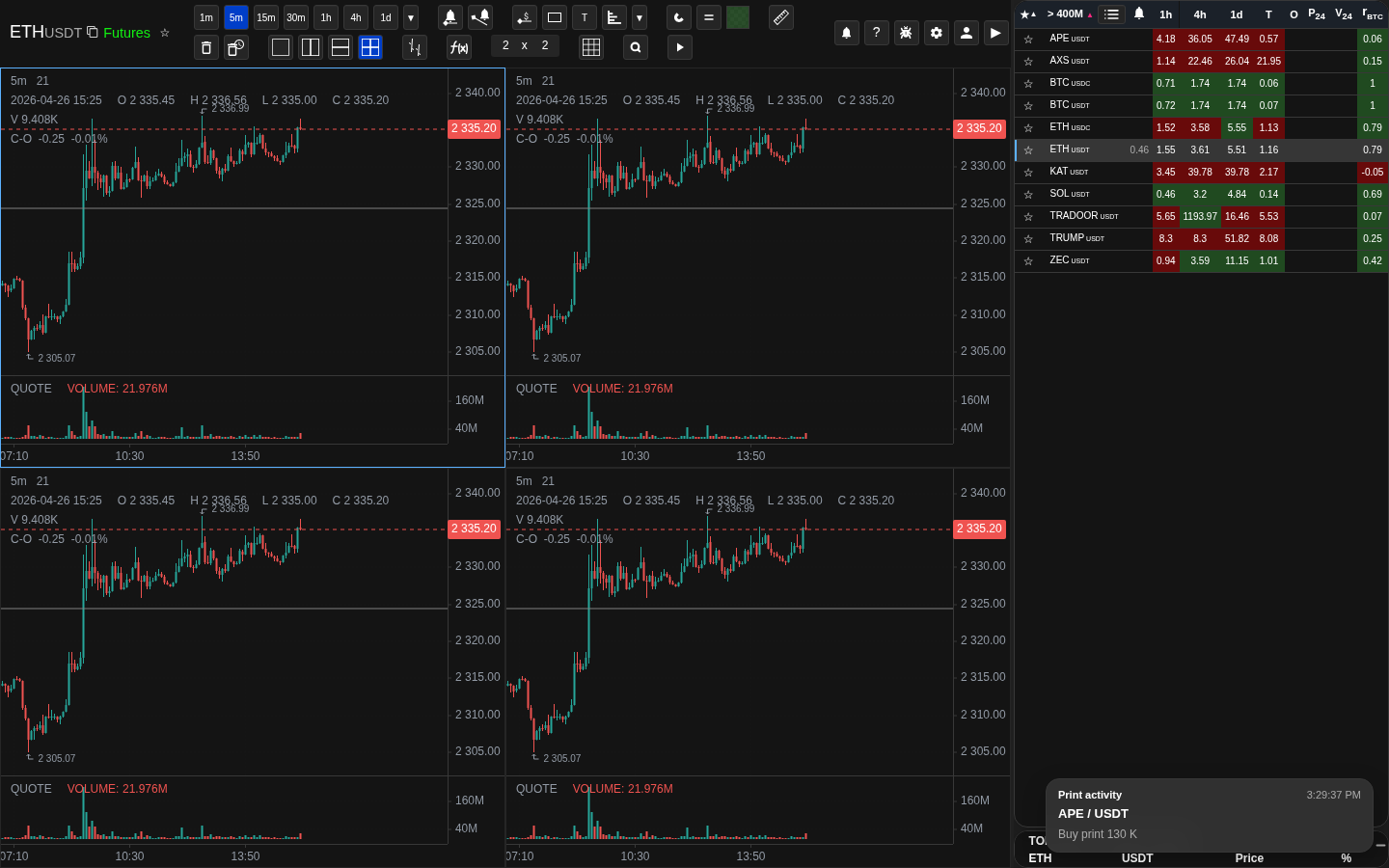
Chart with large order overlay marker
A large order from the orderbook appears as an overlay marker on the chart above the candles.
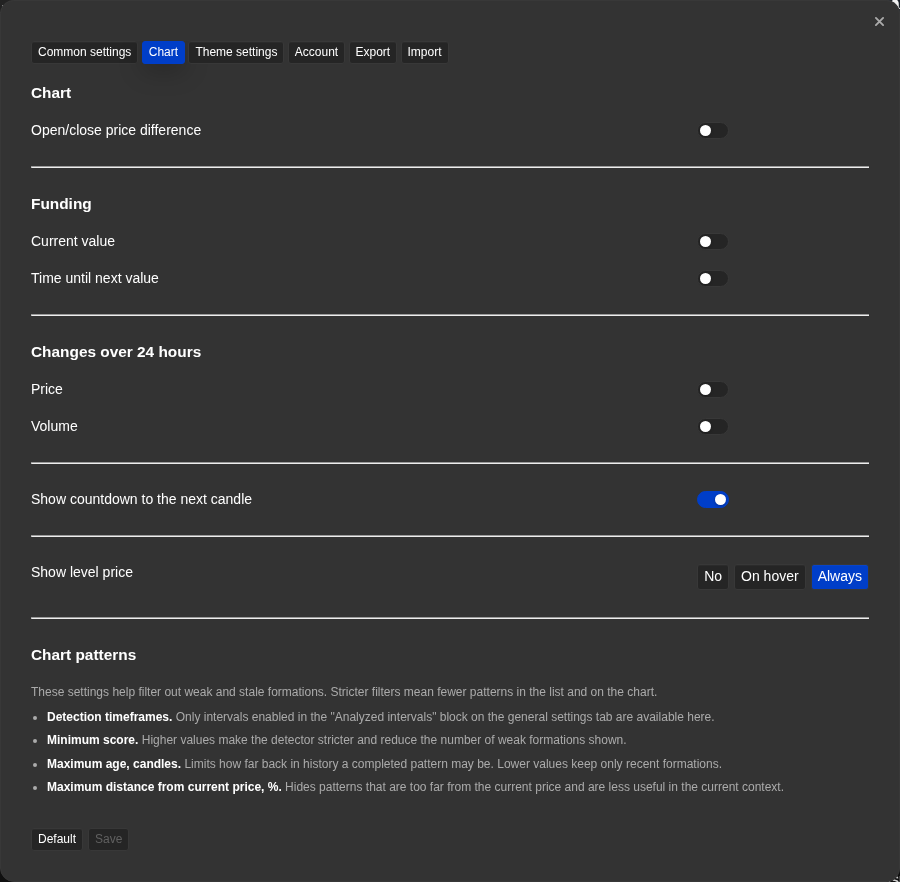
Orderbook settings in the Common settings tab
These threshold parameters control how the automatic threshold is derived.
Operational notes
- The orderbook panel shows only orders within roughly ±5% of the current price. Orders outside that range are not displayed, regardless of their volume.
- A large highlighted order is a contextual signal, not a guaranteed support or resistance level. It shows where a large participant has placed a limit order at this moment.
- The automatic threshold adapts to the current orderbook data. If volume conditions change, the threshold changes too, which can cause the highlighting to shift.
- A per-coin custom threshold overrides both automatic and global custom threshold logic for that coin. It stays fixed until you reset it.
- The × reset button removes the per-coin custom threshold and returns the coin to automatic or global custom behavior. There is no confirmation prompt.
- Order distance in the coin list and the orderbook threshold are related: the distance column reflects the closest large order as defined by the current threshold.
- Imbalance rows sum all orders within 5% of price on each side, not only large highlighted orders. Quote volume is calculated from the order price and order amount.
- The large-order map uses the same big-order stream as the list and orderbook. It does not request a separate orderbook dataset just to draw bubbles.
- The map timeout is a stability filter, not a reason to hide every order immediately after opening the map. At startup the map gives incoming large orders a short grace period, then applies the configured timeout normally.
- On mobile, the large-order map button is hidden when orderbook display is disabled in settings.
- On desktop, hovering a bubble brings it to the top and shows the tooltip. Clicking the bubble opens that instrument. On touch screens, the first tap raises the bubble and the second tap opens the chart.
When to use it
- When you want to interpret live depth, large orders, or imbalance shown in the orderbook panel.
- When you need to understand how the orderbook differs from slower aggregated metrics.
- When the orderbook looks empty, stale, or behaves inconsistently across markets and you need to troubleshoot.
When not to rely on it
- If you only need a general platform overview or have questions about account authorisation.
- If your question is about saved drawings or workspace layout — not live market depth.
Typical interpretation mistakes
- Treating a single orderbook snapshot as a stable representation of market intent.
- Ignoring symbol data freshness, connection timeouts, and differences between data sources.
- Assuming large visible orders are equally meaningful and actionable across all exchanges and instruments.
Algorithms and formulas to understand
- How the automatic threshold volume is derived from the current orderbook data distribution
- How the three highlighting levels are calculated relative to the threshold: below or equal to half, above half, above full
- How the order distance column value is computed as the percentage distance from the current price to the nearest order that exceeds the threshold
- How imbalance sums are computed from all bid or ask orders within 5% of the current price
- How large-order map bubbles are positioned by distance to price and sized by quote volume
- How the large-order map applies startup grace time before switching to the configured timeout rule