
Guide
Quick start
The shortest way to start working in Watchlist.top is to open an anonymous demo in "All charts" or log into your account if you need to save settings between devices and sessions.
What this section covers
- Where to start and what opens after clicking "Sign in".
- How to try a product without input: Close or skip the input dialog to open an anonymous demo mode with a temporary top-10 list of futures Binance to USDT in "All charts mode.
- What's different about Telegram and email, demo mode and full access?
- How to open the list manager, click "Create", and finish creating the first list through the 24h changes screener.
- How the 24h changes screener starts in basic mode: quick filters select coins by quote asset, exchange, and market group; advanced mode opens the full table for manual selection.
- Which counters and switches are worth checking before saving the first list.
- What the working screen looks like once the list opens: charts on the left and the coin list with the orderbook on the right.
- What changes on mobile or Android: the same account and lists are used, but the compact interface switches between list, chart, and orderbook instead of showing them all at once.
- How the demo is set up "All charts: sort by P₂₄ by decline, automatically update every 10 seconds and network up to 3×3 within the window; the selected timeframe of the demo is stored in the current browser.
- What the demo mode allows you to do and what it blocks to know when you need a subscription.
- What changes if you save the list with the "On Now" option off?
Key screens and controls
- An anonymous demo with no entry with a temporary top-10 list of futures in "All charts mode.
- Sign-in window opened from anonymous demo with "Telegram" and "Email" tabs.
- List manager with saved lists and the "Create" action.
- 24h changes screener in basic mode with quick filters for quote asset, exchange, and market group.
- 24h changes screener in advanced mode with the full coin table, column filters, manual checkboxes, and auto-update options.
- Bottom save area in the 24h changes screener with counters, "List name", "Enable now", and "Save".
Step-by-step flow
- Open the home page and click "Sign in".
- If you want to inspect the interface before signing in, close or skip the sign-in dialog. Anonymous demo opens with local browser settings and a temporary market list.
- If the confirmation checkbox is shown, accept it first. Until it is confirmed, the auth tabs are not available.
- Choose "Telegram" or "Email" in the sign-in window.
- For Telegram: open @WatchlistTopRuBot, click Start, get the login link and open it in the browser.
- If the app is opened in standalone/PWA mode and the Telegram auth page cannot return through the normal browser tab flow, copy the sign-in link from the Telegram bot and paste it into the field shown on the Telegram sign-in tab.
- For Email: enter email and password. Existing users sign in immediately; new users receive a confirmation link by email and start in demo mode.
- After sign-in, open the list manager and click "Create". If the account is still in demo mode, the app shows a warning because creating a new working list requires active access.
- In the 24h changes screener, use basic quick filters to select coins by quote asset, exchange, and market group. If you need exact manual control, enable advanced mode, filter the table, and check the individual coins you want. Then fill "List name".
- Check the bottom counters "Total", "Filtered", and "Total enabled". If you want to open the new list right away, leave "Enable now" enabled.
- Press "Save". If "Enable now" is active, the new list becomes current immediately and the working screen switches to it.
- If "Enable now" was off when you saved, the list is created but the screen does not switch to it. Open the list manager and select the new list to start working.
- The working screen: left graphs, list of coins with the glass on the right.
- On your mobile or in the Android app, tap the coin in the list to open it on the chart, then use the button in the cap to switch between the list, chart, glass, map of major applications and "All charts" mode when those screens are available.
Screenshots
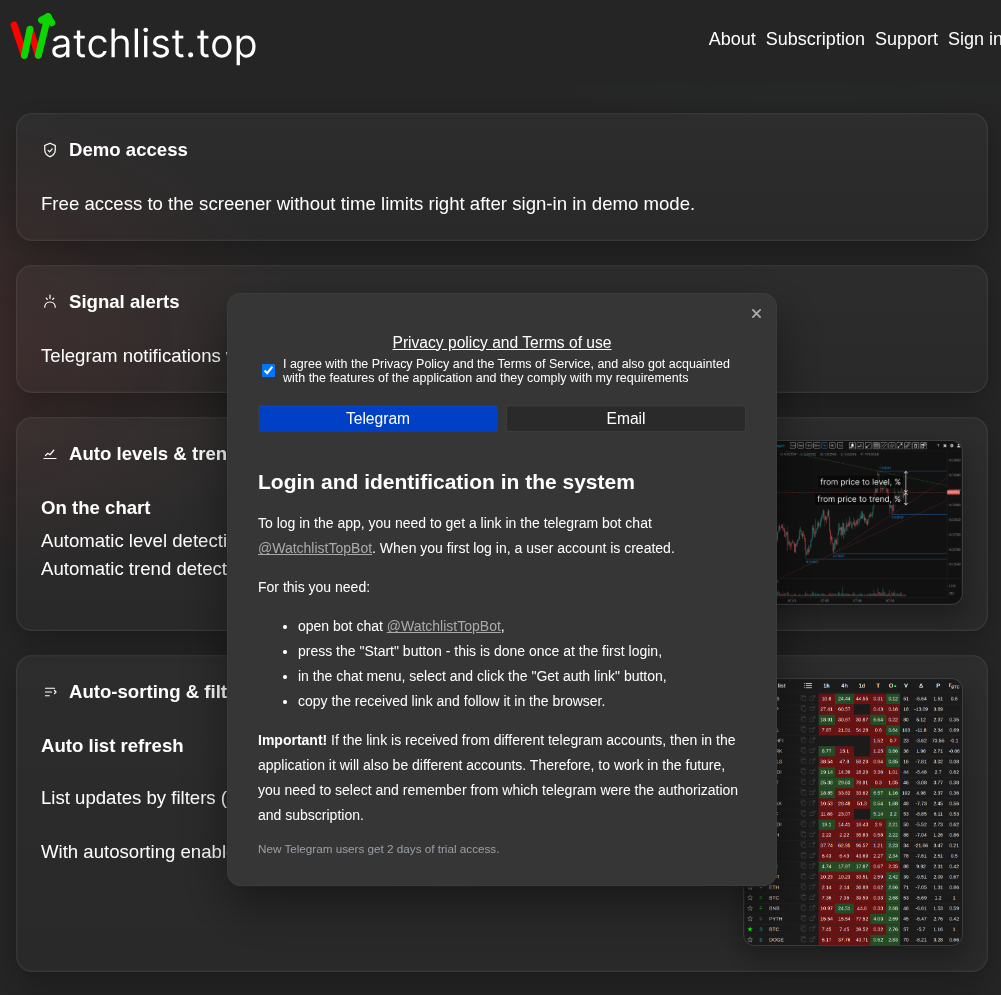
Anonymous demo without sign-in
Before creating an account, the app shows the temporary top-10 futures in "All charts mode; demo settings are stored locally in the browser.
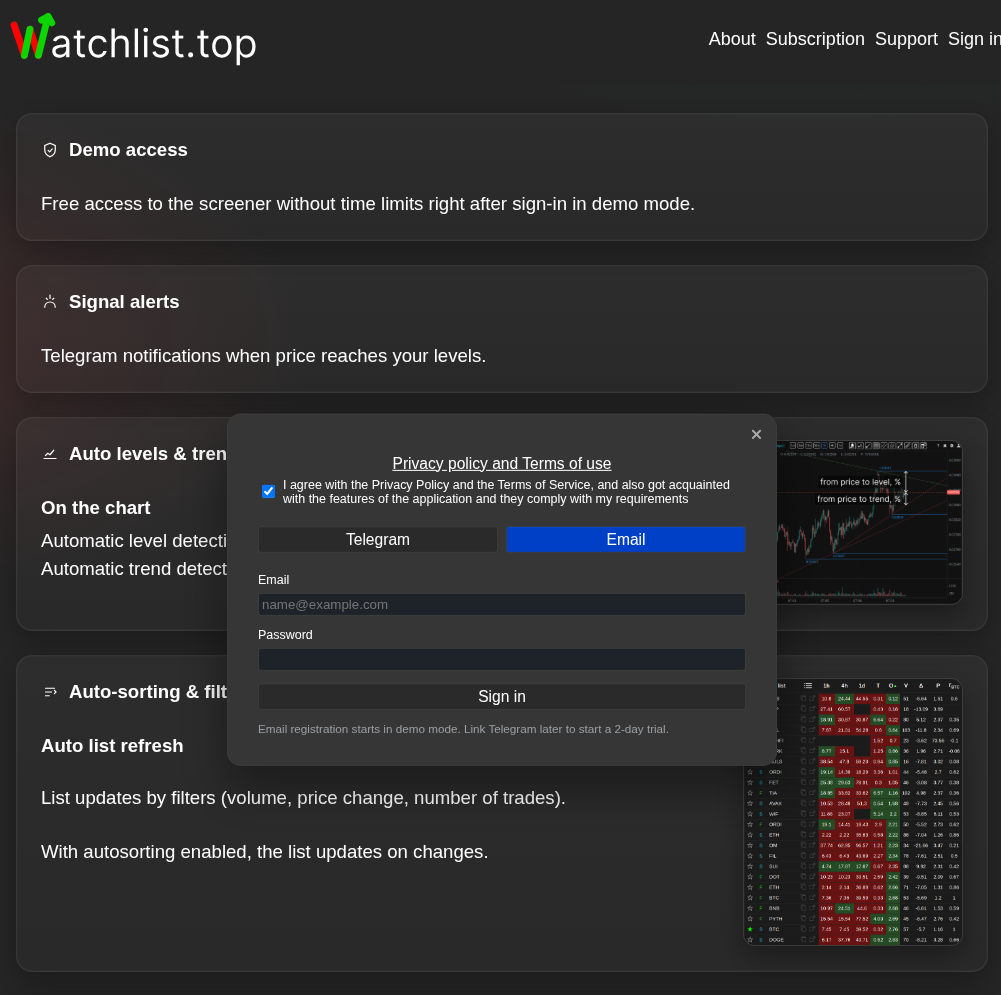
Sign-in window from demo mode
Use Telegram or Email when you need server sync, saved lists, or subscription features.
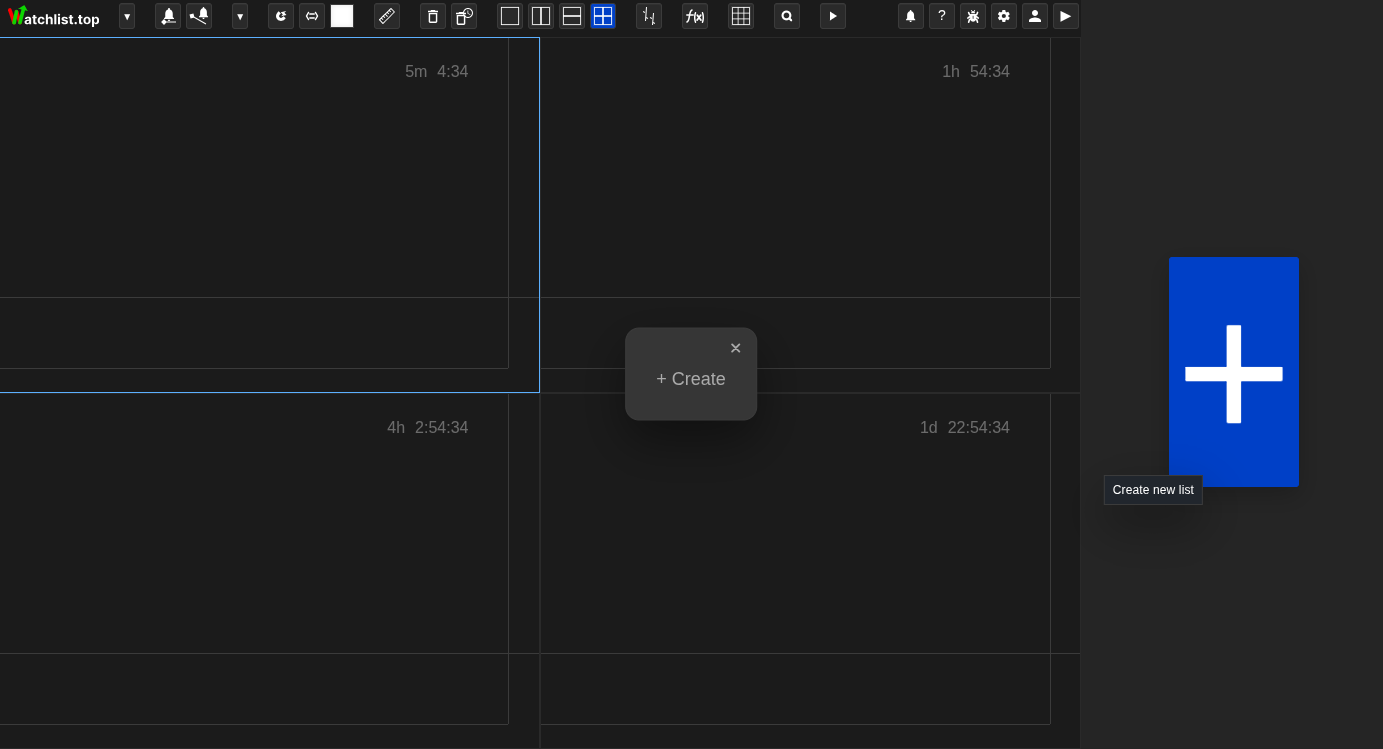
List manager with the "Create" button
From here you start creating the first working list.
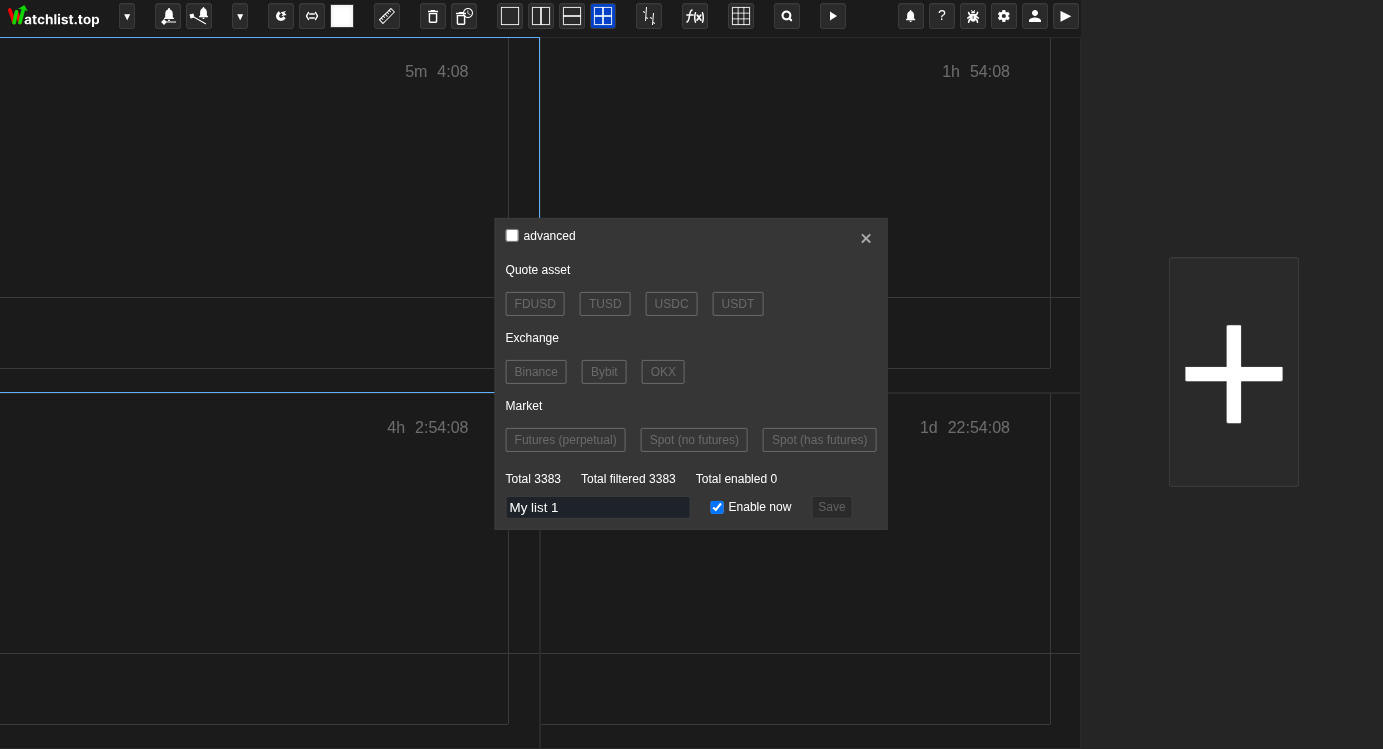
24h changes screener in the basic mode
Quick filters select a broad coin set before the list is saved.
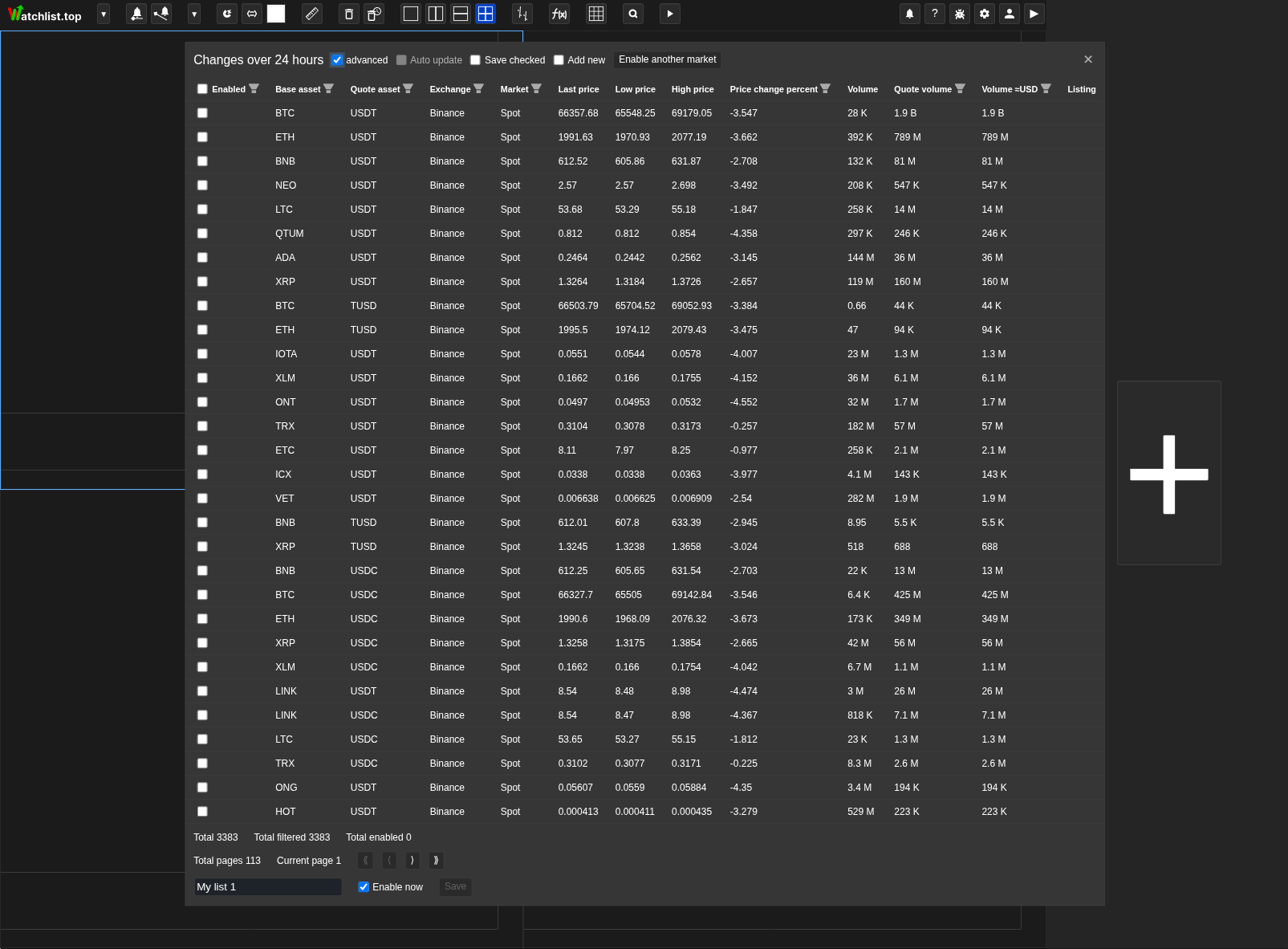
24h changes screener in the advanced mode
Advanced mode opens extra filters and update settings for more precise selection.
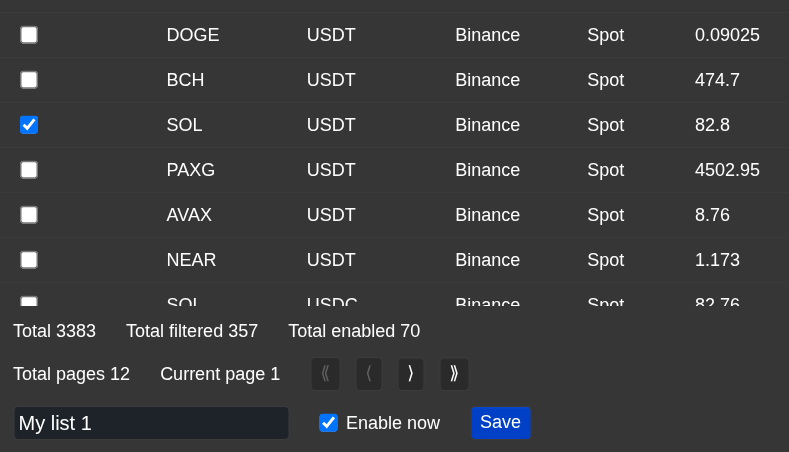
Save area in the 24h changes screener
This block shows "Total", "Filtered", "Total enabled", "List name", "Enable now", and "Save".
Operational notes
- Until the confirmation checkbox is accepted, the sign-in tabs stay hidden.
- An anonymous demo only stores settings in the current browser. Log in when you need server sync, saved lists, or subscription features.
- Telegram sign-in is tied to one Telegram account. If the link is opened from a different Telegram identity, the application treats it as another account.
- In standalone/PWA mode, Telegram auth can use the manual link field in the sign-in dialog. This is useful when the installed app cannot receive the browser redirect directly.
- Register via Telegram and Email starts in demo mode. When you register via email, open the email link to confirm the address.
- On the desktop, the anonymous demo opens in "All charts" mode with P₂₄ as it decreases and updates every 10 seconds. The network size is automatically selected to 3×3, and the selected timeframe is stored in this browser.
- The first list is created by the Create button in the list manager, and then adjusted in the Change Screen in 24 hours.
- The bottom of the save area is where you call the list, decide if you want to open it right away, and then you save it.
- If the list is saved with "On Now" turned off, it will appear in the manager, but the desktop screen will remain the same.
- The same account can be opened on both desktop and mobile, and the mobile mode uses a single-chart, compact script without rewriting the desktop network.
- On desktop, restart onboarding from Help (?) → Interface tour. The same menu opens Strategy setup and What's new.
- When the browser offers installation, the PWA opens Watchlist.top in a standalone window; installation is optional and the browser version remains available.
When to use it
- Start here for the shortest path from the home page to the first working screen.
- Use it when you want to understand why sign-in can finish immediately in one case and require Telegram or an email link in another.
- Use it when you want one short explanation of the first sign-in and first list creation, instead of several separate pages.
- Use it when you need to find where the first real list is created and why this happens through the 24h changes screener.
When not to rely on it
- For one specific metric, alert, or setting, open the matching detailed section instead.
- It is also not a core section for payment,Telegramor existing account issues.
- Choose another section if you need a detailed explanation of chart layouts, orderbook behavior, or metric formulas.
Typical interpretation mistakes
- You can't treat a demo and a paid subscription as the same thing.
- Do not expect email sign-in to finish before the confirmation link from the email is opened.
- Do not look for a separate blank form for a new list: the first list is created through the 24h changes screener.
- Do not assume that any visible filter state is saved automatically. The list is saved only after coins are enabled and "Save" is clicked.
Algorithms and formulas to understand
- Why the sign-in flow is considered complete only after the application opens the working screen and the account state becomes available
- Why are new Telegram and email accounts starting to work in a demo
- Why standalone/PWA Telegram sign-in can use a manually pasted bot link instead of relying on a browser redirect
- Why anonymous demo uses local settings and a temporary top-volume futures list before a user account exists
- Why the new list is created from the coins enabled in the 24h changes screener and why "Total enabled" is the count to trust before saving