
Notifications
While the app is open, events are fed into a single tape and can show a toast, play sound or speech, and create a native OS notification. If multiple tabs are opened, these actions are performed by only one active tab, and the history and changes are synchronized between windows. Server price notifications are delivered separately to Telegram or via email even when the app is closed.
What this section covers
- What the notification toasts show: while the app is open and the toasts are turned on, they show alerts for metrics, momentum, large prints, spikes in volume and number of transactions, situations and price alerts that worked.
- How toast interaction works: moving the pointer over a toast pauses auto-hide, the copy button copies the ticker, and clicking outside the copy/close controls selects the related coin.
- What makes "Notifications" different from toast is that it stores up to 200 recent events locally for the current user, shows the latest ones at the top, and allows you to filter types, reset the momentum, delete a coin, or disable the rule for the original list.
- What delivered price notifications mean: price notifications created on the chart are monitored by Watchlist.top servers and sent via the selected channel (Telegram or email) even when the application is closed.
- How optional system/browser notifications work: turn on the system notification switch in Settings and give the browser permission. If permission has been rejected before, it needs to be deleted in the browser's site settings. These native notifications are separate from the notifications in the app window.
- How to set up Telegram delivery: the Telegram account must be bound in Account settings, and Telegram must be selected as the delivery channel.
- How to set up email delivery: the email address must be confirmed. Once confirmed, select Email as the delivery channel in Account settings.
- What happens when the delivery channel is set but the prerequisite is missing: the application cannot use a channel that lacks its required condition (confirmed email for email delivery, bound Telegram for Telegram delivery). The notification can exist, but delivery is not possible until the requirement is met.
- How the sound notification settings work: the settings select the general local sound and volume. the price impulse and the transaction stream have their own sound selection; the preview is played immediately and only affects the relevant rule.
- How to remove duplicates in multiple tabs: all windows receive an event, but the role of the leader is assigned to the active tab, and only it plays the sound, shows the toast, and creates the OS notification.
- How voice alerts work: select "Voice" from the list of sounds, then select the available voice and speed. Application reads the short phrase of the alert locally: for example, coin, event type, direction, price, percentage or details of activity of the prints depending on the type of alert.
- Why voice alerts are not equal to Telegram or email: voice is generated on the current device while the app is open. It doesn't send through the server and doesn't work if the browser tab or mobile app is closed.
Key screens and controls
- Account settings showing the delivery channel selector with Telegram and Email options and their current validation state.
- Account settings showing the Telegram bind section with the link and the polling status indicator.
- Account settings showing the email confirmation flow: email field, status badge, and the send confirmation button.
- Settings with the sound selector and volume control for local in-app alert sound.
- Settings with the OS notifications toggle, the in-app notifications toggle, and the browser permission state.
- Single tape "Notifications" with type filters, monitoring status and actions over events.
- Notifications about events → Trade flow with a separate sound selection.
- Browser permission dialog that appears when OS notifications are enabled for the first time.
- Settings with Voice selected as the alert sound, including voice and speed controls.
Step-by-step flow
- To enable native OS/browser notifications, open Settings and find the OS notifications toggle. Allow the permission if the browser prompts you.
- To enable or disable toast cards inside the app window, open Settings and use the "In-app notifications" toggle. This does not change Telegram or email delivery.
- To add a local sound to in-app alerts, open Settings, find the sound selector, pick an alert sound, and set the volume.
- To get a pulse or stream of transactions, open "Notifications about events → Settings → Complex, select the appropriate tab and sound.
- To set up Telegram delivery: first make sure a Telegram account is bound (Settings → Account tab → Telegram bind section). Then select Telegram as the delivery channel.
- To set up email delivery: first confirm your email address (Settings → Account tab → send confirmation email and open the link). Then select Email as the delivery channel.
- To switch the delivery channel, open Settings → Account tab (or the account area in the header) and choose between Telegram and Email in the delivery channel selector.
- If Telegram delivery is not working, check: is Telegram bound? Is Telegram selected as the channel? Has the bot been started in Telegram (@WatchlistTopBot)?
- If email delivery is not working, check: is the email confirmed? Is Email selected as the delivery channel? Is the email address correct?
- If an in-app toast appears, click it before it disappears to open the related coin in the current list.
- To sort out some of the working alerts, open the bell and use the tape filters "Notifications". The mobile tap closes the dialog and opens the chart of the coin.
- If you need to copy the ticker from a toast or alert row, use the copy button. It does not close the toast and does not switch the current chart.
- To use a voice alert instead of a short sound, choose Voice in the sound selector, then select the voice and speaking speed. Use preview to check how it sounds on the current device.
Screenshots
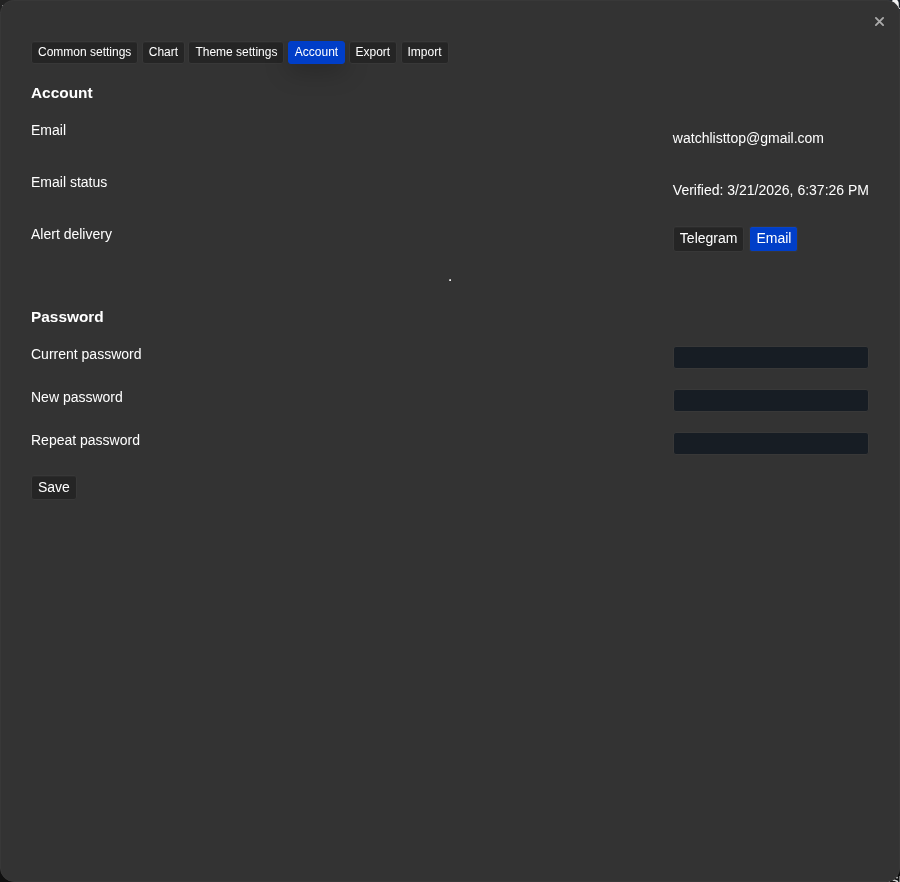
Delivery channel selector — Telegram selected
The channel selector shows Telegram and the current bind status.
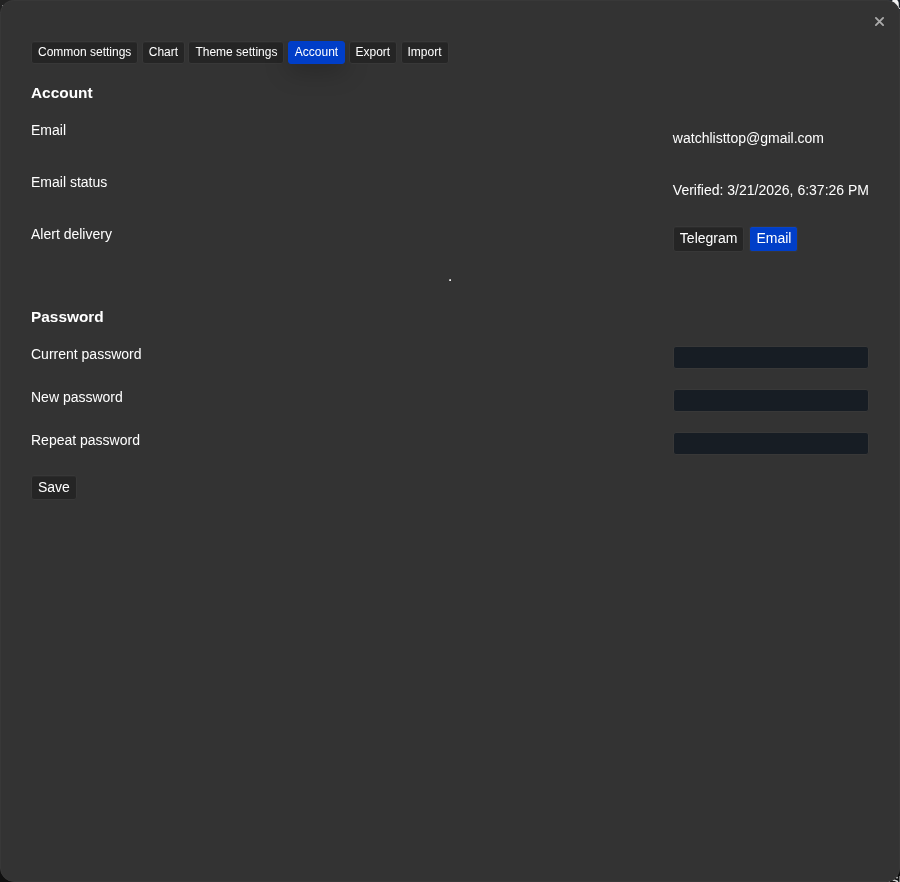
Delivery channel selector — Email selected
The channel selector shows Email and the current email confirmation status.
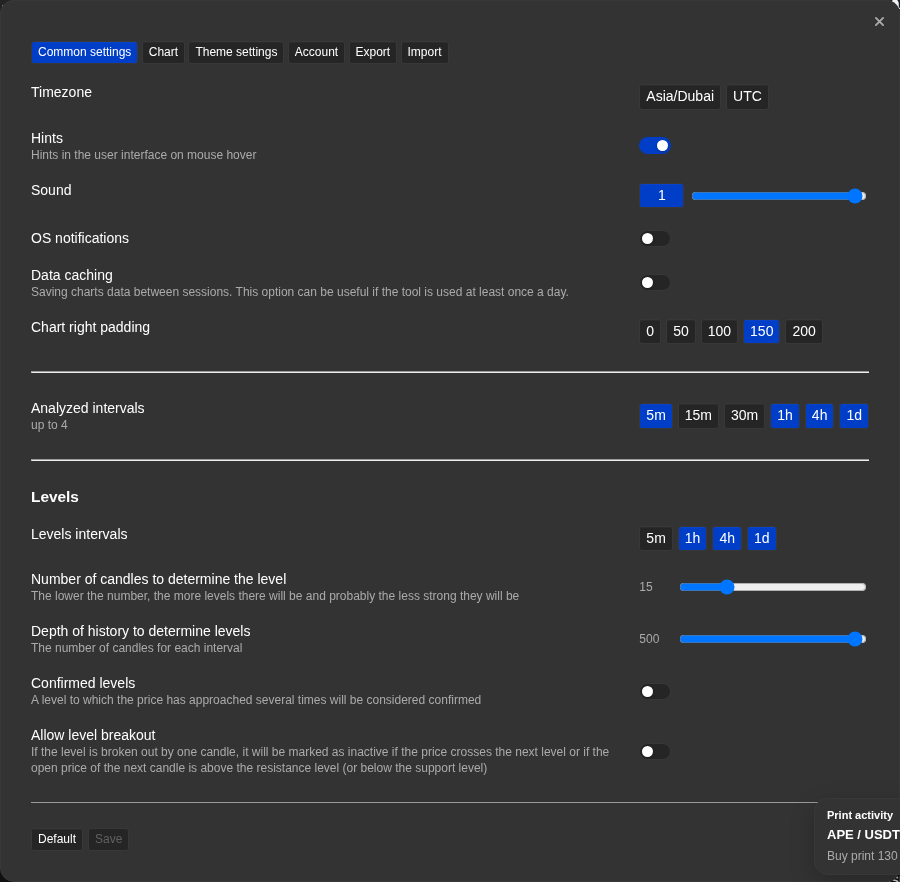
Sound settings for local alert sound
Sound and volume are configured from the settings dialog.
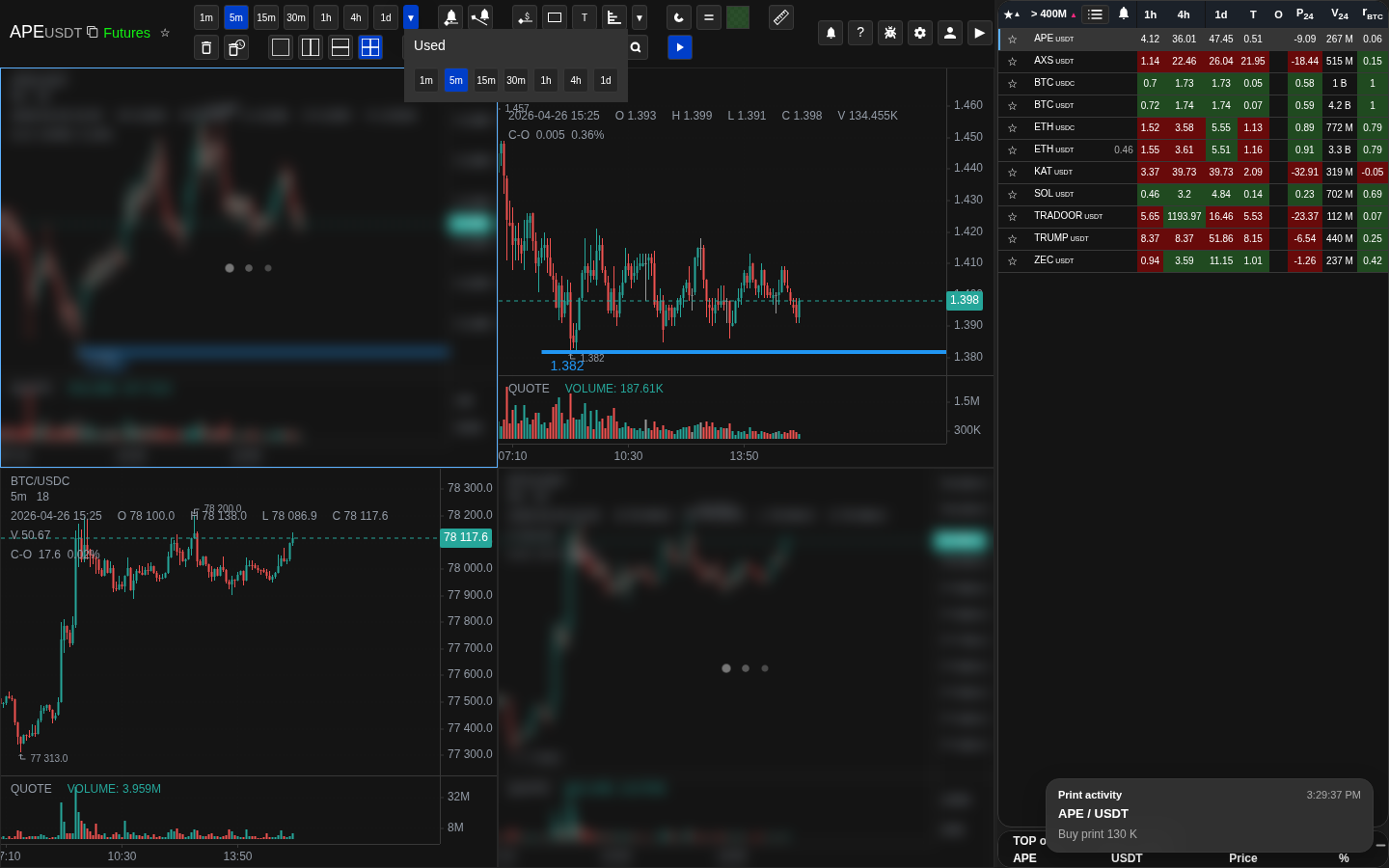
Alert-induced notification inside the window of the application (tost)
You can see a toast in the bottom right corner of the screen that appears when you activate the notification.
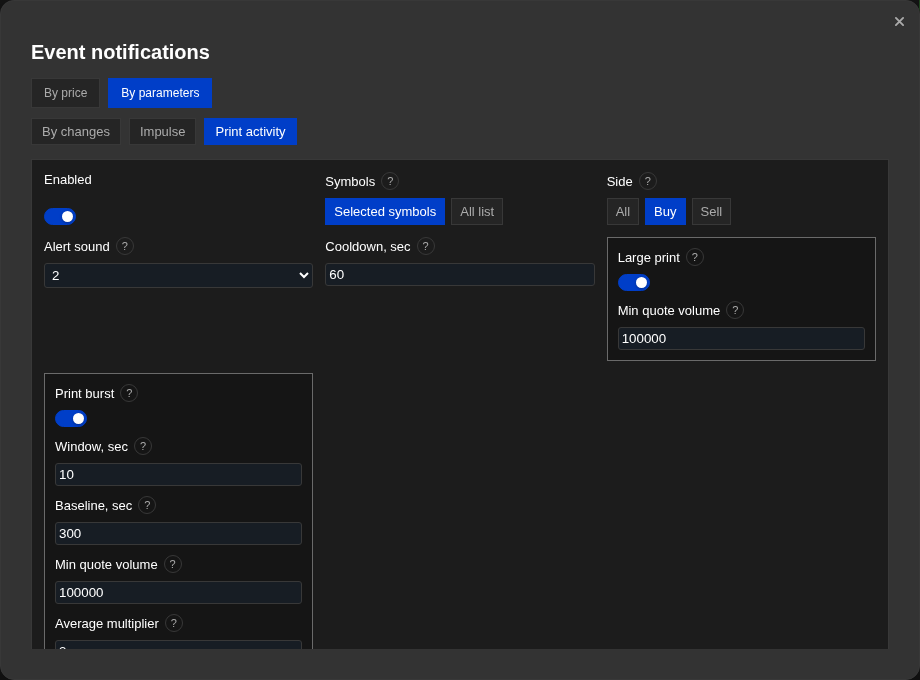
Selecting sound for transaction flow
In the "Trade flow" tab, the selected sound is played for preview and used regardless of the overall sound.
Operational notes
- The notification and local sound toasts only work while the browser tab is open and the page is loaded. When the tab is closed, they do not work and the toasts themselves can be hidden by the notification switch in the app window.
- Native OS/browser notifications require both the Settings toggle and browser permission. If permission was denied at the prompt, it cannot be re-requested by the application; change it manually in browser site settings.
- Telegram delivery works even when the application is closed because price notifications are monitored on the server.
- The delivery channel affects the server price alerts. Metrics, impulse, transaction and situation alerts use toasts and local sound regardless of the Telegram/email channel.
- In multiple windows, the sound, the toast, and the OS notification only show the current lead tab.
- If the lead tab is silenced or the device is at zero, the sound will not be lost even when the notification is activated.
- The notification toasts are short-lived and only show the latest events.
- The "Notifications" tape is more convenient than toasts when you need to take turns sorting out several working alerts. It is stored locally in the current browser, limited to 200 events, and does not replace server delivery or inter-processing archives.
- A pause in the serving is necessary to read and copy the recent alert, but it does not make the toast a permanent part of the story.
- In the Android app, the supported alerts events can also be sent to the system notifications Android if the notification authorization is issued.
- The change of delivery channel is effective immediately, and future notifications will use the new channel.
- Voice alerts use the speech engine of a browser or device. Available voices depend on the browser, operating system, language packet installed, and Android WebView. If voices are unavailable, select the usual sound or turn on/set the voice in the operating system.
- The browser can limit the automatic start of sound and speech until the first interaction of the user with the page. If the voice did not sound immediately after opening the app, click inside the app and check the sound again.
When to use it
- When you need to understand how notification toasts, system/browser notifications, Telegram and email work as separate notification surfaces.
- When an alert fired but you did not receive it and need to trace what went wrong.
- When you want to verify that your account state and channel setup actually allow delivery.
When not to rely on it
- If your question is purely about metric formulas or chart interaction — those are covered elsewhere.
- If you have not set up any alert yet — start with the alerts section first.
Typical interpretation mistakes
- Assuming a configured delivery channel is ready without verifying your email or connecting Telegram.
- Thinking browser notification permission and the delivery-channel setting are the same thing.
- Expect email, Telegram, notification toasts and native system/browser notifications to break and recover for the same reasons.
- To count the absence of repetition in the second tab of the alert loss the representation is intentionally performed only by the active leader tab.
Algorithms and formulas to understand
- Why the delivery channel check happens at the time of notification dispatch rather than at configuration time
- Why browser notification permission denial at the prompt level cannot be overridden by the application
- Why do parameter notifications use notification toasts regardless of channel setting Telegram/email
- Why do OS notification toasts and native notifications have separate switches?
- Why the Notifications feed is used for reviewing fired events while Settings remains the place to configure alerts
- Why is it that with multiple open tabs only one of them is responsible for the sound, toast and OS notification, while removals and resumes are synchronized across all windows
- Why are the copying, selecting and closing actions of the toast separated so that copying the ticker does not accidentally open the coin
- Why does the pulse and the flow of transactions have separate sound settings: they can be set independently of the general local sound of the alerts, and the selected sound is immediately played back.
- Why voice alerts depend on browser/device voices and can work differently in desktop, mobile, PWA and Android WebView