
Mobile and Android app
The mobile interface is designed for quick viewing, alerts, and graphics on a small screen. Instead of several desktop panels, it switches individual screens: a list, a chart, a glass, a map of large applications, and "All charts". In Android the system "Back" button follows this screen history, and the touch gestures control the time, price scale, and scrolling of the page separately.
What this section covers
- How the mobile layout is arranged: the main screens "Notifications", "List", "Chart", "Stan", the map of large applications and "All charts".
- How mobile list navigation works: tap a coin row to open it on the chart, use the search button to find a symbol, and use the autosort button when the current list should keep reordering by its saved sort.
- How the screen works "All charts": the attached panel selects TF, parameter, direction/absolute mode and manual update.
- As shown by the selected parameter "All charts": in the drop-down list, the parameters are divided by colors, and the badges on the graphs use the same color for the selected metric if this value is included in the mini-graph cap.
- How to open a regular chart from "All charts: Tap the title. The regular chart will open in the same timeframe, and the return will restore the previous scroll position.
- As the mobile version remembers the entry workpoint: if the last important screen was "All charts", the authorized user can return to it the next time they open it; if the last was "List, the app will open the list. Chart, glass, and other detailed screens do not rewrite this choice.
- How mobile interface tours work: unsigned users can see a separate tour for each mobile screen. The "Interface tour" item in the menu starts the tour for the current screen, and each screen stores its own viewed flag locally.
- How the mobile chart differs from desktop: only one active chart is shown at a time, and chart controls are condensed into compact buttons and menus.
- How the orderbook works on mobile: it opens as a separate view for the selected coin, so the list and chart have enough screen space.
- How the mobile large-order map settings work: the settings button opens a sliding panel above the map with timeout, distance, threshold mode, and multiplier/value controls. The panel closes with × or a tap outside it.
- How dialogs work on mobile: notifications are available from the header bell, while list manager, settings, account, support, and help are available from the compact menu instead of the wide desktop header. For users who are not signed in, the mobile main menu also shows Pricing as the first item. The menu closes when you tap outside it.
- How the mobile notification feed works: tap a notification row to close the feed and open that coin on the chart. The feed remembers its scroll position during the running session so you can return to the same area of the list.
- How touch interactions differ from mouse interactions: tooltips and drawing controls use tap-friendly states; a selected figure can be deleted with the trash button, and if no figure is selected the same button enters red multi-delete mode instead of using right-click.
- How to scale a mobile chart: pinch with two fingers changes the time scale; when the car scale is turned on, the price is adjusted to the visible candles. Vertical stretching along the price axis involves manual compression or stretching, double-taping along the axis returns the car scale.
- How to move after manual scaling: a swipe through the main area moves the graph horizontally and vertically.
- Why does the vertical swipe on the mini-graph in "All charts" scroll through the page rather than the graph itself?
- As in mobile, the markers of exchange accounts work: trade markers use the same read-only data of exchange accounts as the desktop.
- How the input works in the Android application: Telegram auth-link and email input are opened inside the application script, so authorization is completed without desktop browser layout.
- How notifications work in the Android app: notification toasts remain available, and the supported alerts events may also appear as system notifications Android if notification permission is granted.
- How the single tape works: levels, beams, pulses, large prints, and both types of flashes use the same filters, actions, and reset monitoring as the web version.
- How the system button or the "Back" gesture works in Android: first the top dialog is closed, then the previous screen of the application is opened, then the history of WebView is used, and only then the application is closed.
- What are the current features that have been moved to Android: panels and settings "All charts", strict import of settings/lists, demo preferences, and payment for subscriptions with broker fees.
- As with mobile, there's an open interest: the OI column and the default type use the same settings as the desktop, but a compact list can display fewer columns at the same time because of the screen width.
- As shown on mobile Funding: Column F uses the same list setting as on the desktop, and shows the current futures funding rate if there is funding data on the symbol.
- As the Android update is suggested: if the Android version is from a newly installed server, the update dialog leads directly to the APK file on watchlist.top.
- Where to download Android APK manually: open the item "Application" in the web version menu or product description and use the link app_<version>.apk.
Key screens and controls
- A mobile list screen with notifications, search, the "All charts button, auto-sorting and a compact menu with icons.
- Mobile chart view for one selected coin.
- Mobile orderbook view opened from the selected coin.
- Mobile screen "All charts" with TF, setting, sort mode, update and settings button.
- A setup dialog with the number of graphs, signatures, visibility and color of the parameters.
- A mobile map of large applications, available when the glass display is enabled.
- The mobile application settings panel is open above the map.
- The mobile tour overlay is for the interface for the screens "All charts", "List" and maps of large applications.
- A compact menu with a "Tariff" for non-entry users, a list manager, settings, account, reference and support, plus a separate notification button in the hat.
- Request for permission Android for alerts and alert event in the form of a system notification.
- The OI column is in a compact mobile list with the same open interest settings as the desktop.
- The Funding column is in a compact mobile list.
Step-by-step flow
- Open the app on a mobile screen or in the Android app. The interface starts in a compact layout instead of the desktop multi-panel layout.
- Use the list view to select a coin. Tap the coin row to open it in the chart view.
- Use the bell button in the mobile header to open fired notifications. Tap a notification row to switch to the chart for that coin.
- Use the search button in the mobile list header when the list is long and you need a specific symbol.
- The "All charts" button in the list cap opens the mobile tape. In the attached panel, select TF and the parameter, and switch direction or absolute mode with the triangle button.
- Open the "All charts six to select the number of charts, sign signatures, hide or display settings, change their colors, or drop colors.
- Press the update button in "All charts", when you need to take the fresh metric values and reorder the order.
- Tap the title of the mini-graph to open the usual chart of this coin.
- If you're not authorized and a tour appears on the screen, skip or skip it. To manually reboot it, open the compact menu and click "Tour on the interface" on the current screen.
- With the graph and glass buttons in the cap, switch between the graph and the glass of the selected coin.
- Open the compact menu to go to the list, settings, account, reference or support manager.
- To draw on the touch screen, select the graphics control tool and type the dots in the graph. To remove one figure, select it and click the basket. To remove several figures, click the basket without the dots and then click the desired figures on the graph.
- To change the horizontal scale of the graph, use the pinch with two fingers. If you need a manual vertical scale, drag up or down the price axis; double tap on the axis turns the auto scale back on.
- After moving to manual scale, move the main area with a swipe horizontally and vertically.
- If the trading markers are enabled through the "Exchange accounts", tap the marker on the mobile chart to read the type. The $ button in the chart panel quickly hides or shows the markers when at least one timeframe is selected in the trading account settings.
- If you're using the Android app, allow system notifications when Android requests permission if you want to receive alerts from events outside the app's surface.
- Use the system button or the "Back" gesture sequentially: first, the open dialog is closed, then the application returns to the mobile screen history.
- If one account is used on a desktop and mobile, the desktop layout remains desktop-based.
Screenshots
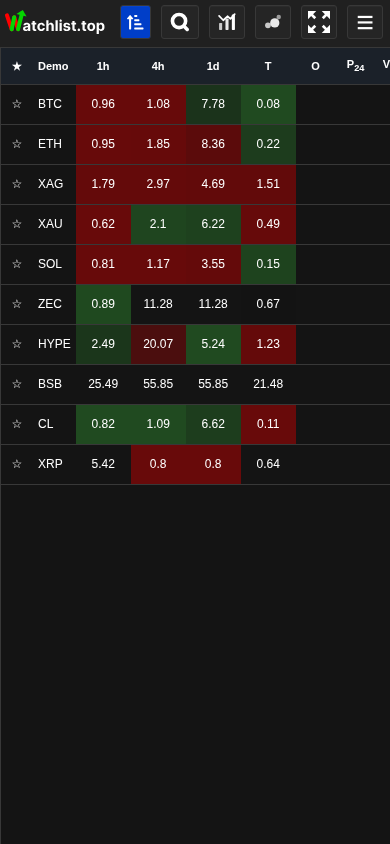
Mobile list view
The compact list cap features notifications, auto-sorting, search, "All charts", application map, full screen mode, and menu.
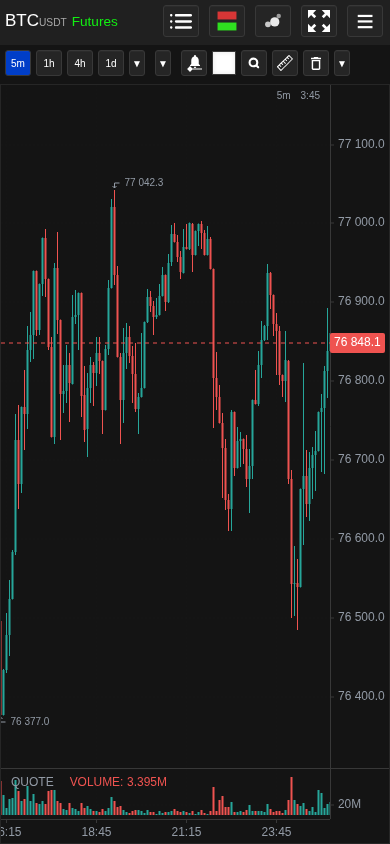
Mobile chart view
A selected coin opens in a single-chart layout with compact timeframe and tool controls.
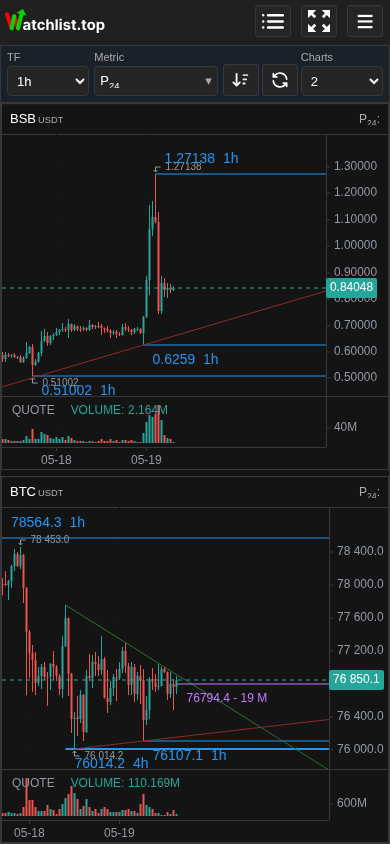
Mobile All charts
The fixed header controls timeframe, metric, sort mode, and refresh; vertical swipes scroll the feed.
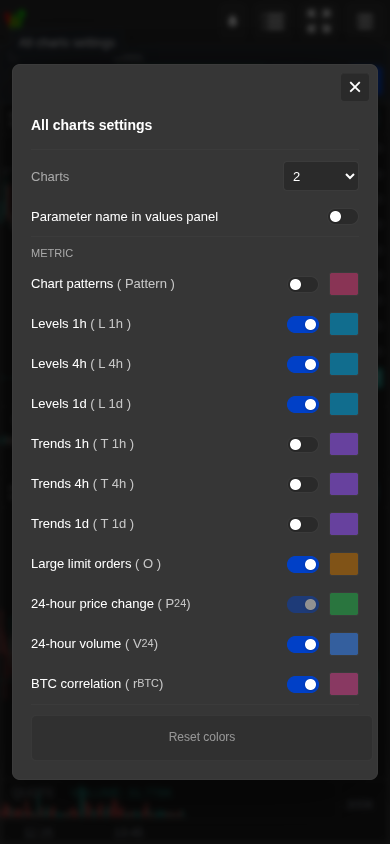
Mobile All charts settings
Set chart count, labels, visible parameters, colors, and reset overrides.
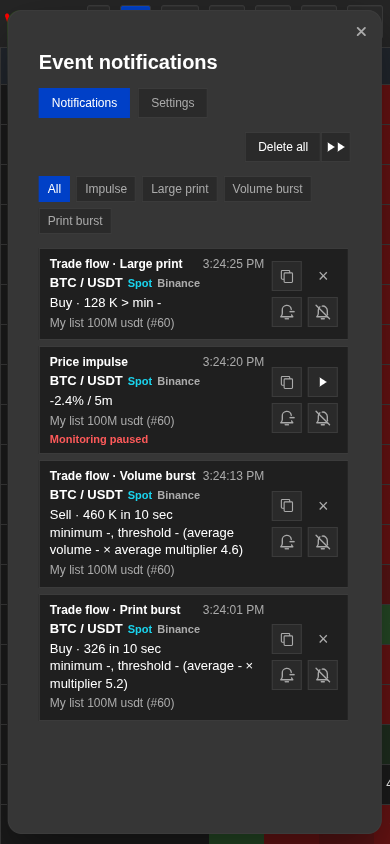
Unified mobile notification feed
Filters, monitoring status, resume, and event actions are also available on Android.
Operational notes
- The mobile interface is intentionally denser and more sequential than desktop. Use it for checking and managing active instruments; use desktop when you need several charts and panels visible at the same time.
- Desktop grid size is not overwritten by opening the same account on mobile. The mobile view uses its own compact layout.
- The "All charts" screen stores the TF, metric, sorting mode, number of charts, signature, visibility and color of the parameters.
- The mobile view state keeps an important entry point: "List" or "All charts". Opening a schedule or glass after that does not change the preference of the next start.
- Mobile tours are attached to the screen. A tour view of "All charts" does not mean that a tour of the list or a map of the major applications is also marked with the viewed.
- The $ trading-markers button is shown on mobile chart screens only when Exchange accounts settings have at least one timeframe selected.
- Charts by sorted list uses a snapshot of current metric values when it is opened, when you change metric or direction, or when you tap refresh. This keeps scrolling stable while market values continue to update in the background.
- The pinch on the mobile only changes the time scale. When the car is scale-up, the price range follows the visible candles; manual vertical scaling is triggered by stretching along the price axis, and double-taping on it returns the car.
- The manual vertical scale is the main candle panel, and the auxiliary indicator panels remain on the automatic scale.
- The mini-graphics in "All charts" transmit the vertical gesture of the scrolling page.
- The nearest order column is not available as a mode parameter "All charts", because it's a signal of distance to the request, not a stable chart ranking metric.
- The big-app card button is hidden on your mobile if the glass display is off in the settings.
- Some desktop hot keys require a physical keyboard and are not useful on touch devices.
- The notification button is inserted into the mobile cap so that you can sort out the working alerts without opening the main menu.
- Android uses the same single event tape, filters, and restart commands as the web version, while the system representation of the event is performed via Android and requires OS permission.
- Native Back first closes the top dialog, then returns the limited screen history of the app. Dialogs are not added to this history; when the screen history is empty, the history WebView is used, then the app closes.
- Android 0.1.41 includes current panels "All charts", strict import checks of settings and lists, demo preferences, and broker fees.
- Both browser and Android system notifications still require permission from the browser or operating system. Application cannot bypass a previously banned permission.
- Large lists can feel more difficult on mobile, so it's best to use the selected coins instead of the entire list to stream transactions and other live features.
- The OI on the mobile uses the same data and settings as the desktop, so if the OI cell is empty, the function can be turned off, the symbol may not have a future OI, or the selected change may not have a history yet.
- Funding on a mobile uses the same data and settings as on a desktop. If the F cell is empty, the function can be turned off, the symbol can be just spot, or the funding data can still be uploaded.
- Install the PWA from the browser prompt when available; it opens the same account and lists in a standalone window. Strategy setup is available from the mobile main menu.
- The current UI calls the sorted multi-chart view All charts: it follows the active list and its current sort order.
When to use it
- When you are using Watchlist.top from a phone, tablet, or Android app and the layout does not match desktop screenshots.
- When you need to understand where list, chart, orderbook, alerts, settings, and account controls moved in the compact UI.
- When Android notifications or mobile touch behavior need a separate explanation from desktop browser behavior.
When not to rely on it
- If the question is about detailed metric formulas rather than mobile layout.
- If you work only on desktop and need multi-chart workspace behavior.
Typical interpretation mistakes
- Expecting mobile to show the full desktop grid and orderbook beside the list at the same time.
- Assuming Android notifications will appear without OS permission.
- Thinking that opening the account on mobile changes the saved desktop grid size.
- Trying to change the price height with a pinch-gest on a mobile pinch changes time, and the vertical scale is adjusted by stretching along the price axis.
Algorithms and formulas to understand
- Why mobile shows one active chart at a time instead of the desktop grid
- Why mobile "All charts" uses a saved metric image and update button instead of a constant resort during scrolling
- Why when you open a coin from "All charts" a regular chart uses the timeframe chosen there and restores the position when it returns
- Why does the mobile version remember "List" or "All charts" as the next boot screen and ignore the intermediate detail screens for that choice
- Why does the pinch change the time scale, and the manual price scale is switched on by a separate gesture on the axis and dropped by a double tap?
- Why does a vertical swipe on a mini-graph roll through the tape "All charts"
- Why mobile tours are stored separately for each screen
- Why does the update link Android lead to the updated APK file on watchlist.top
- Why doesn 't a mobile workbook rewrite the saved desktop layout
- Why system notifications Android still depend on OS permissions, even if alerts are set in the app
- Why does native Back first close the dialog, then return it to the application's screen history, and only then use the WebView history or output
- Why is the mobile notification button in the cap, and the click on the notification line immediately opens the chart?
- Why is it that on touch devices, the image removal is done by removing a specific image and clear multiple images instead of right-clicking?