
Guide
Exchange accounts
Exchange accounts let Watchlist.top show your private trading context without receiving trading or withdrawal permissions. The feature is read-only: the app validates the API key, loads positions, orders, trades, balances, and can draw trading markers on the chart when you enable them.
What this section covers
- What can be connected: Binance USD-M, Bybit, and OKX read-only API keys. Binance requires Reading enabled, withdrawals disabled, and readable USD-M Futures account data.
- Why keys must be read-only: Watchlist.top uses exchange accounts only to read positions, orders, trades, balances, and trading history. It does not place, modify, or cancel exchange orders.
- How several accounts work: one user can connect multiple accounts, including several accounts for the same exchange. Each saved connection has its own status, check button, history button, disconnect action, and delete action.
- What the Overview tab shows: total accounts, connected accounts, counts for open positions, limit orders, closed orders, trades, balances, closed positions, last validation, and last synchronization.
- What happens when you click an Overview card: cards for positions, orders, trades, balances, and closed positions open a table with rows from the synchronized account data.
- What Last check means: the latest time a saved API connection was validated against the exchange permissions and read-only requirements.
- What Last sync means: the latest time account data was synchronized from the exchange into Watchlist.top.
- How current synchronization works: when the application is active and requests account data, the backend returns the stored data and refreshes connected exchange accounts in the background with rate-limited exchange requests.
- How history loading works: the History button starts background loading for the selected account. Available periods are 1 day, 7 days, and 30 days. History loading has low priority compared with user-triggered requests.
- What history progress shows: period, status, loaded trades, closed orders, closed positions, and update time. If the dialog is closed, the app can continue polling the status in the background.
- How chart display is enabled: first select at least one timeframe in Exchange accounts -> Settings, then use the $ button in the chart toolbar to quickly turn trading markers on or off.
- What timeframe filtering means: positions, orders, and trading history markers appear only on the selected chart timeframes. If no timeframe is selected, chart trading display is disabled.
- How history can be shown: "Show history as" can be set to Positions or Trades. Clicking the active button again clears the mode, so closed history is not drawn.
- How closed positions are drawn: entry and close are shown as triangle markers connected by a dashed line. Long entry is a green upward triangle and long close is a red downward triangle; shorts use the opposite direction. P/L and price change are shown in the marker tooltip, not as permanent text above the close marker.
- How trades are drawn: each executed trade is shown separately. Buy trades use green B markers, sell trades use red S markers. Tooltip values include price, size, P/L, and time when the exchange provided those fields.
- How open positions and limit orders are drawn: open positions are shown as entry markers; limit orders are shown as price lines on the chart when their toggles are enabled.
Key screens and controls
- Exchange accounts dialog with Overview, Connections, and Settings tabs.
- Connections tab with saved connections, per-connection status messages, and the new connection form.
- Overview tab with clickable cards and a table for positions, orders, trades, balances, or closed positions.
- History loading dialog with period selection and progress status.
- Settings tab with timeframe buttons, history display mode, open positions toggle, and limit orders toggle.
- Chart toolbar with the $ button and chart markers drawn on a selected timeframe.
- Closed position markers on the chart: entry triangle, close triangle, dashed line, and tooltip.
Step-by-step flow
- Open the Exchange accounts button in the header. On mobile, open it from the compact menu.
- If no connection exists yet, the dialog opens on the Connections tab. Choose an exchange and click Add.
- Enter the fields required by that exchange. For Binance USD-M, create a key with Reading enabled, withdrawals disabled, and readable USD-M Futures data.
- Click Check to validate the key before saving it. Validation messages are shown near the form or near the specific saved connection, so it is clear which connection they belong to.
- Click Connect after validation. The key secret is stored encrypted on the server; the UI shows only masked credential hints.
- Use Check, Disconnect, Delete, or History from the saved connection row. History opens a period dialog for 1 day, 7 days, or 30 days.
- Open the Overview tab and click a data card such as Open positions, Limit orders, Trades, Balances, Closed orders, or Closed positions to inspect the table.
- Open the Settings tab, select the timeframes where trading data should appear, choose whether closed history is shown as Positions or Trades, and choose whether open positions and limit orders should be drawn.
- Go to a chart on one of the selected timeframes. Use the $ toolbar button to turn trading markers on or off without returning to the settings dialog.
- Hover a marker on desktop, or tap it on mobile, to show the tooltip. The tooltip contains the detailed values; the chart marker itself stays compact.
Screenshots
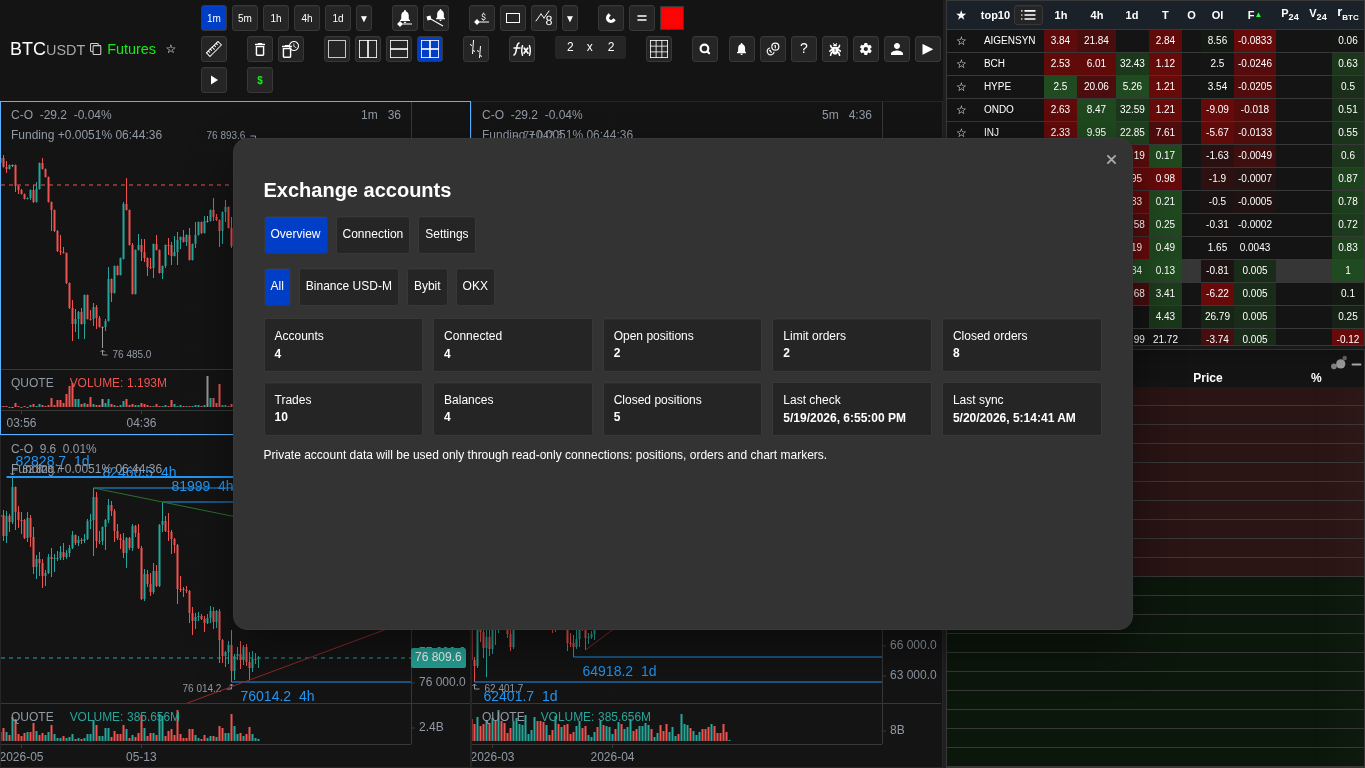
Exchange accounts overview
Summary of connected exchanges, positions, orders, trades, balances, and synchronization time.
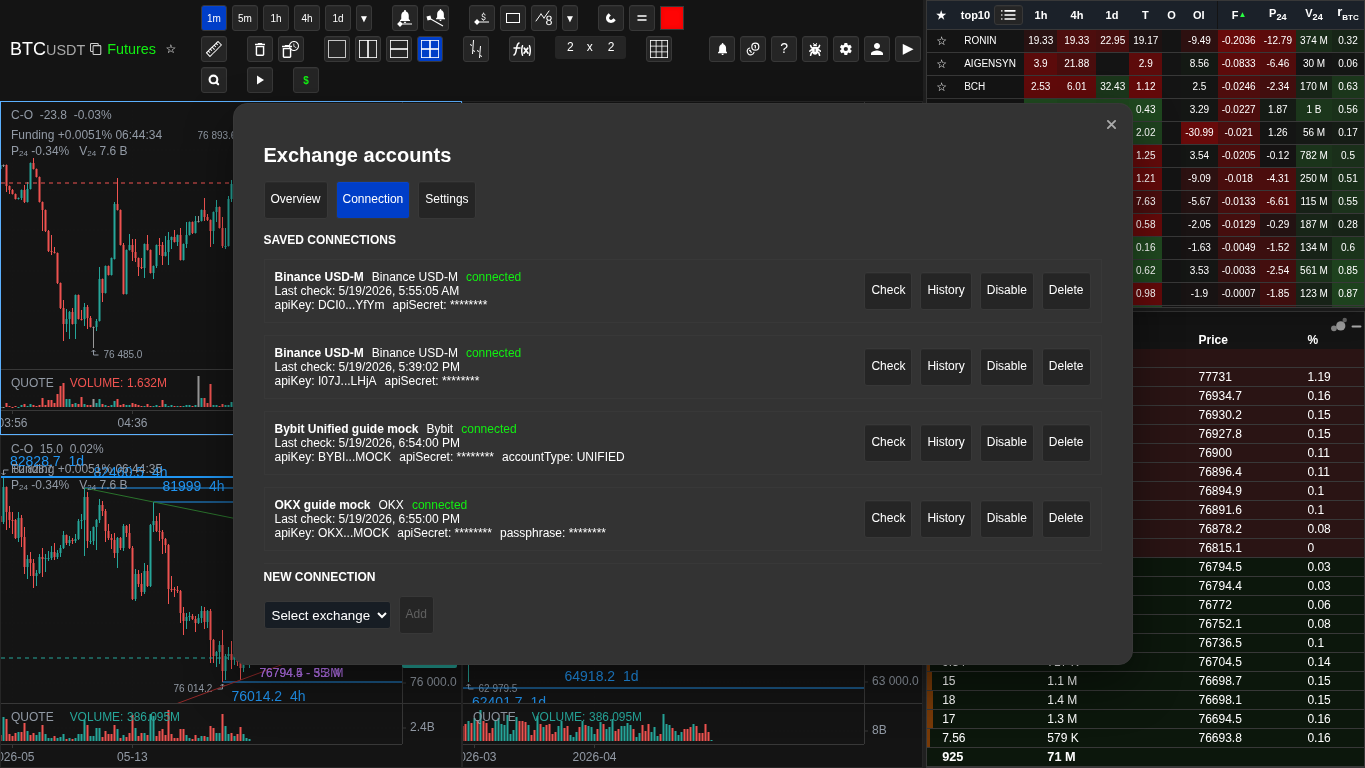
Saved connections
Each connection shows its exchange, status, masked credentials, and actions: check, history, disable, and delete.
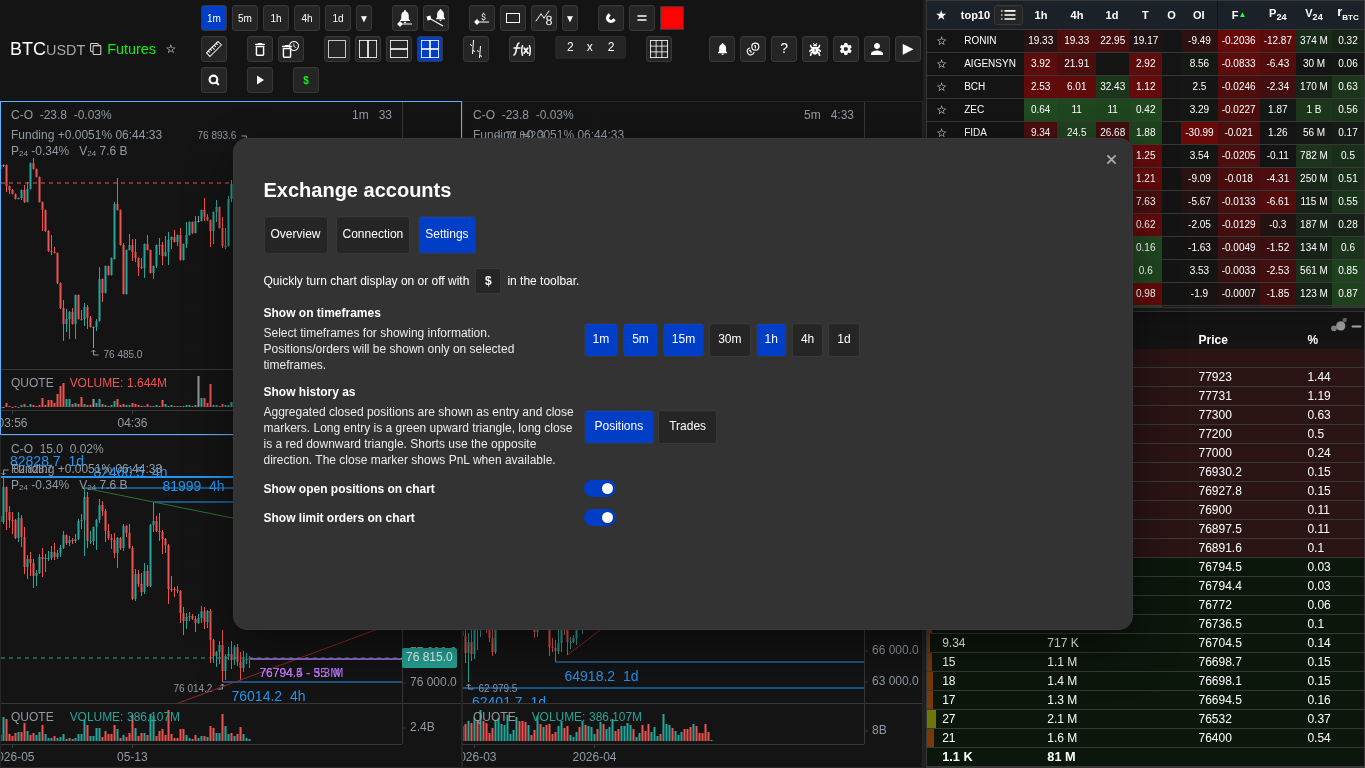
Chart marker settings
Timeframes, history display mode, open positions, and limit orders are configured separately from the quick $ button on the chart.
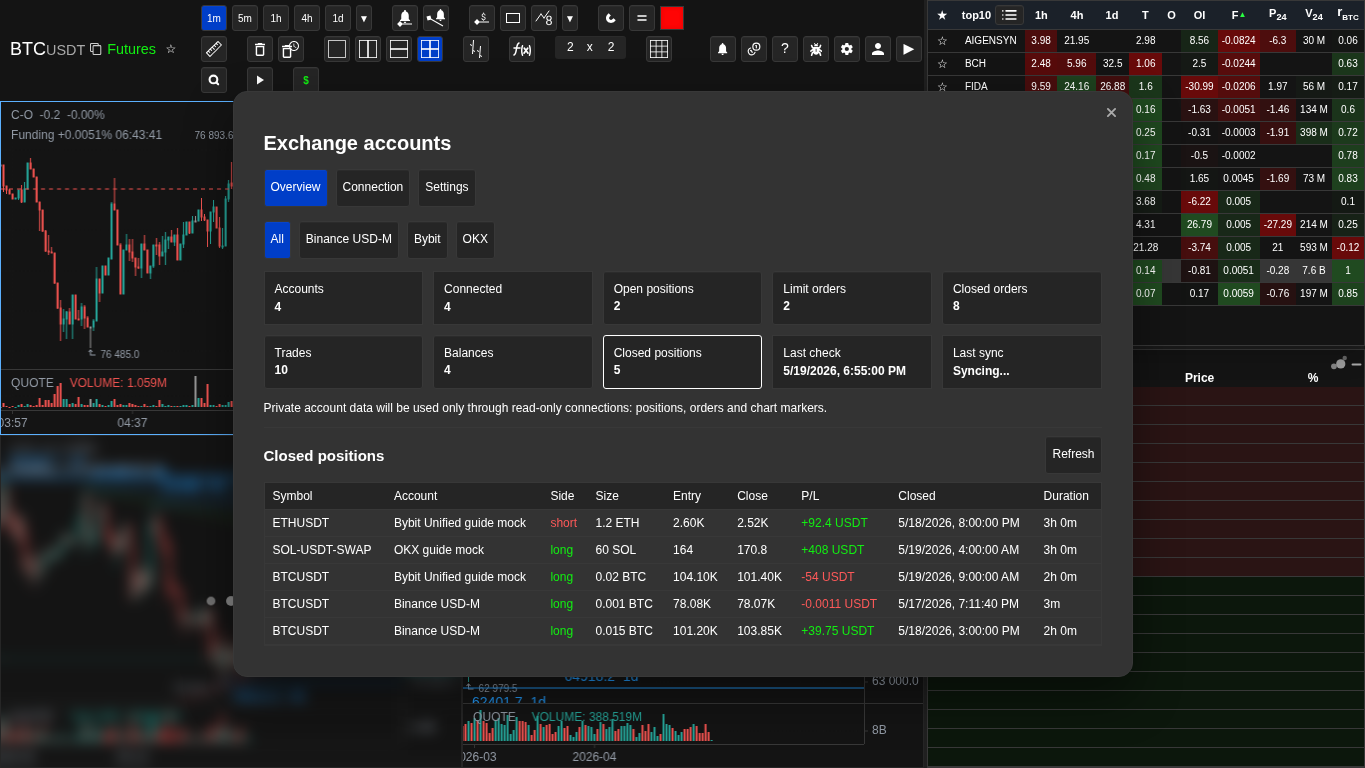
Closed positions table
Overview cards open account-data tables: positions, orders, trades, balances, and closed history.
Operational notes
- Exchange API keys are private account data. Create a separate key for Watchlist.top and do not enable withdrawal permissions.
- The app requires read-only access, but some exchanges name read permissions differently. For Binance, the validation checks Reading and then verifies that USD-M Futures account data is actually readable.
- Connecting an API key is unavailable in demo mode. The dialog can be opened, but adding a connection requires an account state that allows the feature.
- History loading is intentionally lower priority than interactive account checks and current data refreshes, so it can take time on accounts with many symbols and trades.
- Closed positions are reconstructed from available trades and order history. If an exchange does not provide enough history for a period, older positions may be incomplete.
- The $ button does not choose what to display by itself. It only turns chart display on or off after the timeframes and display mode have been configured.
- If no timeframe is selected in Exchange accounts -> Settings, the $ button is hidden and chart trading markers are disabled.
- If a marker is not visible, check the symbol, exchange, market type, selected timeframe, $ button state, and whether the relevant toggle is enabled.
- P/L values are shown with the asset provided by the exchange data, for example USDT or USDC. Size values use base or quote assets depending on the row.
- Chart trade markers use color and direction without B/S letters. L and S belong to position markers. At most the latest 250 trades are drawn on a chart.
- PnL for a closed position is available in its tooltip; do not expect a permanent PnL label next to the close marker.
When to use it
- Use this section when you want to connect exchange API keys safely and understand exactly which data Watchlist.top reads.
- Use it when trading markers are missing from the chart and you need to check timeframes, the $ button, or display mode.
- Use it when you want to inspect account tables or load older trading history.
When not to rely on it
- Do not use this section for public market-data metrics such as OI, funding, or orderbook imbalance.
- Do not use it for payment, subscription, or email verification questions unless the issue is specifically about adding an exchange key.
Typical interpretation mistakes
- Enabling the $ button without selecting timeframes in Exchange accounts settings.
- Assuming a saved API key lets the app trade. The feature is read-only and should be used with keys that cannot withdraw funds.
- Expecting old closed positions to appear before history has been loaded for the account.
Algorithms and formulas to understand
- How read-only validation differs by exchange and why Binance also checks USD-M Futures account readability
- How background synchronization refreshes account data only while the app is active instead of polling every connected account forever
- How history loading is queued with low priority so it has less impact on exchange rate limits
- How closed positions can be reconstructed from trades and order history when the exchange does not provide a direct closed-position entity
- How chart markers are filtered by exchange, futures market, symbol, selected timeframe, and chart display settings
- Why the $ toolbar button is separate from detailed settings: settings decide what is eligible to draw, while the button toggles visibility quickly