
App modes and chart layouts
Watchlist.top has separate application modes and a separate layer of chart layout within these modes. It explains when you work with a list, when you open a saved network, when you open a single coin, and when you switch between "Selected Graphs" and "All Graphs". The number of graphs visible, the active slot, the connection, the visibility of the list, and the scroll behavior depend on the current context.
What this section covers
- The difference between list mode, saved grid mode, and single-ticker mode.
- How the 1, 2, or 4 chart layouts work inside these modes and how one slot becomes active.
- How relation links chart slots so that changing one of them can update several charts together.
- How top-list works only with the current list, uses the number of visible slots, and temporarily pauses autosort while you inspect another coin from the list.
- Where is the "All charts mode, what makes it different from the "Selected Graphs" and why is its tape described separately.
- How the floating chart-scroll navigator works: it provides buttons for beginning, previous page, next page, and end, shows current scroll progress, can be dragged to a convenient place, and can scroll charts when the mouse wheel is used over it.
- How the list can be shown over charts on desktop when the corresponding setting is enabled.
- How opening one coin in a separate minimal browser window works and how its window size is controlled from Settings.
- Why there are two variants of the two-chart layout: horizontal split (charts side by side) and vertical split (charts stacked), and when each is more practical.
- How to create a saved grid: open the grid manager, create a new grid, assign a ticker to each slot, and save it as a named entity with its own layout.
- How fullscreen mode works: the coin list hides and the chart fills the screen, while the mode context is preserved and restores when you exit.
- Why different chart slots in the same layout can show different timeframes, and how that interacts with relation when a linked slot switches.
- The same account behaves on mobile: the mobile mode uses compact screens, including one graphic and "All charts", and does not rewrite the stored size of the desktop network.
Key screens and controls
- List manager, where saved lists are opened and the coin list and orderbook stay on the right.
- Grid manager, where saved grids open with their own chart slots and saved tickers.
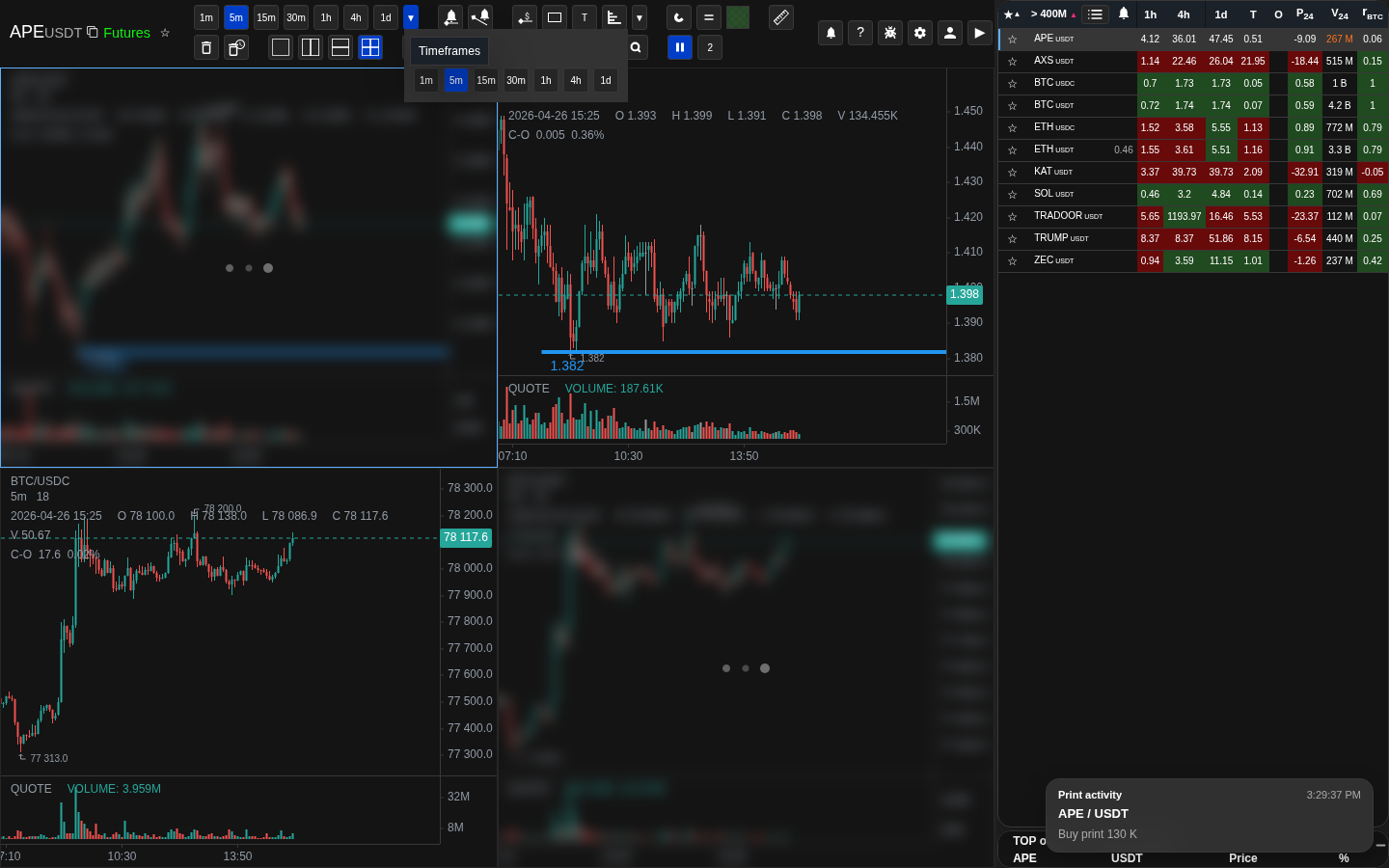
- Header buttons that switch the number of visible charts: one chart, two charts, or four charts.
- Relation buttons and the active chart slot inside the visible layout.
- Top-list button and its interval selector when you are in list mode.
- The "Selected charts" / "All charts switch, which opens the ribbon of all the coins on the active list.
- Horizontal and vertical two-chart layout buttons in the header.
- Grid manager with the "Create" action and the list of saved grids.
- Fullscreen button in the chart header and the fullscreen state with the list hidden.
Step-by-step flow
- Open a saved list when you want to work with a stream of coins, filters, favorites, and autosort. In this mode the coin list and orderbook are on the right, and the charts are on the left.
- Open a saved grid when you need a fixed set of charts with their own saved tickers. A grid is a separate saved entity, not just another layout button.
- Use single mode when you want to open one ticker directly, without list logic and without a saved grid.
- In list mode or grid mode, use the header buttons to choose how many charts are visible at once. One slot is always active.
- When you click a coin in the list, the active slot changes first. If relation links are enabled, several chart slots can change together.
- If top-list is enabled, the visible slots are filled with the top coins from the current list. The number of visible coins equals the number of visible chart slots.
- Open the "All charts" section if you need to understand the full band, the overall timeframe, the settings, the auto-sorting interval, manual updates and navigation.
- On mobile, use "All charts", when you need a vertical flow of graphs sorted by the selected list metric.
- While the pointer is over the list, autosort is temporarily paused so you can inspect another coin. When the pointer leaves the list, automatic selection resumes.
- To create a saved grid, open the grid manager and click "Create". Assign a ticker to each slot, set the layout, and save. The grid stores its own tickers and layout independently from any list or top-list state.
- To switch between horizontal and vertical two-chart layout, use the corresponding buttons in the header. Horizontal places charts side by side; vertical stacks them one above the other.
- To enter fullscreen, click the fullscreen button in the chart header. The coin list hides and charts fill the screen. Click the same button to exit and restore the list.
Default keyboard shortcuts
Layout and navigation
Screenshots
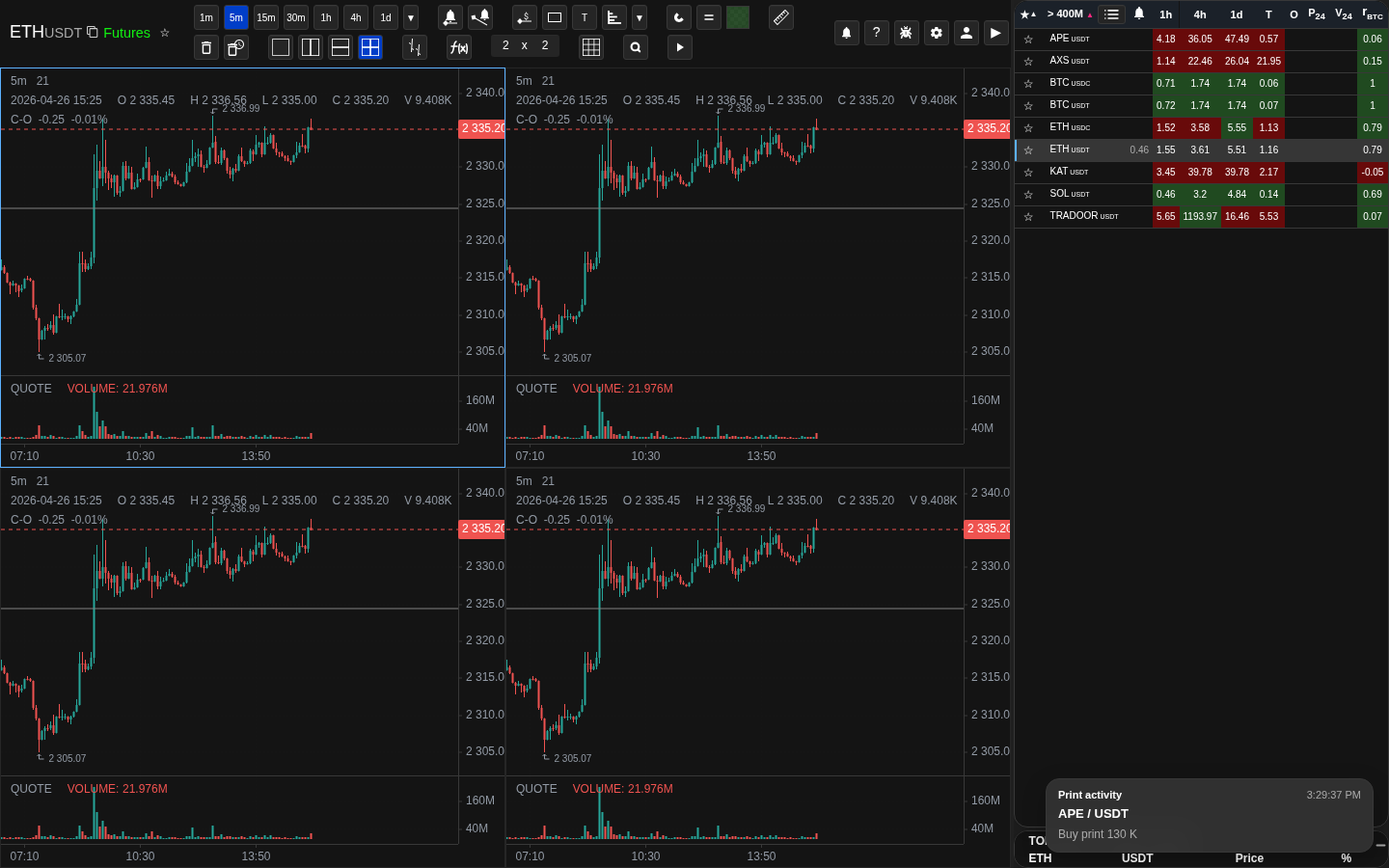
List mode with the list and charts
In the normal working mode, charts are on the left and the coin list with the orderbook is on the right.
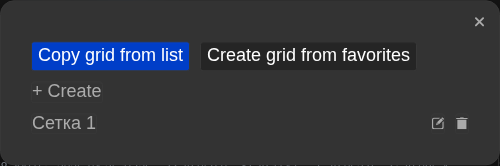
Grid manager and a saved grid
A grid opens as its own saved entity with a fixed set of chart slots.
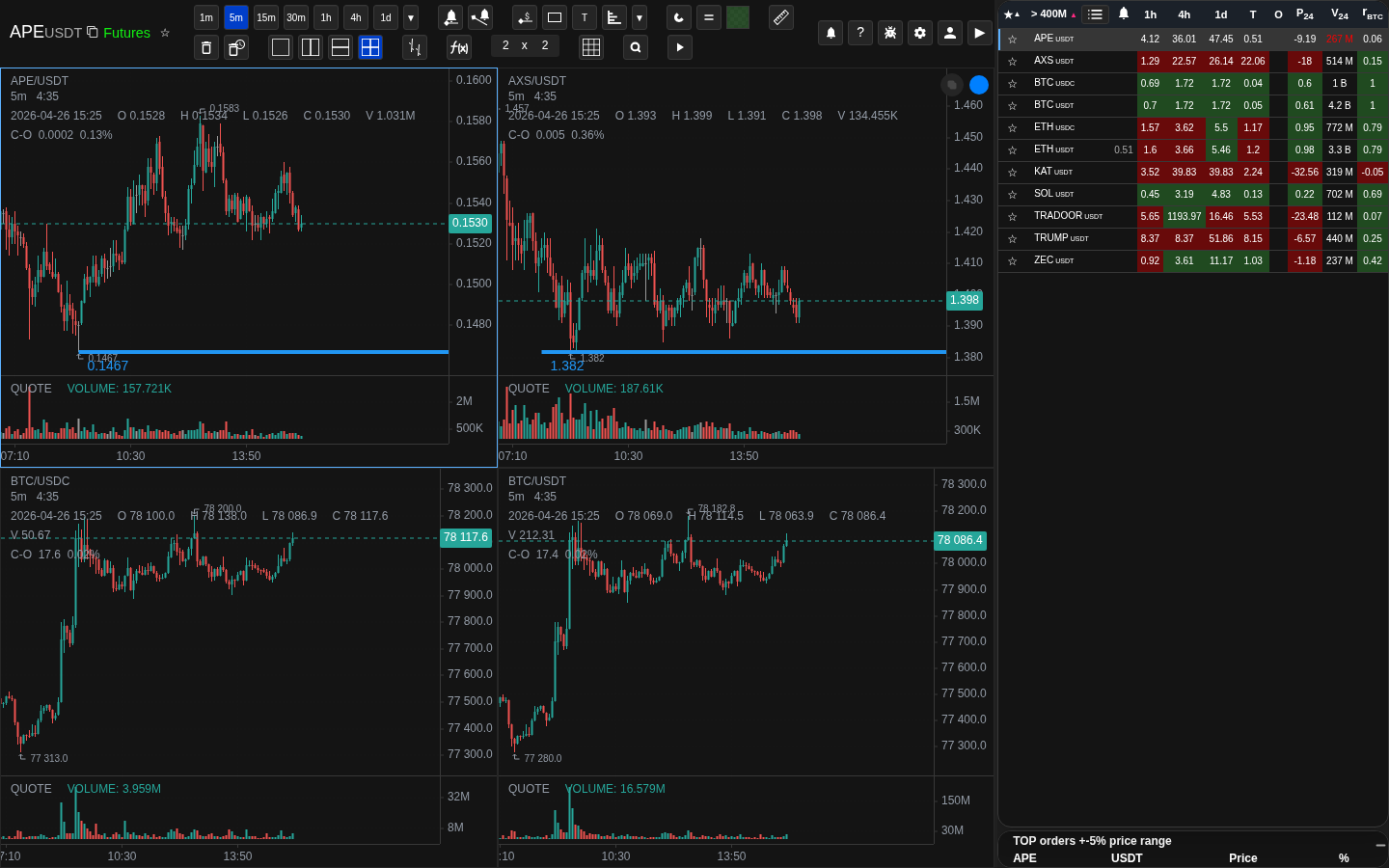
Single mode for one ticker
Single mode opens one instrument directly without list logic.
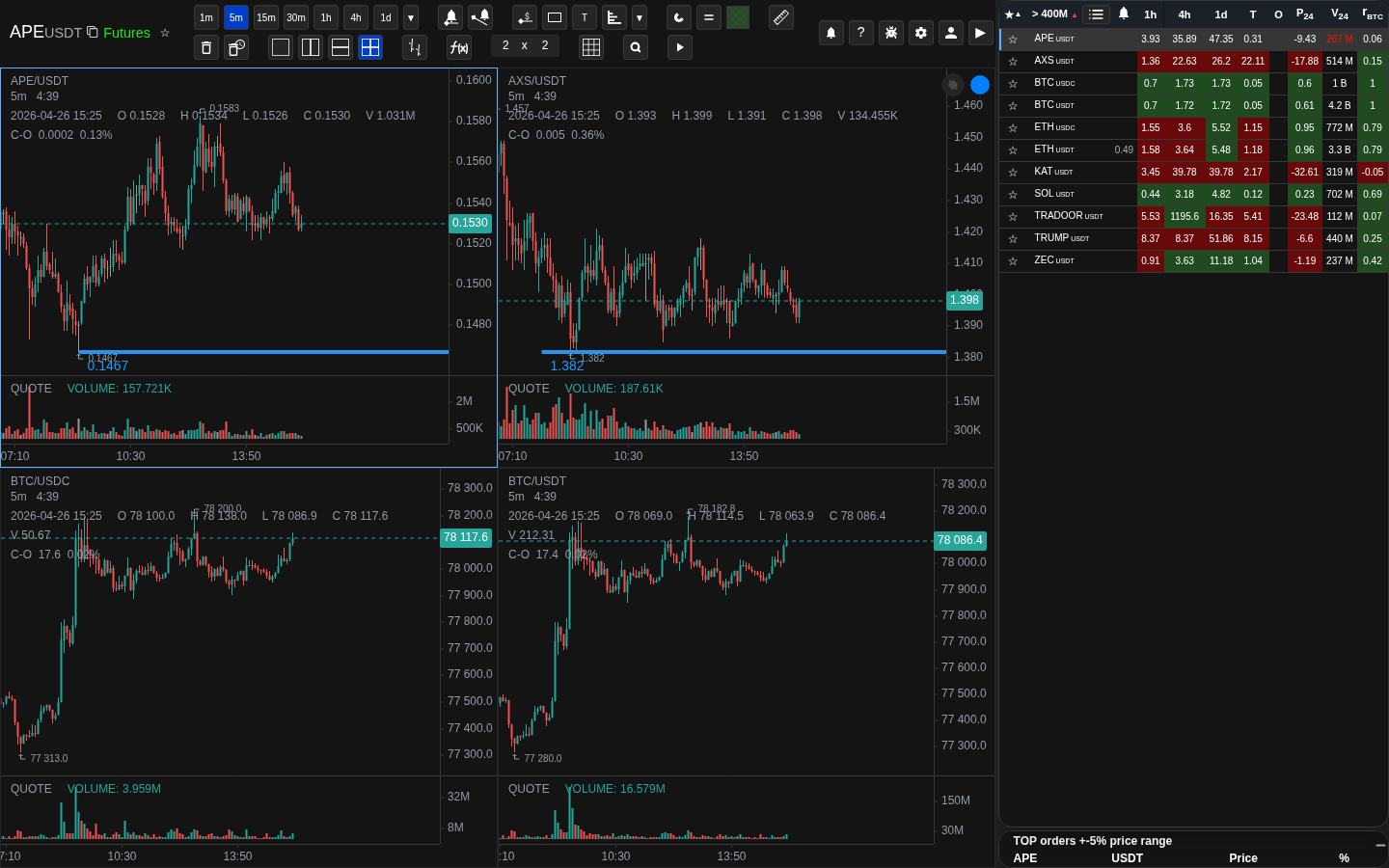
Layout, active slot, and relation buttons
Header controls change chart count, active slot, and relation links.
Top-list with interval control
Top-list is enabled in list mode, and its interval selector appears next to it.
Operational notes
- List mode, grid mode, and single mode are different application states. They should not be confused with the simple visual choice of how many charts are visible on screen.
- A saved grid is not built automatically from the current list. It stores its own chart slots and its own saved tickers.
- Top-list belongs to list mode. It does not replace saved grids and does not turn into a permanent workspace snapshot.
- "All charts" Display mode of the current list in sorting order. This is not a saved network, and it does not rewrite the network layout or connection settings of the "Selected charts mode.
- "All charts" keeps its own general timeframe, layout, auto-sorting interval, panel and color visibility separate from the regular grid.
- When the interval is set to "Manual", the order remains stable until the update, metric or direction change.
- The floating leafing block is a support element of the "All charts mode only. It is controlled by the "Leafing buttons in All charts" setting.
- The current chart layout determines how many top coins can be shown at once, because top-list fills the visible chart slots.
- When relation is enabled, one manual action can update several charts. When relation is disabled, only the active slot changes.
- Autosort pause on list hover is temporary. It is meant for inspection, not for replacing the underlying top-list logic.
- The two-chart layout has two separate variants: horizontal (side by side) and vertical (stacked). They are separate buttons in the header, not a sub-option of the same button.
- Fullscreen hides the coin list. While in fullscreen you cannot click coins from the list. Exit fullscreen first if you need to interact with the list again.
- Opening the same account on mobile does not save mobile 1x1 display as the desktop layout. Desktop grid size is restored when you return to desktop.
- The mobile mode "All charts" stores TF, metrics, direction, number of graphs, signature, visibility and color of parameters. It does not create or rewrite the saved desktop network.
When to use it
- Good fit when you need to understand which application mode is currently open: list, grid, or single.
- It is useful when the same coin seems to behave differently because the active chart slot, relation links, or top-list mode are involved.
- Use it when you want one explanation of how saved grids differ from ordinary list mode and how visible chart layouts work inside both.
When not to rely on it
- This is not the main section for metric formulas, screener thresholds, or alert trigger rules.
- It is also not the right place for questions about account access, subscription limits, payment state, or notification delivery channels.
Typical interpretation mistakes
- Do not treat a saved grid and the current chart layout as the same thing. A saved grid is a separate saved entity.
- Do not treat top-list as a permanent saved workspace state. It is a display mode for the current list.
- Do not expect paused autosort on list hover to mean that autosort is disabled everywhere and permanently.
Algorithms and formulas to understand
- Why list mode, saved grid mode, and single mode open different working contexts even if the charts may look similar on screen
- Why the current chart layout determines how many charts you see at once and, in top-list mode, how many top coins can be shown at the same time
- Why relation can change several charts together, while with relation disabled only the active slot reacts to your action
- Why top-list works only with the current list and why pausing autosort by hovering the list is always temporary
- Why does "All charts" keep its own layout, overall timeframe, auto-sorting interval, and scroll position separate from the regular grid
- Why values can be updated without immediate change and how does manual order updating differ from automatic interval
- Why is the mobile mode "All charts" separate from the stored desktop networks and restores its position after viewing the normal schedule