
Lists and workspaces
Lists keep more than a set of symbols. They also carry favorites, browser alerts, filters, and saved workspace state, so the workspace can open the same way later.
What this section covers
- What is the difference between the saved list of coins, favorites, and temporary filter results.
- How switching to another list restores its own coins, favorites, browser alerts, and saved workspace state.
- What can be done in the list manager: create, select, edit, open in a new window, delete, export, and import lists.
- How list export works: select one or more saved lists, optionally include linked data such as favorites, browser alerts, drawings, and volume overrides, then download a Watchlist.top lists file.
- How list import works: select the list export file Watchlist.top created by the application. Before previewing the application, the application strictly checks the format, version, fields, types, limits and related data; then you can select the desired lists and groups.
- How to sort the coin list by clicking column headers, and how the optional absolute-value sort adds extra sort states for columns that can contain negative values.
- How selecting a coin from the desktop list works: clicking a row or a cell without its own action selects the coin and copies its exchange ticker to the clipboard. Keyboard switching with ↑/↓ also copies the newly selected exchange ticker.
- How the desktop list tooltip can open the selected exchange ticker in an external terminal when Tiger.Trade or MetaScalp integration is enabled in Settings.
- How the search bar narrows the visible rows without changing the saved list composition.
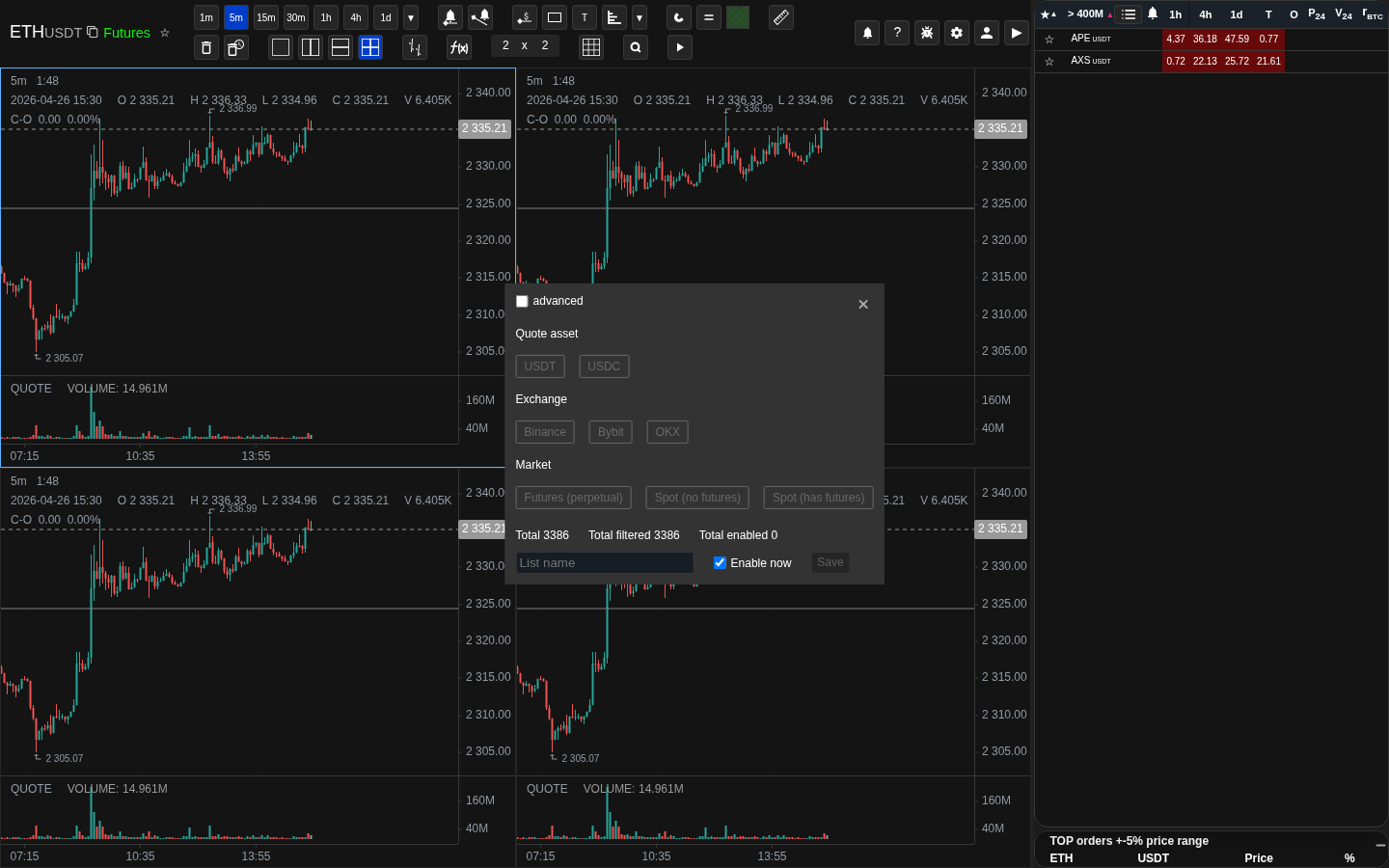
- How renaming a list works: the "Edit" action opens the 24h changes screener where you can update both the coin selection and the list name at once.
- How edit saving works: changing a list name, options, filters, or selected symbols enables the Save button; reverting the draft back to the saved state disables it again.
- When "Open in new window" is useful: working with a second monitor, comparing two lists side by side, or keeping a separate chart context open in parallel.
Key screens and controls
- List header with the current list name and the button that opens the list manager.
- Favorite marker in a row and the color picker that opens from the star.
- List manager dialog with tabs for manager, export, and import.
- List manager actions to select, open in a new window, edit, and delete a list.
- Export tab with list selection and linked-data groups.
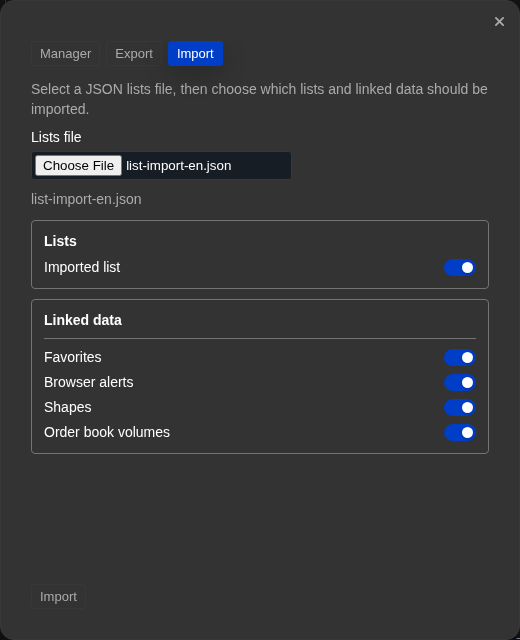
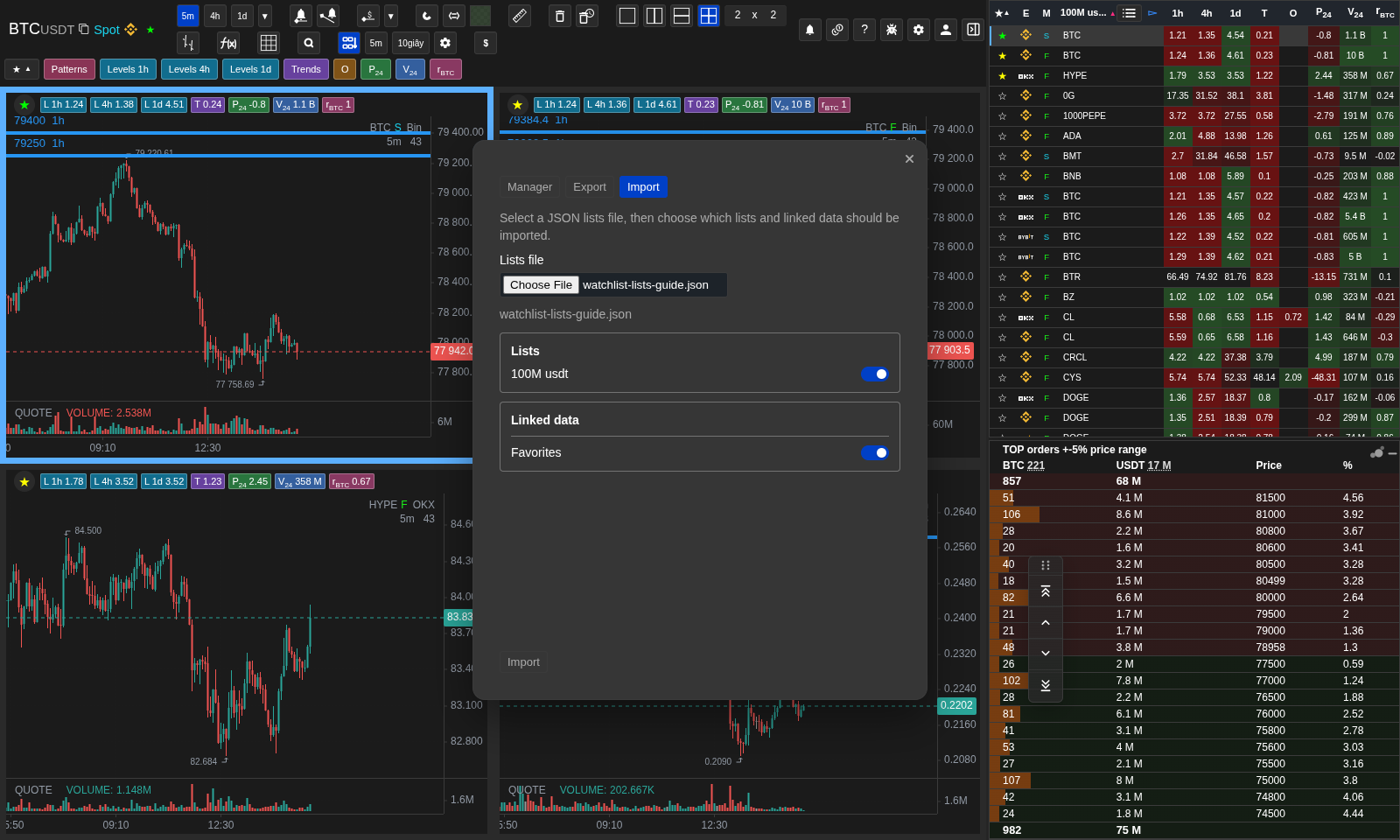
- Import tab with uploaded file preview, list checkboxes, and linked-data group checkboxes.
- 24h changes screener when it is opened to create or edit a list.
- Column headers in the coin list that can be clicked to sort the rows.
- Search bar that filters the visible coin rows without changing the list composition.
Step-by-step flow
- Open the list manager from the list header to see all your saved lists.
- Click a list name to switch to it. The coins, favorites, browser alerts, filters, and saved workspace state all restore from that list.
- To create a list, click "Create" in the list manager. This opens the 24h changes screener where you select coins, name the list, and save.
- To rename a list or change its coins, click "Edit" next to it. The screener opens with the current state — update the name or selection and save.
- While editing a list, use the Save button to apply changes. Closing the screener without saving keeps the previously saved list state.
- To mark a coin as a favorite, click the star next to it in the list. A color palette opens so you can assign a color label.
- To sort the list by a metric, click a column header. With normal sorting, the next click reverses the direction. If Settings → Common → Add absolute-value sorting is enabled and the column can contain negative values, repeated clicks cycle through descending, descending by absolute value, ascending, and ascending by absolute value.
- To select a coin on desktop, click its row or any cell that has no separate click action. The chart and orderbook switch to that coin, and the exchange ticker is copied to the clipboard. The same clipboard copy happens when you move through the list with ↑/↓.
- To narrow the visible rows without changing the list, use the search bar. The saved list composition is not affected.
- To open a list in a second window — for a second monitor or a parallel workspace — choose "Open in new window" from the list manager.
- To export lists, open the Export tab in the list manager, select the lists, choose whether to include linked data groups, and download the file.
- To import the lists, open the "Import" tab and select the list export file created by the app. After successful verification, select the required lists and associated data groups and apply import. If the file is invalid, import will stop before any records.
- To delete a list, find it in the list manager and use the delete action. The list and its favorites, alerts, and saved state are removed.
Screenshots
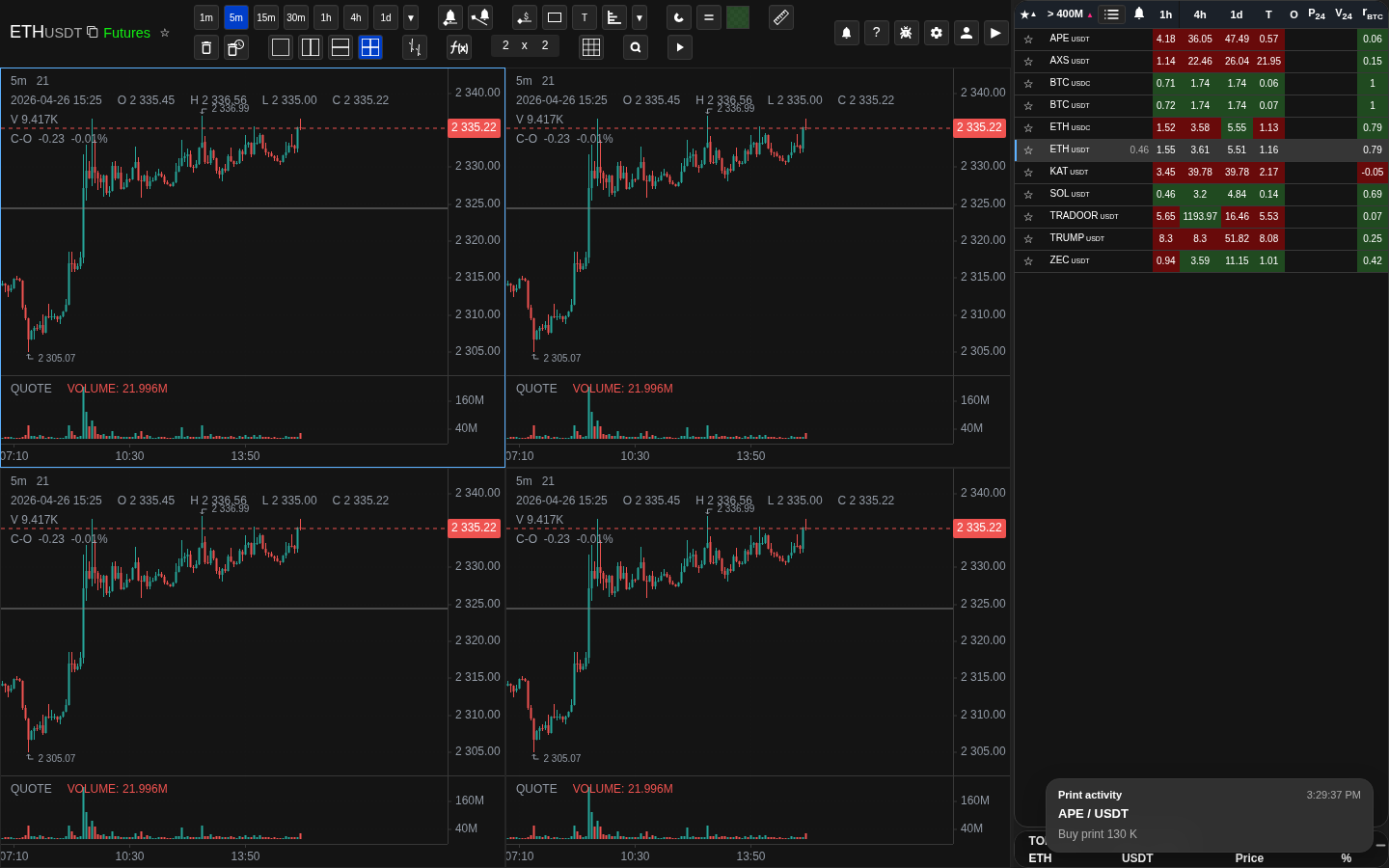
List header with the current list name
The active list name and the list manager button are in the list header.
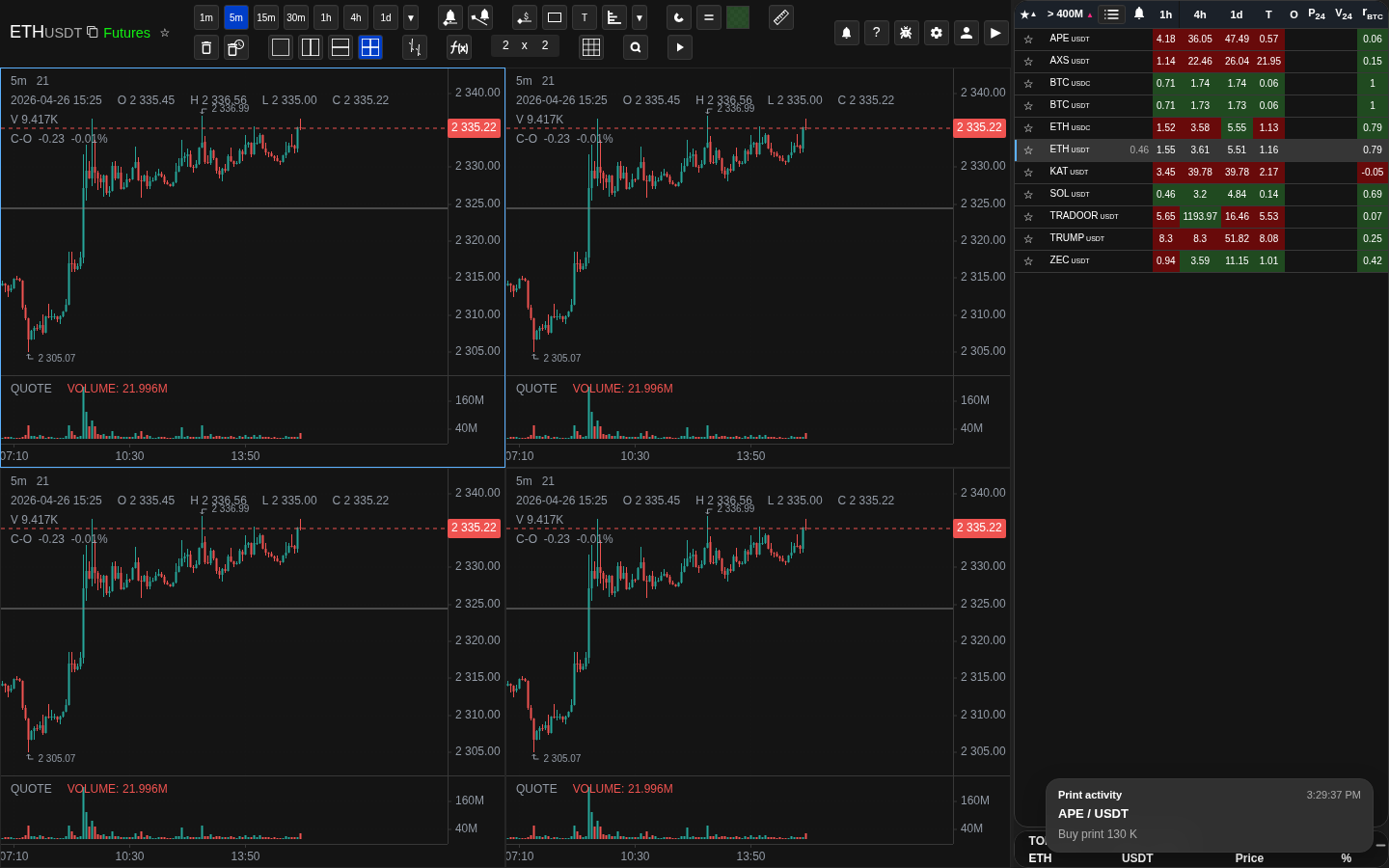
Favorite marker and color palette
A favorite marker can also carry a color label for visual grouping.
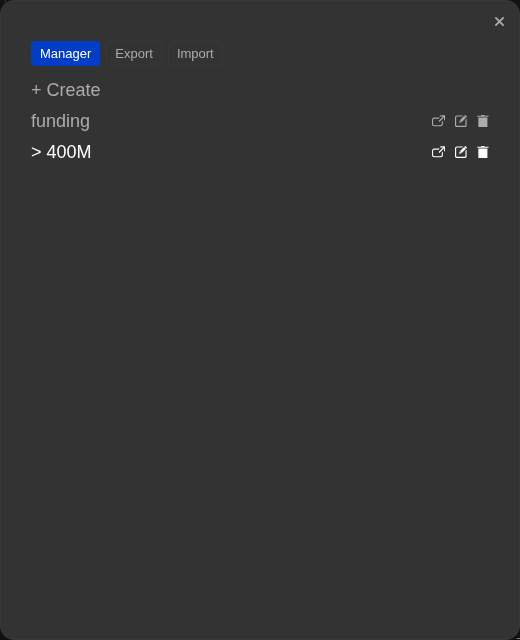
List manager dialog
The manager tab contains the main list actions: select, open in a new window, edit, and delete.
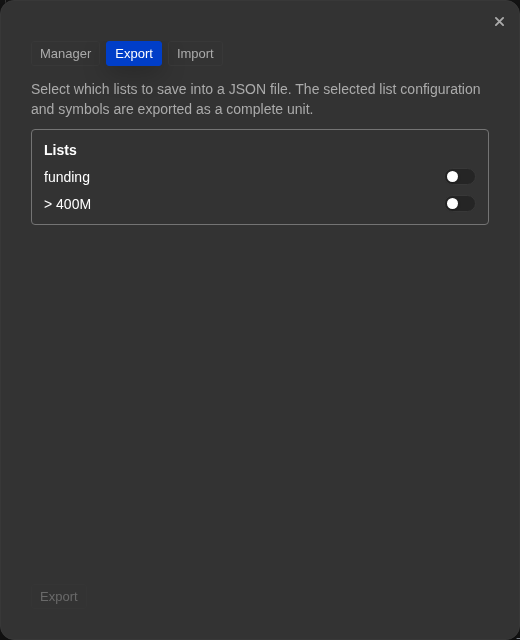
List export tab
Export can include selected lists and optional linked data such as favorites, browser alerts, drawings, and volume overrides.
List import tab
After a rigorous check of the file, you can see lists and associated data groups that you can select before you import.
Editing a list through the 24h changes screener
List creation and editing happen through the screener, not through a separate blank form.
Screenshots
Validated list import
After strict validation, choose lists and linked data before applying.
Operational notes
- A list is more than just a set of coins. It also keeps its own favorites, browser alerts, filters, and saved workspace state.
- The "Create" and "Edit" actions in the list manager both open the 24h changes screener. There is no separate blank form for a new list.
- List edits are not silently persisted while you change filters or options. The saved list changes only after you press Save.
- Favorite colors are labels inside the list. They help group coins visually, but they do not replace the list itself.
- Opening a list in a new window creates a second browser tab pointing to the same saved list. This is useful for a second monitor setup or when you want a parallel chart context without losing your current one.
- Sorting by a column header changes the display order. The sort column and direction are saved with the list and restore when you switch back to it. When absolute-value sorting is enabled, the current sort mode is also shown in the column tooltip.
- Clipboard copy uses the exchange ticker, not a simplified display ticker. This matters for symbols whose exchange format differs from the visible base/quote pair, for example some OKX futures.
- The external-terminal button in the desktop list tooltip depends on Settings → Integrations. If the terminal is not running or the local API is not enabled, the app shows an integration warning instead of changing the terminal chart.
- The search bar narrows what you see but does not remove coins from the list. Search text is not saved and clears when you switch to another list or reload.
- List export files use the Watchlist.top lists format and may include linked data only when you explicitly select those groups. Account identity, password, subscription state, and global settings are not part of the file.
- Import lists strictly check the allowed fields, types, listings, ranges, timeframes, themes and connections of the selected, notifications, drawings, and volume redirections.
- The invalid file is rejected before being recorded. The lists and associated data are not partially used, so you don't need to manually search for half of the imported entities after the error.
- Import lists are not available in demo mode and during trial access.
When to use it
- Good fit when you want to understand how lists, favorites, and saved workspace state are connected.
- It is useful when you need to create, switch, rename, or delete a list and want to know what happens after that.
- Use it when you want one clear explanation of what belongs to a list and what remains global for the whole account.
When not to rely on it
- For one chart, one indicator, or one drawing tool, open the chart and drawing tools section instead.
- It is also not the main section for delivered price alerts or notification delivery channels.
Typical interpretation mistakes
- Do not treat favorites, lists, and saved settings as the same thing.
- Do not expect every change inside one list to become global for all lists and all screens.
- Do not confuse the currently selected coin with the saved state of the whole list.
- Do not manually edit the JSON export and do not upload it to the Settings Import tab: the transfer formats vary and are strictly verified.
Algorithms and formulas to understand
- Why each saved list opens with its own coins, favorites, browser alerts, and workspace instead of inheriting the state of the previous list
- Why temporary filter results do not automatically change the saved composition of the list until you save the changes explicitly
- Why opening the same list in another browser tab still gives you the same saved list rather than a separate independent copy
- Why list export separates the list itself from optional linked data such as favorites, alerts, drawings, and volume overrides
- Why importing a list file lets you choose which lists and linked data groups to apply instead of importing everything blindly
- Why is a stringent check of the entire file done before recording and prevents partial import status
- Why is modular sorting useful for negative metrics: it raises the most powerful movement upward regardless of the sign
- Why can a line selection copy a currency ticker while maintaining the usual coin selection behavior
- Why does the terminal integration use the exchange format of the ticker instead of the shortened visible symbol?