
Screener and filters
The 24h changes screener is the main tool for building and editing saved lists. In basic mode it gives a fast way to select a broad set of coins by quote asset, exchange, and market. Advanced mode opens the full table with column filters, sorting, manual checkboxes, auto-update rules, and exception handling. The important distinction is what is visible after filtering and what is actually checked for saving.
What this section covers
- How the screener is opened: from the list manager via "Create" to build a new list, or via "Edit" to modify an existing one.
- What basic mode does: quick filter buttons for quote asset (USDT, USDC), exchange (Binance, Bybit, OKX), and market group (Futures, Spot, Spot+Futures, TradFi futures) select all currently matching coins.
- How quick filters behave: buttons can be turned on and off, and several values can be active at once. After every quick-filter change, the screener clears the previous checked set and checks the coins that match the active quick filters.
- When to use advanced mode: switch it on when you need to inspect individual rows, search by base asset, filter by quote asset, exchange, market, price change %, quote volume, approximate USD volume, or listing date, and manually check exact symbols.
- What "Save checked" changes in advanced mode: checked coins remain checked even if the next filter no longer shows them. Without it, changing filters can remove checked state from rows that stop matching.
- What auto-update means: if enabled, the list can be refreshed from numeric filters later. Auto-update is available only when at least one numeric filter is set, and its exception column lets you keep specific coins out of the automatic refresh.
- How "Keep favorites" and "Keep coins with notifications" work during auto-update: matching favorites or coins with notifications stay enabled even if they do not pass the filters.
- What the bottom counters mean: "Total" is the full screener universe, "Filtered" is the current visible/matched subset, and "Total enabled" is how many coins are checked and will be saved.
- How saving behaves while editing: the Save button becomes active only when the draft really differs from the saved list. If you revert the change, Save becomes inactive again.
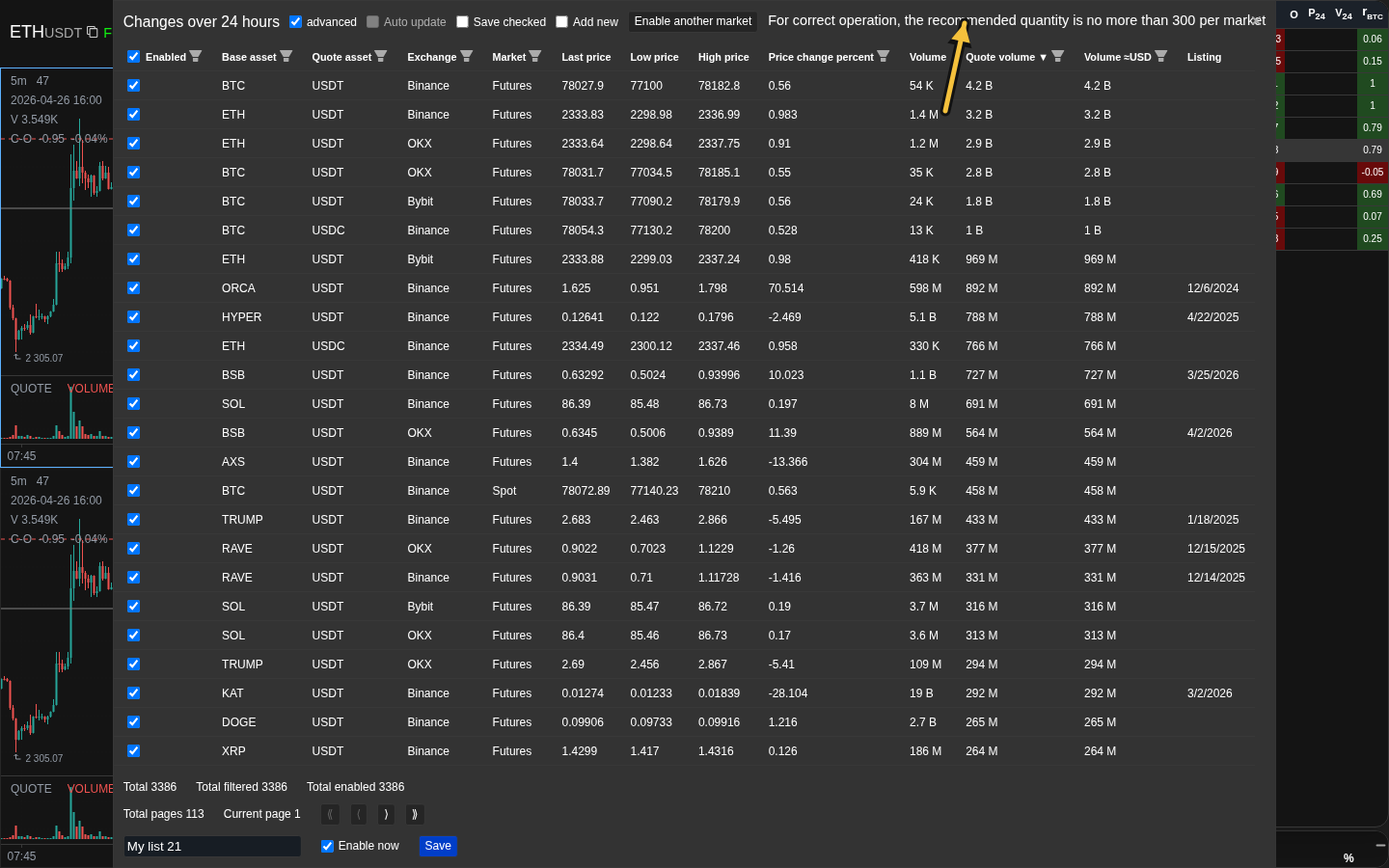
- Why a warning appears when more than 300 coins are enabled for one exchange/market pair, and what it means for data loading speed.
- What the "TradFi futures" group means: these are perpetual futures on traditional assets — stocks and commodities such as gold — offered by the exchange in the same interface as crypto futures. They are tagged as a separate market group in the screener and are not mixed with regular perpetual futures on coins.
Key screens and controls
- Basic screener mode with quick filters for quote asset, exchange, and market group.
- Advanced screener table with enabled checkbox, base asset, quote asset, exchange, market, price fields, price change %, base volume, quote volume, approximate USD volume, and listing date.
- Advanced header with Advanced mode, Auto update, Save checked, Add new, and Enable another market.
- Bottom save area showing Total, Filtered, Total enabled, List name, Enable now, and Save.
- Warning banner that appears when more than 300 coins are enabled for one exchange/market pair.
Step-by-step flow
- Open the list manager from the list header. Click "Create" to start a new list, or "Edit" next to an existing list to update it.
- For a fast broad list, stay in basic mode. Turn on the quote assets, exchanges, and market groups you want. The matching coins are selected automatically, and "Total enabled" shows the saved count.
- If you turn all quick filters off, the quick-filter selection becomes empty. Turn on at least one quick filter before saving.
- If you need manual control, enable "Advanced mode". Use the table columns to filter, sort, and inspect individual symbols.
- In advanced mode, check or uncheck rows directly. Click a row to toggle its enabled checkbox, or use the enabled header control to apply the action to the filtered subset.
- Before changing filters in advanced mode, enable "Save checked" if you want already selected coins to stay selected even when they stop matching the new filter.
- Use numeric filters (price change %, quote volume, or approximate USD volume) when you want auto-update. After a numeric filter is set, enable "Auto update" if the list should refresh from the same criteria later.
- Use "Enable another market" when enabled symbols should also be enabled on the paired spot/futures market where the matching instrument exists.
- Watch "Total enabled". If it exceeds 300 for any exchange/market pair, reduce the list or accept that initial synchronization can be slower.
- Type a name in the "List name" field. Leave "Enable now" on if you want the list to become active immediately after saving.
- When editing an existing list, review the Save button before closing. Closing without Save leaves the saved list unchanged.
- Press "Save". If "Enable now" was on, the working screen switches to the saved list. If it was off, open the list later from the list manager.
Screenshots
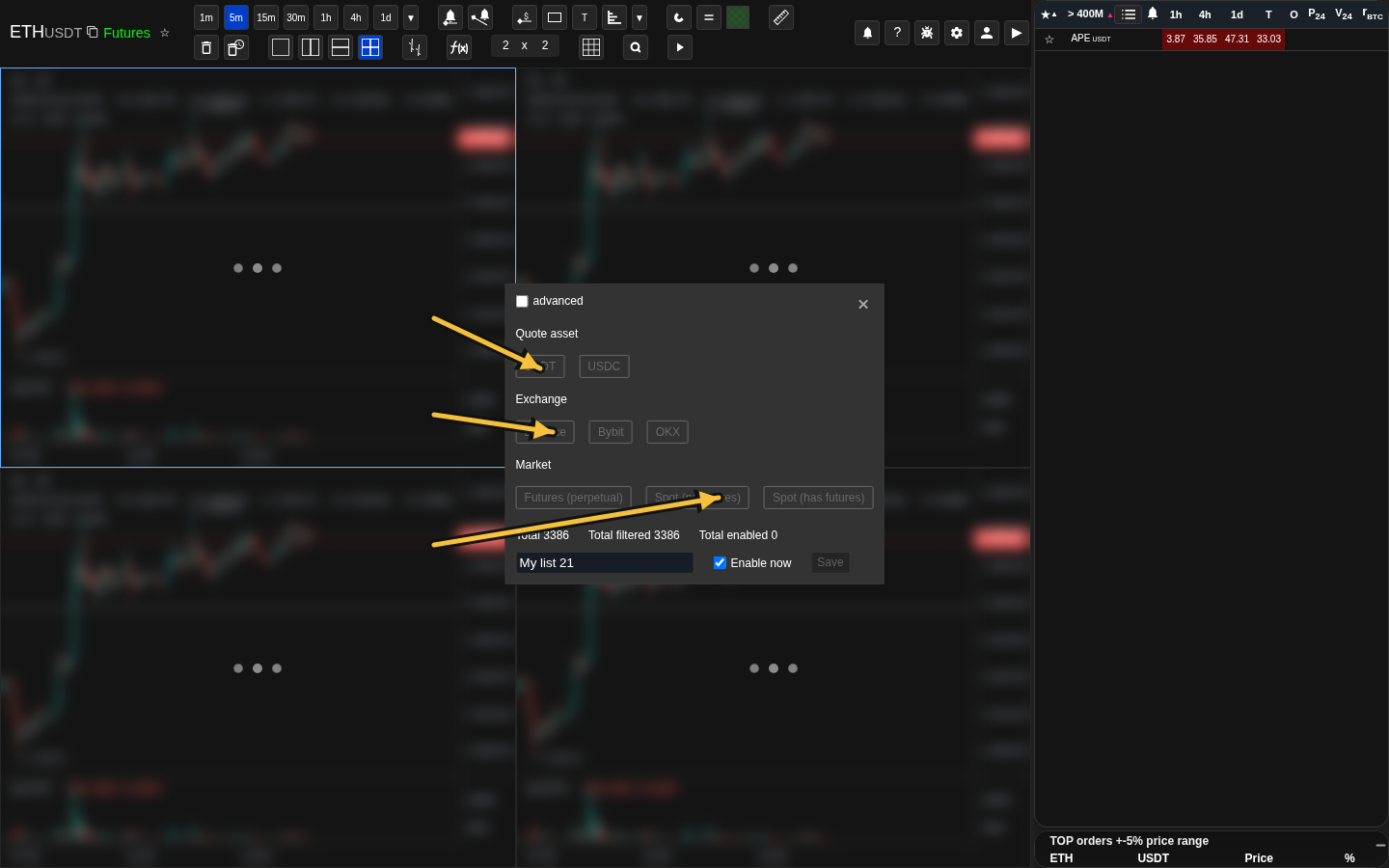
Basic quick filters
In basic mode, choose quote assets, exchanges, and market groups with buttons. Several values can be enabled at the same time.
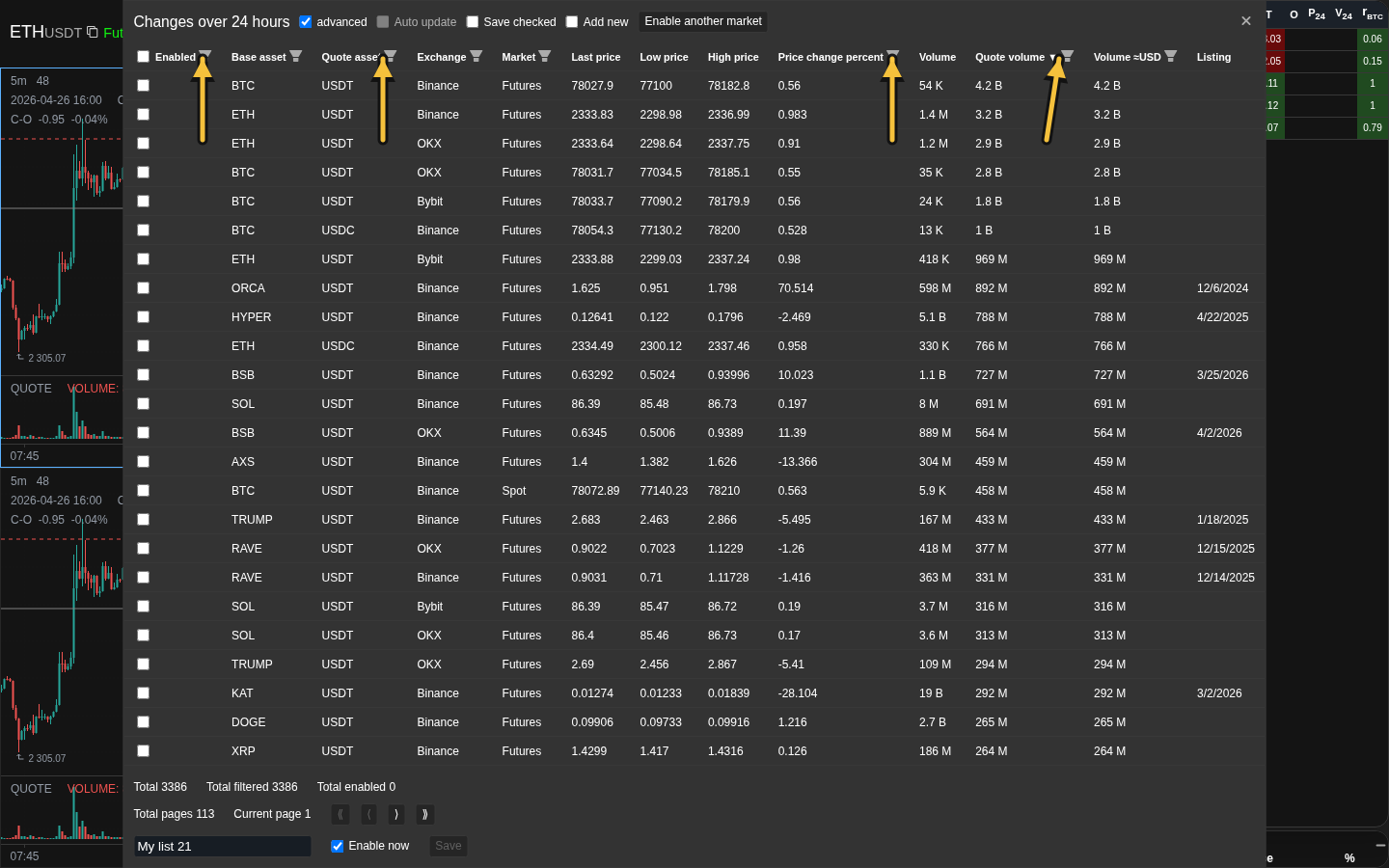
Advanced column filters
In the advanced table, filter the list by enabled state, base and quote asset, exchange, market, volume, price change, and listing date.
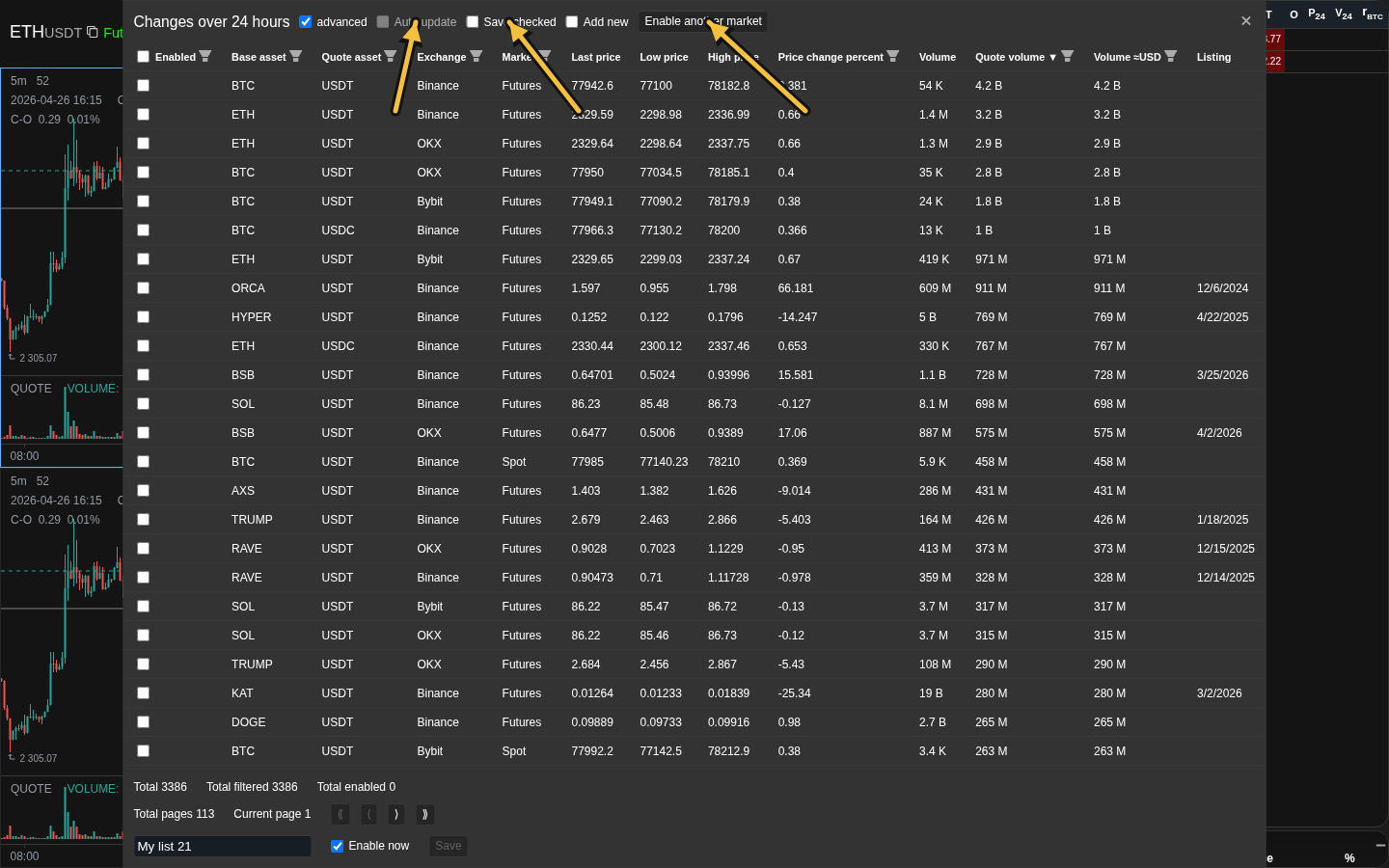
Save checked and Auto update options
In the advanced screener header, use Save checked, Auto update, Add new, and Enable another market to control how the list is selected and refreshed.
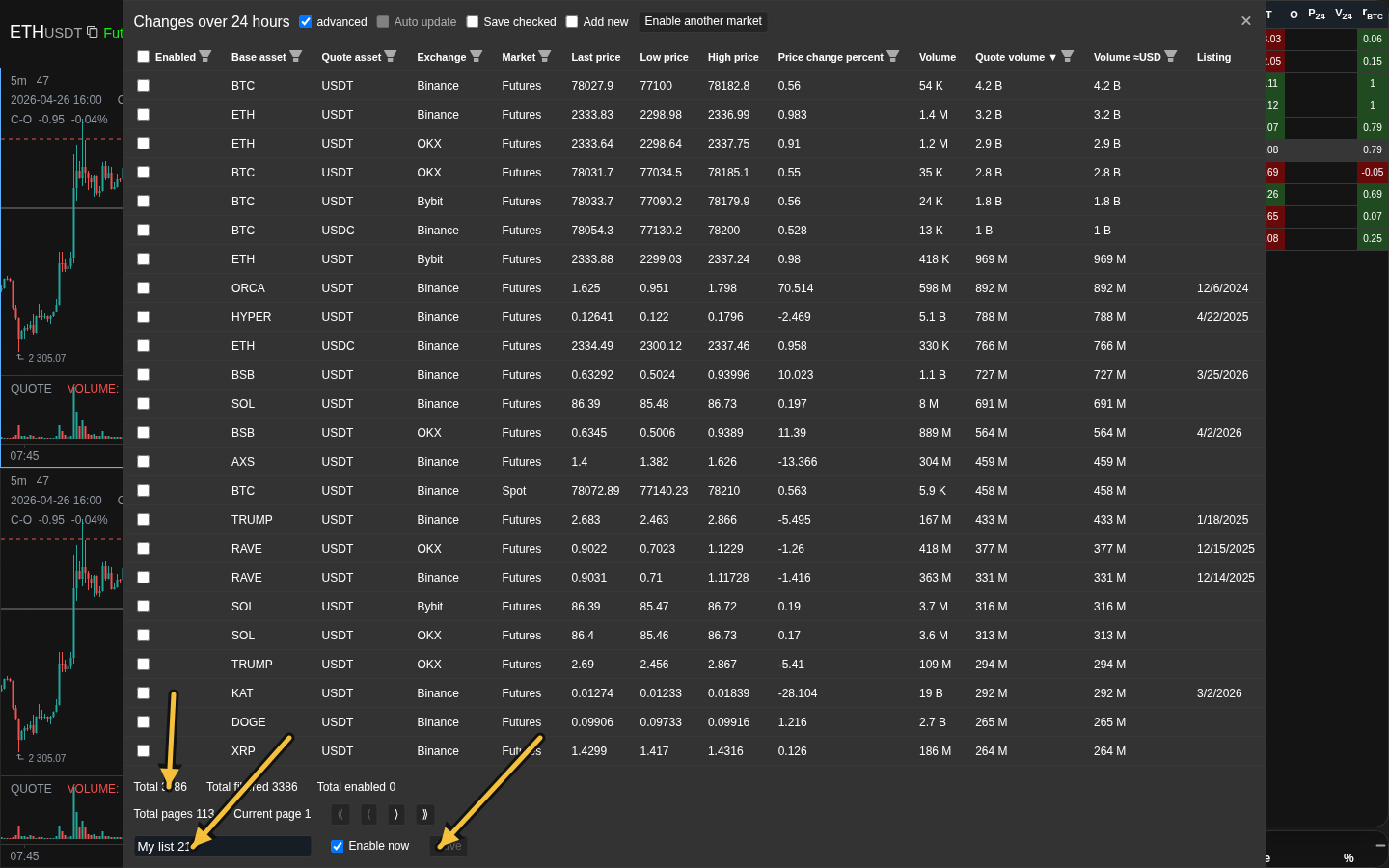
Counters and list saving
At the bottom, check Total, Filtered, and Total enabled, set the list name, and choose whether the list should become active immediately after saving.
Large-list warning
When more than 300 coins are enabled for one exchange/market pair, the screener warns that initial loading and synchronization can be slower.
Operational notes
- Basic quick filters are selection tools, not just visual filters. They replace the current checked set with all coins that match the active quick-filter combination.
- Advanced column filters are for precise work. Use "Save checked" before changing filters if you want hidden checked coins to remain part of the saved list.
- "Select all" style actions in the advanced enabled header apply to the filtered subset, not necessarily to every coin in the full screener universe.
- "Total enabled" is the reliable number for what will be saved. "Filtered" only describes the current matched subset.
- Opening and closing the screener without Save does not apply draft filter or selection changes to the saved list.
- Auto-update requires at least one numeric filter. List filters such as exchange, market, quote asset, or base asset alone are not enough to enable it.
- The 300-coin warning is per exchange/market pair. A list with 250 Binance Spot coins and 250 Bybit Futures coins will not trigger it because each pair is counted separately.
- List creation and saving require active access. Demo mode can show the screener, but saving a working list is blocked.
When to use it
- When you are creating or editing a saved list and need to decide between quick selection and precise advanced filtering.
- When you need to understand how filter state interacts with list contents, sort order, checked rows, and auto-update.
- When you are trying to narrow down candidates by market conditions rather than taking a chart action.
When not to rely on it
- If you are debugging one specific fired alert or a saved drawing.
- If your question is about metric formula internals rather than how to use the screener controls.
Typical interpretation mistakes
- Expecting basic quick filters to preserve a manually checked set. In basic mode they rebuild the selection from the active buttons.
- Changing advanced filters without "Save checked" and then assuming hidden checked coins are still selected.
- Confusing sort order with eligibility filters — they are separate settings.
Algorithms and formulas to understand
- Why basic quick filters replace the selected set instead of only changing what is visible
- Why "Save checked" matters when advanced filters hide already selected coins
- Why auto-update is tied to numeric filters and how excluded coins, favorites, and alert coins are handled during refresh
- Why the 300-coin threshold triggers a warning per exchange/market pair and what it means for data synchronization