
Event notifications
Watchlist.top combines the signal levels and beams, pulses, large prints, volume spikes and transaction spikes in a single band "Notifications". The server price alerts continue to work when the app is closed; the pulse, transaction flow, and metric conditions are calculated in the app that is running. Settings are in the tabs "Price" and "Complex, and the metric conditions are opened by clicking on the list cell.
What this section covers
- What is the difference between server-delivered price notifications and notifications that work only inside the application.
- As the window is arranged: "Notifications" a single tape of the events that worked, and "Settings" contains "Price" and "Complex" alerts.
- How to filter the tape by the types actually present: "All", "Level", "Signal Ray", "Impulse", "Large print", "Volume burst" and "Print burst.
- Why do price alerts have active and inactive server notifications, and signal level or beam activations fall into the common band?
- Why Complex contains "Price impulse" and "Trade flow", and metric alerts are created from the cells of the current list.
- How to choose a delivery channel in your account settings and why you need a confirmed email or a linked Telegram to do so.
- Why is there only one active price notification available without an active subscription?
- As the app coordinates multiple tabs: all windows update the tape and alert status, but the sound, toast and OS notification only show one active tab.
- What is a combined-condition notification: it only works when all the given thresholds are met at the same time, as opposed to a single-parametric one.
- Which cells open local alerts by metrics: P₂₄, V₂₄, NATR, VR, P_Δ and TR; the dialog shows thresholds for the selected metric.
- How to set the pulse repeat: "Always" notifies each new platoon, "Manual" suspends the coin until command "Resume", and "Timed" allows a new alert through a selected interval.
- How to resume monitoring of one line or all of the pulses that are suspended, and how to delete the coin or turn off this type of alert for the entire initial list.
- How "Trade flow works: You can track the entire current list with exceptions or only selected coins, take into account all transactions, purchases or sales, and set the sound and pause separately.
- What distinguishes the three flow conditions: "Large print" responds to one transaction, "Volume burst" compares the total volume of the window to the average, and "Print burst" similarly compares the number of transactions.
- How to use the prefixes "Early Signal", "Balanced", "Confirmation" and "General Pop-up", and then, if necessary, specify the window, base period, minimum, multiplier and direction.
- How to make a toast: the toast is to stop the auto-disappearance timer, the toast body is to click on the toast and the copy button is to copy the ticker without choosing the coin.
- How voice alerts work: you can select "Voice" instead of short sound when selecting a sound. Then the app reads the event locally with the available voice of the browser/device and the selected speech speed.
Key screens and controls
- Chart controls where price notification lines are created from the chart.
- A single tape with type filters, the original list name, time, monitoring status and actions over each line.
- The notification window is from "Settings → Price / Complex; in "Complex" you can see "Price impulse" and "Trade flow".
- A pulse block with period, change rate, exceptions, sound and repeat modes "Always", "Manual", "Timed".
- Block "Trade flow" with coin area, side, sound, pause and separate cards "Large print", "Volume burst", "Print burst".
- The "Resume" and "Resume all buttons are for pulses that are manually suspended.
- Settings account with email, Telegram and a notification channel.
- A metric alert dialog is opened by clicking on the cell P₂₄, V₂₄, NATR, VR, P_Δ or TR.
- Settings sound in the settings window: sound selection, the "Voice option, voice selection, speed and volume regulator.
Step-by-step flow
- To get a price alert delivered to Telegram or email, create a price notification line directly on the chart. This registers a server-monitored notification that keeps monitoring even when the app is closed.
- Open account settings and make sure the delivery channel is ready. Email delivery requires a confirmed email, and Telegram delivery requires a linked Telegram account.
- Open the "Event notifications" window from the bell. If there are fired events, the window opens on the "Notifications" feed; if there are no events, it opens on "Settings".
- Use the filters above the tape to leave only the level, beam, pulse, large print, volume surge or print surge.
- The newest lines are at the top. A line click opens the linked coin, a copy button copies the ticker, a cross removes the line, and "Delete All" clears the current tape.
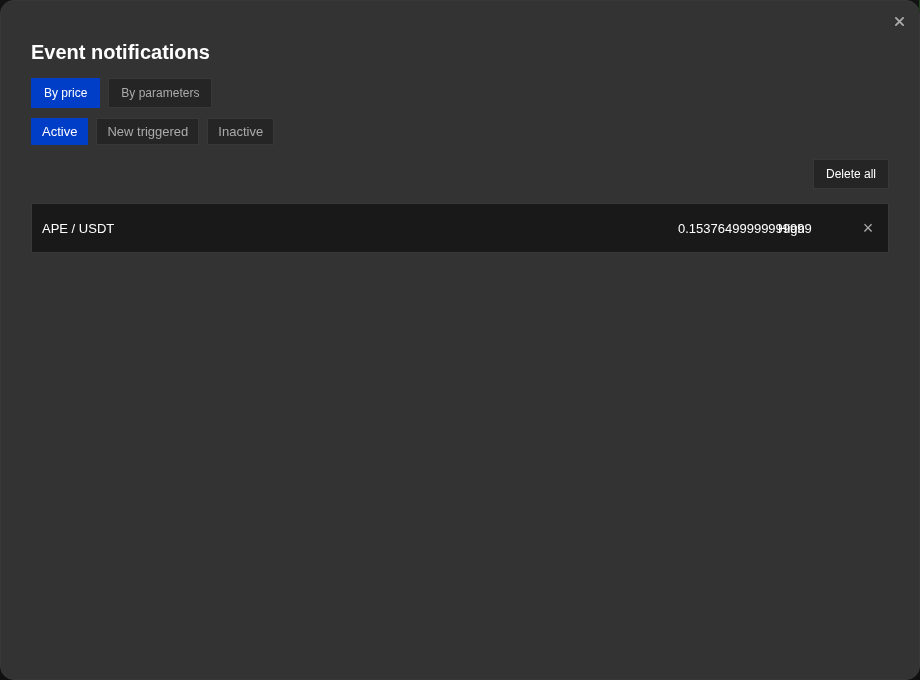
- Use "Settings → Price" to view the server price alerts. "Active" continues to be tracked, "Inactive" remains in the history until deleted or edited.
- To create a local metric alert, click on the cells P₂₄, V₂₄, NATR, VR, P_Δ or TR in the list of coins. Set a threshold in the open dialog; these alerts are for the current saved list.
- Use "Price impulse", when you need to catch a sudden movement in a short time, turn on notifications, specify a period, minimum change, if necessary exclusion, and a separate sound.
- Select the pulse mode: "Always" notify each new platoon; "Manual" suspend this coin after activation; "Timed" allow a new notification after the selected number of minutes.
- In manual mode, press "Resume" in the appropriate line or "Resume all" over the tape. The status of the line changes to "Reboot...", then to "Monitoring restarted"; repeat the action if an error occurs.
- The button with the bell ringing on the local event turns off this type of alert for the entire original list. The button next to it excludes only the coin. Price levels and beams are not reset by these actions.
- Use "Trade flow", when you need to respond to live deals. Select the entire current list or individual coins, the "All" / "Buy" / "Sell" side, sound and the minimum pause between repeats.
- For one large transaction, enter "Large print" and enter the minimum volume in the quote coin.
- To accelerate the volume, turn on "Volume burst". Select the ready press or enter the window, period, minimum volume and multiplier.
- To speed up the transaction frequency, turn on "Print burst". It compares the number of transactions in the current window to the minimum and average number for the base period; the window, multiplier, and quantity imbalance are set separately from the volume bounce.
- If the "All list" mode is enabled, but some of the characters do not need to be monitored, tap "Add exceptions" and select the lines that should be deleted from the print activity monitoring.
- If "Selected Coins" is turned on, use the filter buttons on the exchange and market, then select the lines of the coins you want.
- When the alert is activated, a pop-up plate appears in the lower right corner, and a coin is displayed that is the notification.
- The toast is more time-consuming, and the copy button inside the toast is copied by the ticker without opening the coin.
- For a combined local condition, open the supported metric cell and add the necessary conditions to the dialog.
- To turn on the sound of the notifications, go to Settings, select the sound and enter the volume. If multiple tabs Watchlist.top are opened, the sound, the toast and the OS notification will only produce one active tab.
- To make the alert read by voice, select "Voice" from the same list of sounds, specify the voice and speed, then check the preview.
Screenshots
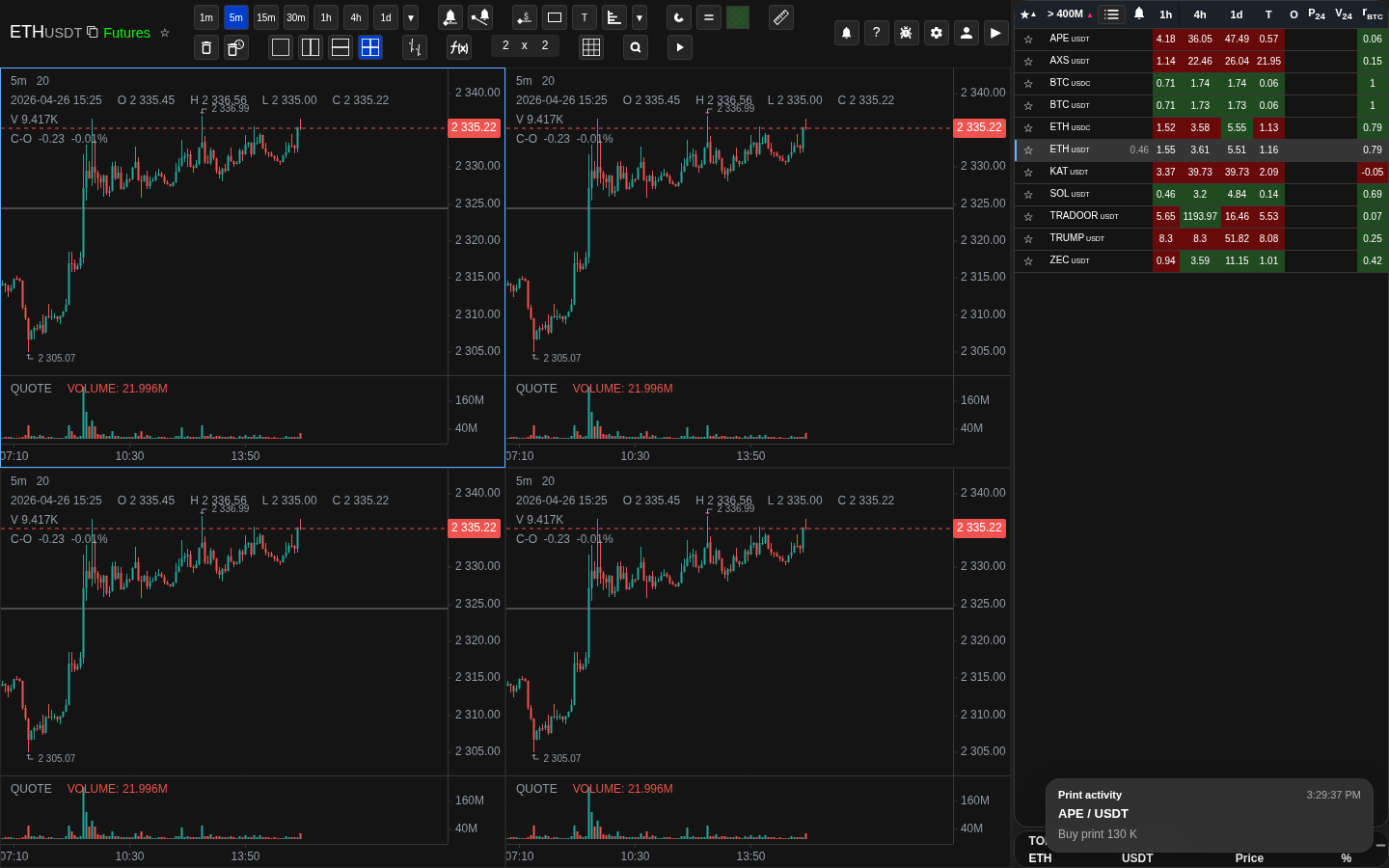
Price notification line on the chart
Server-monitored price notifications are created directly on the chart and remain visible as alert levels.
Unified notification feed and filters
Shows event types, source, monitoring state, and row actions.
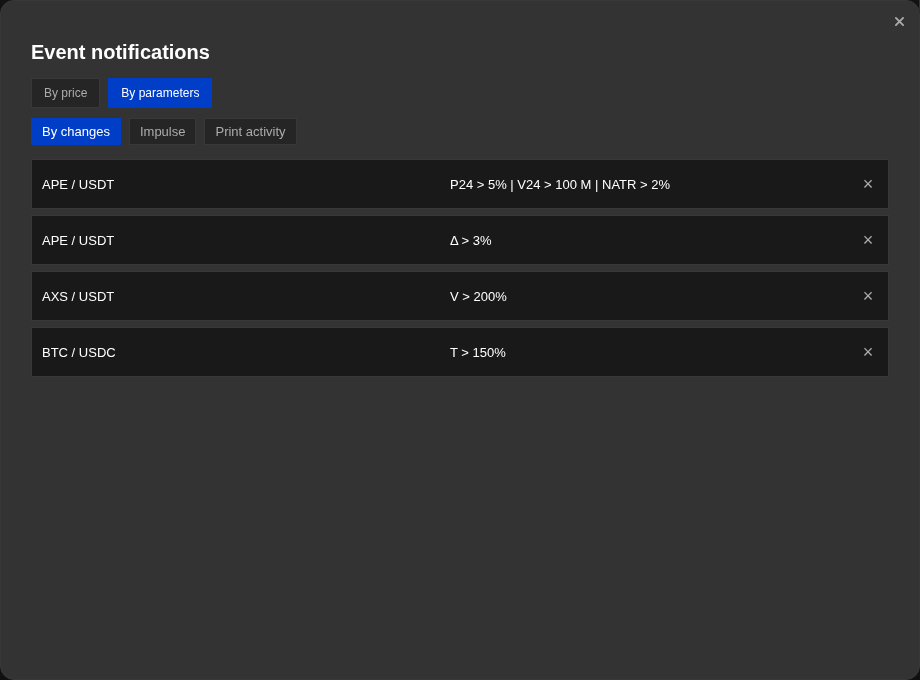
Metric alerts for the current list
Click a supported metric cell to create or review its local alert conditions for the current list.
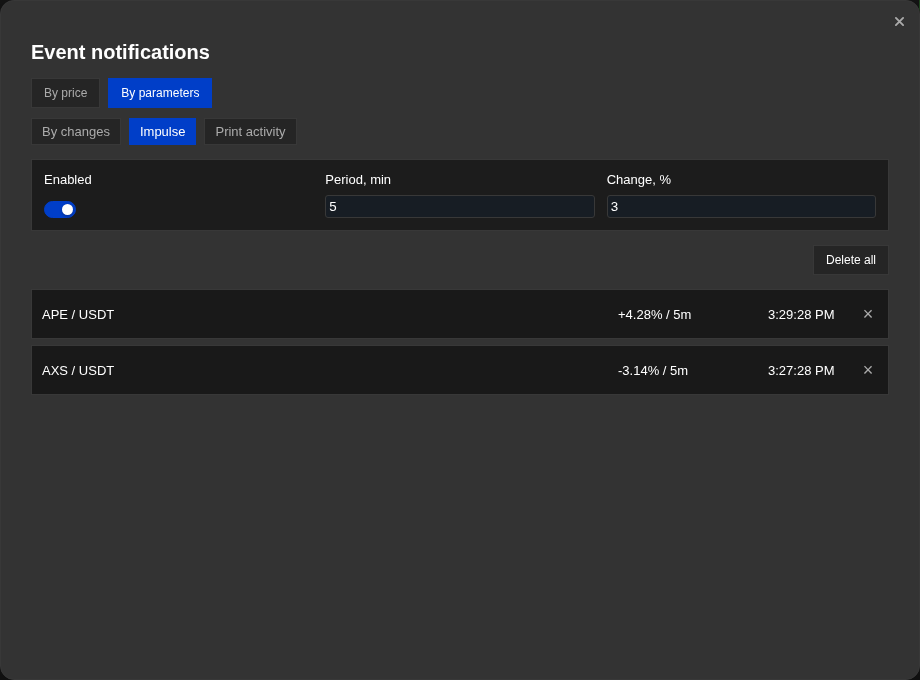
Impulse settings and repeat mode
Period, threshold, exclusions, sound, and Always, Manual, and Timed repeat modes.
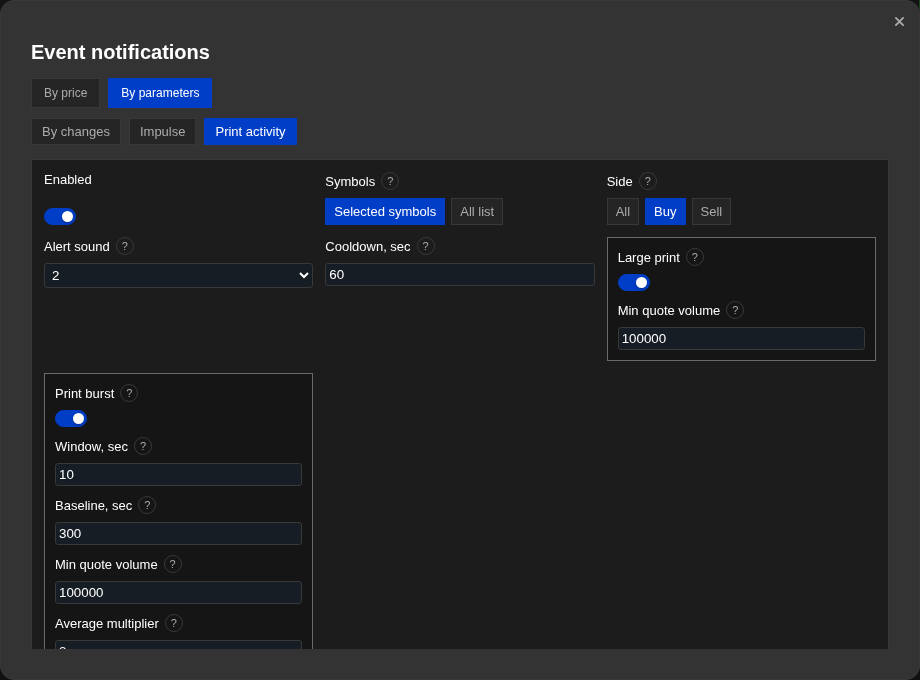
Trade flow — large print and volume burst
Scope, side, sound, cooldown, presets, and volume-burst direction settings.
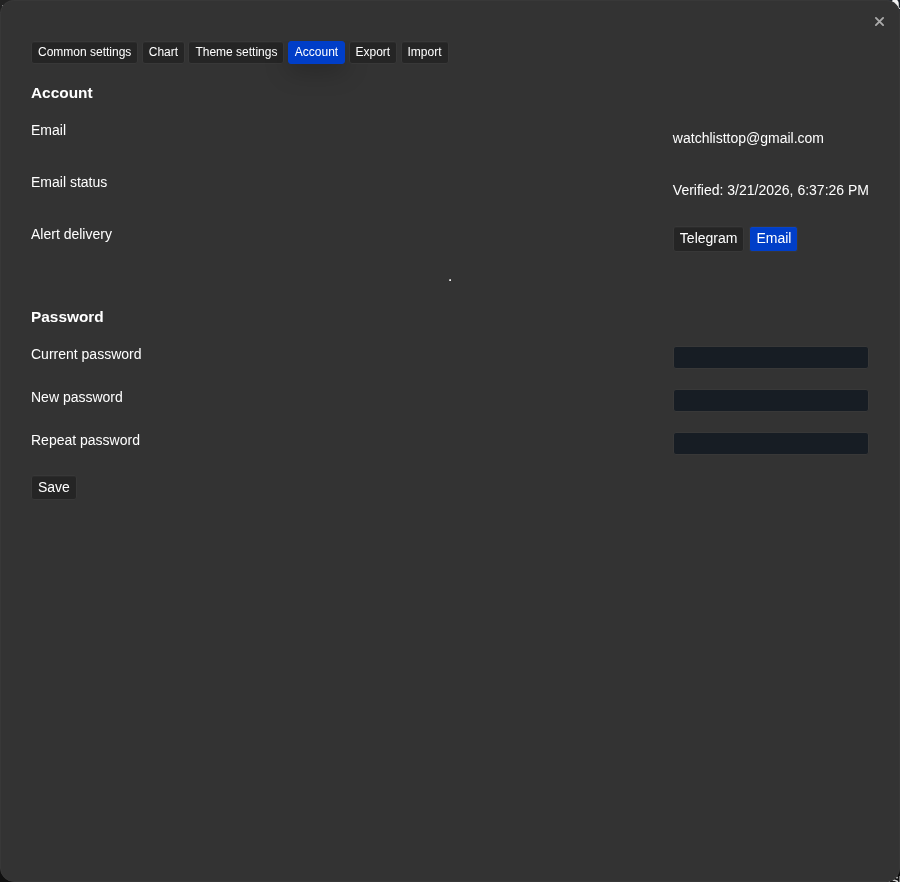
Alert delivery channel in account settings
Account settings contain email confirmation, Telegram link status, and delivery channel selection.
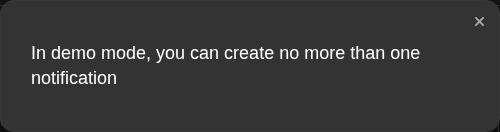
Demo warning about the active notification limit
Demo mode warns when a second active server-monitored notification would exceed the limit.
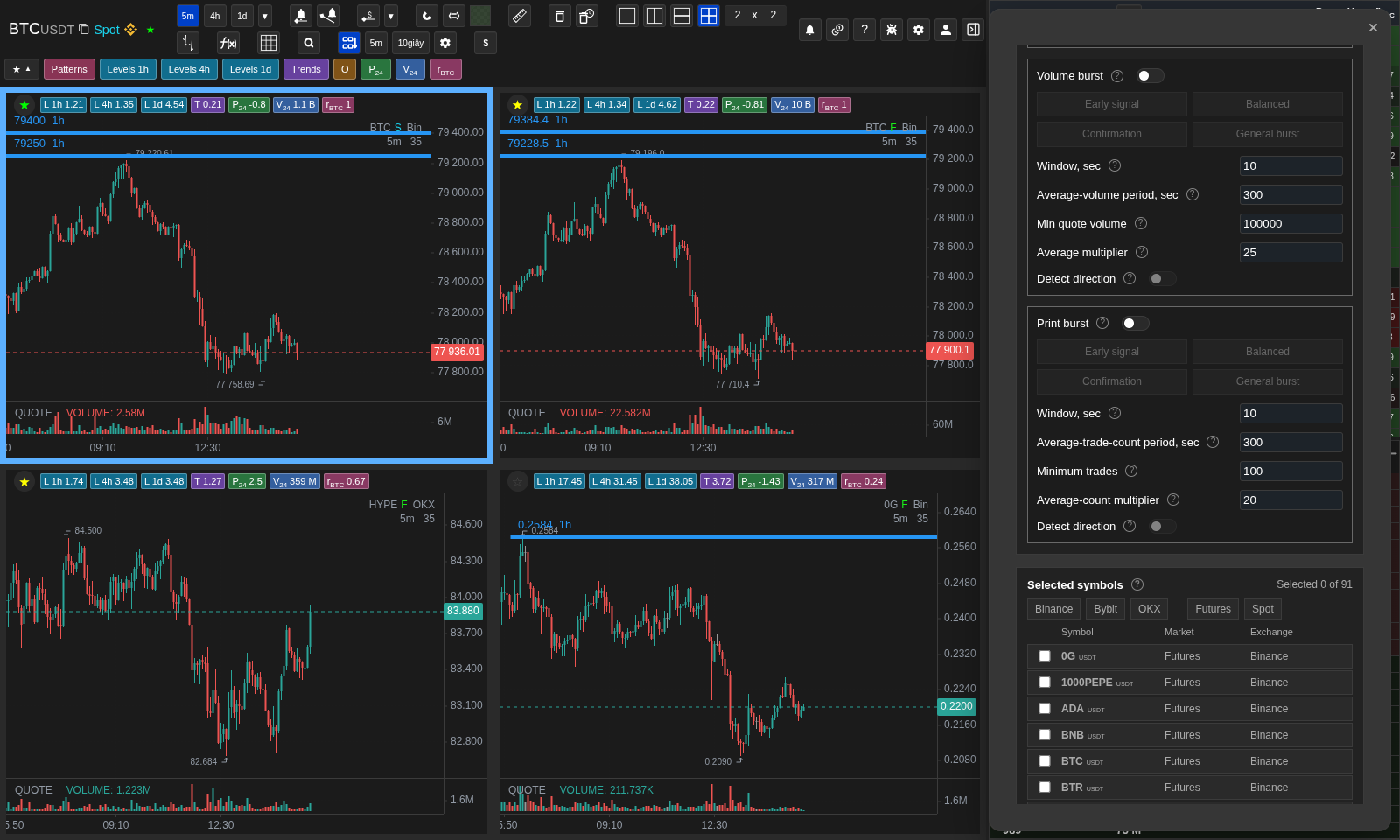
Trade flow — print-count burst
Window, average print count, minimum, multiplier, and side imbalance.
Operational notes
- Price notifications with delivery are monitored on the server. They do not depend on whether the coin is currently visible in your open list or chart.
- The metrics, momentum and transaction flow alerts are the original saved list or grid.
- A single story is stored locally in the browser separately for the current user and is limited to 200 recent events. It experiences a page reload, but is not a server archive and is not automatically transferred to another device.
- A few open tabs synchronize new events, delete lines, resume momentum and confirm price alerts. Only the lead tab will play back the sound and create a toast or OS notification, so no duplicates should be made.
- The pulse re-activation mode only changes the re-activation for the same symbol, it doesn't change the formula, the period, or the set percentage threshold.
- In the "Manual" mode, removing the line and resuming monitoring are different actions. For the suspended line, the "Resume button is displayed; after a successful resumption the event can remain in the history with status.
- The server price notification that has worked is shown in the "Notifications ribbon. Removing the ribbon does not permanently remove the alert from the schedule: it goes into the history of inactive price notifications.
- If the email is not confirmed and Telegram is not attached, the app will not be able to use the corresponding delivery channel even if the notification itself is already set.
- The sound notifications are played locally by the lead tab. If it is silenced, the browser has not yet allowed the device to play or the volume is at zero, the event will appear on the tape without sound.
- The combination notice requires all thresholds to be executed simultaneously.
- The Settings transaction stream is stored along with the current list. The "All List" mode connects streams for all of its coins; use the exceptions for multiple characters or "Selected Coins" for a narrow set.
- The sound selection in the transaction stream is separate from the global local sound of the alerts.
- "Volume burst" and "Print burst" are different terms. The first sums the volume in the quotation, the second counts the number of live transactions. Each has its own minimum, average, multiplier and imbalance estimate; you can include and adjust them independently.
- The short window responds earlier, but it makes more noise. The early signal, balanced, confirmation and general pop-up presses are start options that you should check and adjust for liquidity and trading style.
- Volume spike is triggered when the volume of the window is at least the minimum given and at least the average volume of the comparative window multiplied by the multiplier. Print burst applies the same scheme to the number of transactions.
- If the direction is defined by the "All" side, the volume alert compares the volume of purchases and sales, and the alert by the number of purchases and sales.
- The average period is the normal activity history, so as long as the data is less than the current window, the flash comparison is expected to be a fairly large amount of history.
- The alert toasts are interactive. The usual click selects the linked coin; the closing and copying buttons only perform their function. If the current list contains different markets or exchanges, the toast and line in the tape also show the market and exchange where it is needed.
- The notification tape keeps the scroll position inside the current dialogue session, which is convenient when picking up multiple working alerts on the mobile.
- When a paid or previously granted trial access expires, active server price notifications are suspended and moved to the list of inactive ones.
- Voice alerts use the speech engine of a browser or device. If there is no suitable voice, the browser blocks speech before the first interaction or the tab is silenced, the alert may appear on tape but not be sounded.
When to use it
- Open this section to set up notifications and understand where each type is monitored and where it appears later.
- Use it to understand the difference between delivered price notifications and local notifications that only work inside the application.
- It's also useful when thresholds, common-band filters, re-activations, delivery channels, and demo or subscription restrictions are important at the same time.
When not to rely on it
- This is not the main section if you only need to confirm email, link Telegram, or restore account access before configuring notifications.
- It is also not the main section for the formula of one metric when the question is about how that value is calculated rather than how notifications use it.
Typical interpretation mistakes
- Do not assume that every notification visible in the window is an actively monitored delivered price notification. The window also shows local notifications for the current list.
- Do not ignore account status and channel readiness when you expect delivery. A configured notification still needs a valid email or Telegram channel and the right subscription state.
- One should not confuse "Volume burst" with "Printing Flares": one compares volume, the other number of transactions.
- You shouldn't consider a local tape as a server archive or expect it to automatically transfer its history to another device.
Algorithms and formulas to understand
- Why a fired price notification is shown in the Notifications feed first and moves to inactive only after you remove it from that feed
- Why are the metrics, momentum, and transaction flow of alerts in the original saved list, and why is the common tape linking events from different sources?
- Why is a single story stored locally by the user, limited to 200 events, and synced between tabs, but not between devices?
- What are the pulse modes "Always", "Manual", and "Timed" and why they don't change the pulse threshold itself
- Large print: a single parsed live trade triggers when price × quantity reaches the configured minimum quote volume and the condition is out of cooldown
- Volume burst: the volume of live transactions in the quotation window is compared to the minimum volume and average volume of the comparison window multiplied by the given multiplier
- Print burst: the number of live transactions out of the window is compared to the minimum and average times the proper multiplier
- Why is it that only the active leader shows the sound, the toast and the OS notification when the tape status is updated in all windows?
- Why can a demo account only have one active price notification server at a time